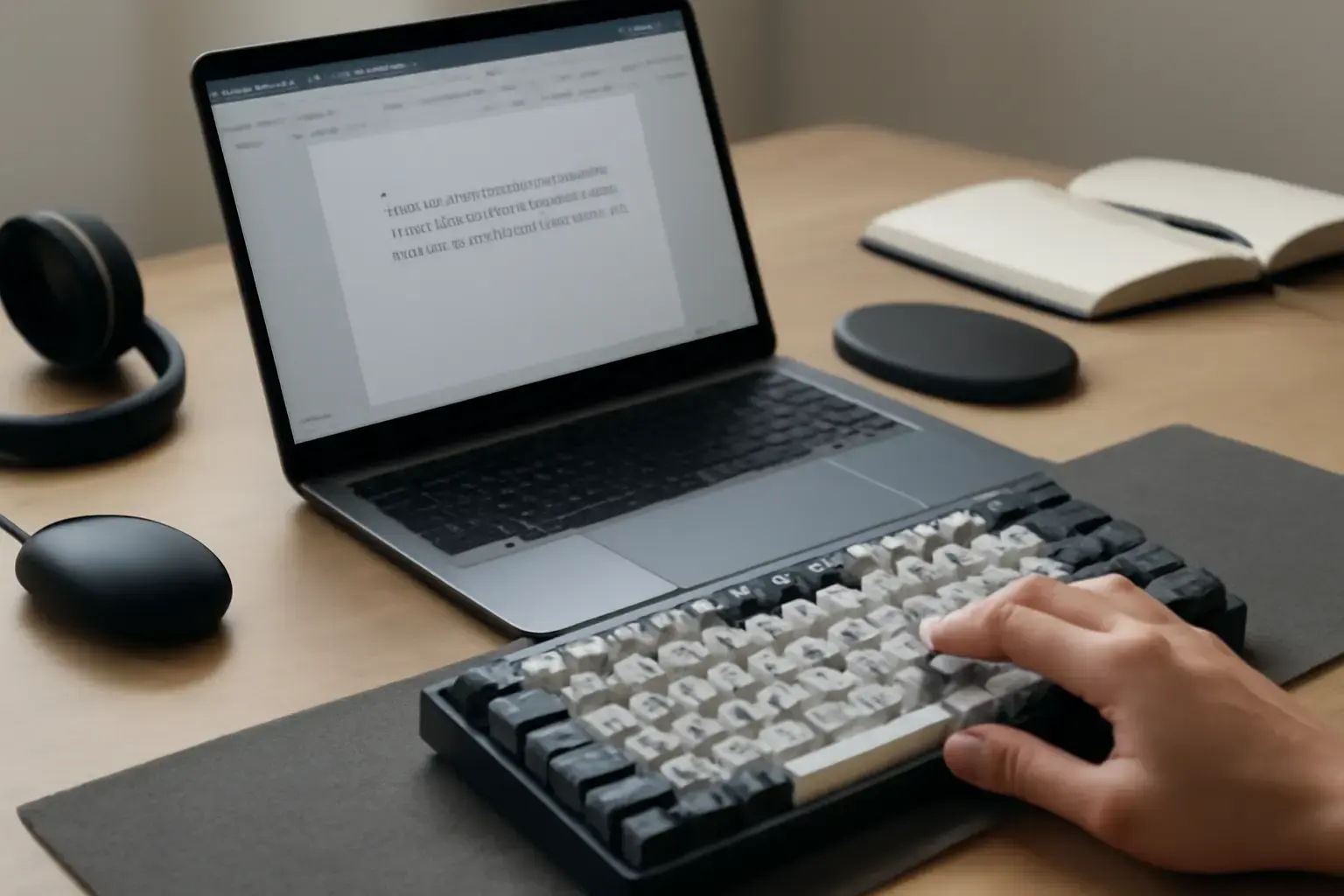
The Multilingual Office User’s Keyboard Dilemma: Why One Layout Doesn’t Fit All
For office users typing daily in three or more languages, the keyboard layout becomes more than a preference; it’s a critical productivity factor. Unlike bilingual users who might manage with simple language toggles, trilingual or more frequent switchers endure workflow interruptions from mismatched key placements, autocorrect errors, and slow manual switching. The wrong keyboard layout choice leads to increased typing errors, slower WPM, and increased hand fatigue.
Simply sticking to QWERTY or switching between default OS layouts often means compromising typing flow. You need a layout designed to minimize finger travel no matter which language you’re typing in and one that gracefully handles special characters and diacritics common in your languages. Ergonomics and software compatibility must balance with layout familiarity.
Top Keyboard Layouts for Fast Multilingual Switching and Typing Comfort
Some keyboard layouts are inherently better for heavy multilingual typing because they accommodate multiple script needs and symbols with less finger gymnastics. Here’s how the main contenders stack up for trilingual or more users:
- US International Layout: A popular default, it offers dead keys for accents and diacritics and covers most Latin-based languages. However, it can be slow for users juggling non-Latin scripts or requiring frequent symbol access since some keys require multi-keystroke sequences.
- Multilingual Ergonomic Layouts (eg. Colemak Mod-DH Multilingual Variant): These layouts prioritize finger movement efficiency and include custom mappings for accented characters. They require a learning curve but greatly improve typing speed and reduce fatigue in multilingual contexts.
- Custom Layered Layouts (via Layout Software): Power users often build customized layouts layering languages with easy toggle keys. While unbeatable for personal efficiency, these require investing time in setup and relearning, which may be impractical for some office environments.
- Language-Specific Layouts with Hotkey Switching: For users with very different scripts (e.g., Latin, Cyrillic, Arabic), switching between layouts optimized for each language with keyboard shortcuts can be effective. But this disrupts flow unless style and key shape are similar.
Practical Strategies and Tools to Minimize Layout Switching Disruptions
Beyond layout selection, the software and workflow setup matter for smooth language switching:
- Keyboard Layout Switcher Apps: Tools like Microsoft PowerToys Keyboard Manager or third-party apps on Mac and Linux allow instant, customizable layout switching with minimal delay. Some apps even display the current layout overlay, avoiding confusion.
- Physical Keyboard with Multiple Language Legends: Multilingual users benefit enormously from keyboards printed or engraved with multiple language characters. This reduces errors and the reliance on memorizing key positions.
- Using Virtual Keyboard Overlays: On-screen keyboards that reflect the current language layout can serve as visual confirmation during rapid switching periods.
- Custom Autocorrect and Text Expansion Profiles: Incorporate language-specific text expansion shortcuts to reduce typing effort for frequently used phrases or accented characters.
Check out our Top Keyboard Layout Switcher Apps for Android Users to see which tools integrate best with mobile workflows, and our guide on choosing layouts for programmers who need similar language agility.
Related reading: Best Mobile Typing Apps Supporting Custom Keyboard Layouts for Users Typing in Less Common Languages
Common Mistakes That Kill Multilingual Typing Productivity
Even experienced multilingual typists slip into unproductive habits or make avoidable mistakes:
- Ignoring Layout Familiarity: Switching to a highly optimized but unfamiliar layout without adequate practice can slow you down more than help.
- Not Using Layout Switching Shortcuts: Manual switching via settings menus interrupts typing flow; always set quick toggles.
- Neglecting Physical Keyboard Compatibility: Not all keyboards match alternative layouts well, especially with custom legends or special symbols.
- Overreliance on Autocorrect: While helpful, autocorrect can introduce errors if language contexts are not correctly detected during rapid switches.
- Failure to Customize Text Expansion: Missing out on language-specific shortcuts means more finger travel and slower typing.
How to Choose Your Keyboard Layout: A Decision Checklist for Multilingual Office Users
- Identify Your Primary Languages and Scripts: Consider if they share alphabets or differ fundamentally (Latin vs Cyrillic vs Arabic).
- Assess Frequency of Switching: If daily switching between three or more languages is required, prioritize layouts and tools with quick toggles and visual cues.
- Evaluate Your Willingness to Learn New Layouts: Optimized layouts may boost WPM and reduce fatigue but require time investment.
- Check Physical Keyboard Compatibility: Invest in keyboards designed for multilingual typing with multiple legends or support hot-swappable keycaps.
- Test Switching Tools and Autocorrect Settings: Make sure software supports smooth transition without errors in your languages.
- Trial Period: Use virtual keyboards or software remapping tools to experiment before committing.
Unlike typing in one or two languages, juggling three or more languages in office work demands a thoughtful keyboard layout and workflow setup. The right choice blends ease of switching, physical key legibility, efficient finger movements, and reliable software support. Avoid default layouts that cause frequent interruptions and opt for optimized multilingual layouts or custom solutions if you type often in several languages.
For more on optimizing multilingual typing workflows and keyboard layout switchers, see How to Choose the Best Keyboard Layout Switcher Apps for Multilingual Users Facing Frequent Language Changes and Best Virtual Keyboard Apps for iOS and Android that support fast custom multilingual input.
Final Recommendation
If you frequently switch between three or more languages daily at the office, your best bet is to avoid default layouts like standard US QWERTY or language-specific layouts used in isolation. Instead, consider multilingual ergonomic layouts like Colemak Mod-DH variants if you’re willing to invest time learning them, or use customizable layered layouts with keyboard switcher apps to keep flow uninterrupted.
Pair your choice with physical keyboards that include multiple language legends if possible, and use software that supports instant switching with clear visual indicators to reduce errors. Avoid layouts that require complicated dead keys or multiple keystrokes for common accented characters across your languages.
This approach minimizes the cognitive and physical friction of switching, boosts your WPM and accuracy across all languages, and reduces fatigue during long typing sessions. Investing in your multilingual typing setup will visibly improve daily productivity and comfort — a rare purchase that pays off fast in demanding office environments.