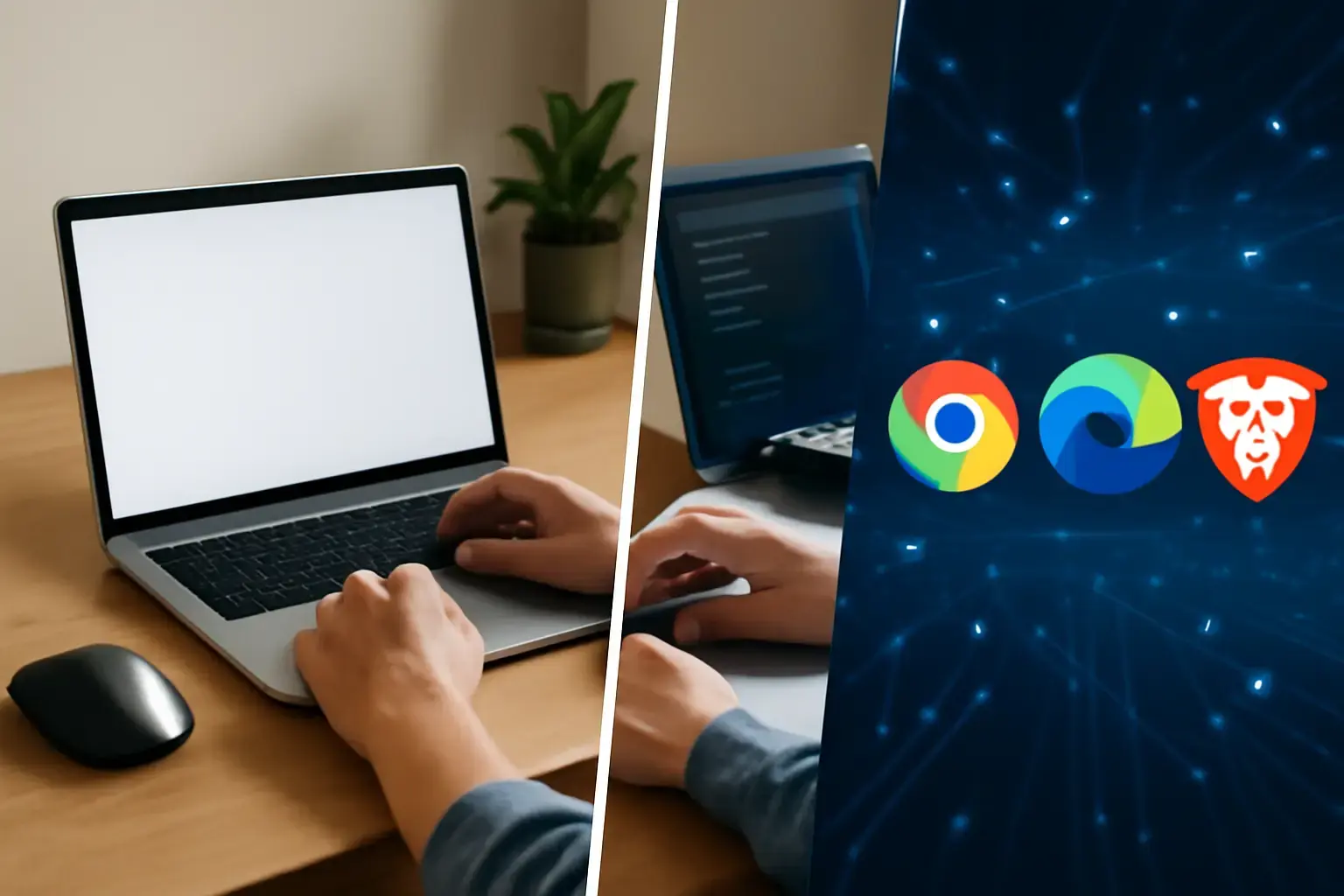
Beyond Benchmarks: Why Browser Choice Still Matters in 2026
It’s easy to assume that modern browsers are interchangeable. After all, Chrome, Edge, and Brave are all built on Chromium, they all load most sites without issue, and they all claim to be fast and secure. But if you spend a significant portion of your day in a browser—as most professionals do—the differences become impossible to ignore.
The reality in 2026 is that browser choice is less about headline speed and more about how the browser behaves under real pressure: dozens of tabs, multiple web apps, background processes, and long sessions that stretch across an entire workday. Add privacy considerations and ecosystem lock-in, and suddenly your browser becomes one of the most important software decisions you make.
This isn’t about picking a “winner.” It’s about understanding how Chrome, Edge, and Brave behave in real-world conditions—and choosing the one that aligns with how you actually work and browse.
Speed in Practice: What Actually Feels Fast
Synthetic benchmarks still dominate marketing, but they rarely reflect what slows you down day to day. What matters more is how a browser handles sustained usage: memory pressure, tab switching latency, and how gracefully it recovers when things get heavy.
- Chrome: Chrome continues to push the limits of raw performance, especially in JavaScript-heavy applications like web-based editors and dashboards. If your workflow involves tools like Google Docs, Figma, or complex internal dashboards, Chrome often feels the most responsive. The trade-off is resource usage. On machines with limited RAM, Chrome can quickly become the bottleneck rather than the solution.
- Edge: Edge has quietly become the most balanced performer. Its tab sleeping and efficiency optimizations make a noticeable difference during long sessions. If you routinely keep 20–50 tabs open, Edge tends to maintain smoothness where Chrome starts to stutter. It’s also one of the few browsers where battery life improvements are immediately noticeable on laptops.
- Brave: Brave takes a different approach. By blocking ads and trackers at the network level, it reduces the amount of work required to render many pages. On content-heavy or ad-heavy websites, Brave often feels faster than both Chrome and Edge. However, on complex web apps that rely on scripts and third-party services, you may occasionally encounter friction or slower initialization.
What most people get wrong: They test speed with a clean browser and one tab. That’s not reality. If you want to evaluate performance properly, open your usual workload—email, docs, research tabs, maybe a YouTube video—and see how the browser behaves after two hours. That’s where the real differences show up.
Memory, Battery, and System Impact
Performance isn’t just about speed—it’s about sustainability. A browser that feels fast for 10 minutes but drains your battery or consumes all available RAM will hurt your productivity over time.
| Browser | Memory Efficiency | Battery Impact | Best Use Case |
|---|---|---|---|
| Chrome | High usage under load | Moderate to heavy | Power users with strong hardware |
| Edge | Optimized with tab sleeping | Efficient | Laptop users and multitaskers |
| Brave | Moderate, reduced by blocking | Efficient on content-heavy sites | Privacy-focused users |
If you’re on a high-end desktop, Chrome’s inefficiency may never bother you. But on a mid-range laptop or older system, Edge’s optimizations can make the difference between a smooth day and constant slowdowns. Brave sits somewhere in between, with its efficiency depending heavily on the type of sites you visit.
Privacy: What You’re Really Trading Away
Privacy is where these browsers diverge most clearly—and where marketing claims can be misleading. The key is understanding what data is collected, how it’s used, and whether you’re comfortable with that trade-off.
- Chrome: Chrome is deeply integrated with Google’s ecosystem. That’s its strength and its weakness. Syncing, autofill, and personalized services are excellent, but they rely on data collection. Even with privacy controls enabled, Chrome is not designed to minimize data sharing with Google. If you rely heavily on Google services, this may be an acceptable compromise. If not, it’s worth reconsidering.
- Edge: Edge positions itself as a middle ground. Its tracking prevention is effective, especially in balanced or strict modes, and it does a reasonable job of protecting against third-party trackers. However, Microsoft still collects telemetry and usage data, particularly if you’re signed into a Microsoft account. It’s better than Chrome in many respects, but not fully privacy-first.
- Brave: Brave is the only one of the three built around a privacy-first philosophy. It blocks trackers, ads, and fingerprinting attempts by default. Features like private browsing with Tor add another layer of anonymity. The trade-off is that some sites may not behave perfectly, and Brave’s optional rewards system introduces a different kind of ad interaction model that not everyone appreciates.
Practical takeaway: If privacy is a priority, Brave is the clear choice. If you want a balance between usability and moderate protection, Edge works well. If you prioritize ecosystem integration over privacy, Chrome remains the most seamless option.
Productivity and Workflow: Where Browsers Actually Differ
This is where browser choice becomes personal. The right browser can remove friction from your workflow; the wrong one can add it in subtle but frustrating ways.
- Chrome: Its biggest advantage is the extension ecosystem. If your workflow depends on niche tools—developer utilities, automation extensions, advanced password managers—Chrome almost always has the best support. It also integrates flawlessly with Google Workspace, making it the default choice for teams built around Google services.
- Edge: Edge has evolved into a serious productivity tool. Features like Collections allow you to organize research in a way that’s actually usable, not just a pile of bookmarks. Vertical tabs help manage large tab sets, and integration with Microsoft 365 makes it a natural fit for enterprise users. It’s particularly strong for research-heavy workflows.
- Brave: Brave is intentionally minimal. It supports Chrome extensions, but its strength is reducing distractions. No ads, fewer pop-ups, and less visual noise can make a surprising difference in focus. It’s not the best choice if you rely on a complex extension stack, but it excels for writing, reading, and deep work.
A common mistake: equating more features with better productivity. In practice, too many extensions and features can slow you down. If your browser feels cluttered, switching to something simpler like Brave can actually improve your output.
Choosing Based on Your Setup (Not Just Features)
Your browser should match your environment. This is where many people make poor decisions—by ignoring how their tools fit together.
- If you live in Google’s ecosystem: Chrome is still the most frictionless option. Everything syncs, everything works, and you’ll rarely hit compatibility issues.
- If you’re on Windows with Microsoft 365: Edge is the obvious fit. The integration is deeper than it looks, and features like system-level optimizations and account syncing make a real difference.
- If you prioritize independence and privacy: Brave gives you the cleanest break from big tech tracking, with minimal setup required.
Also consider your hardware. Older machines benefit from Edge’s efficiency. High-end systems can handle Chrome without issue. Mixed usage (work + personal browsing) often benefits from running two browsers—one for each context.
Common Pitfalls That Cost You Time
Even experienced users fall into these traps:
- Using one browser for everything: Separating work and personal browsing across different browsers can improve focus and reduce clutter.
- Ignoring default settings: Edge and Brave, in particular, can be tuned significantly. Default settings are not always optimal.
- Overloading extensions: Every extension adds overhead. Keep only what you actually use.
- Assuming all Chromium browsers behave the same: They share a core, but their priorities—performance, privacy, integration—are very different.
Final Recommendation: Pick Based on Trade-Offs, Not Hype
If you want maximum compatibility, the best extension support, and seamless Google integration, Chrome remains the safest—though not the most efficient or private—choice. If you value balance, especially on Windows, Edge is arguably the most practical browser today, offering strong performance without the resource drain. If privacy and focus matter more than ecosystem features, Brave stands out as the most purpose-driven option.
The smartest approach for most users isn’t blind loyalty to one browser—it’s choosing the right tool for the job. Evaluate how you actually browse, what services you depend on, and how your system performs under load. That’s how you avoid frustration and get a browser that genuinely works for you.
For a related perspective on browsers and how they impact your daily workflow, check out our Chrome vs Firefox vs Edge in 2026 comparison. If you want tips on peripheral tools that complement your browser choice, our best mechanical keyboards guide might interest you as well.
Related: Best Personal Finance Apps for Smartphones in 2026: Features Compared and Buyer Guidance
Related: Apple Watch Series 11 vs Ultra 3 vs SE 3: Which Smartwatch Is Worth Buying in 2026? ⌚
Related: Best Typing Tests and Drills for Office Workers in 2026 ⌨️💡