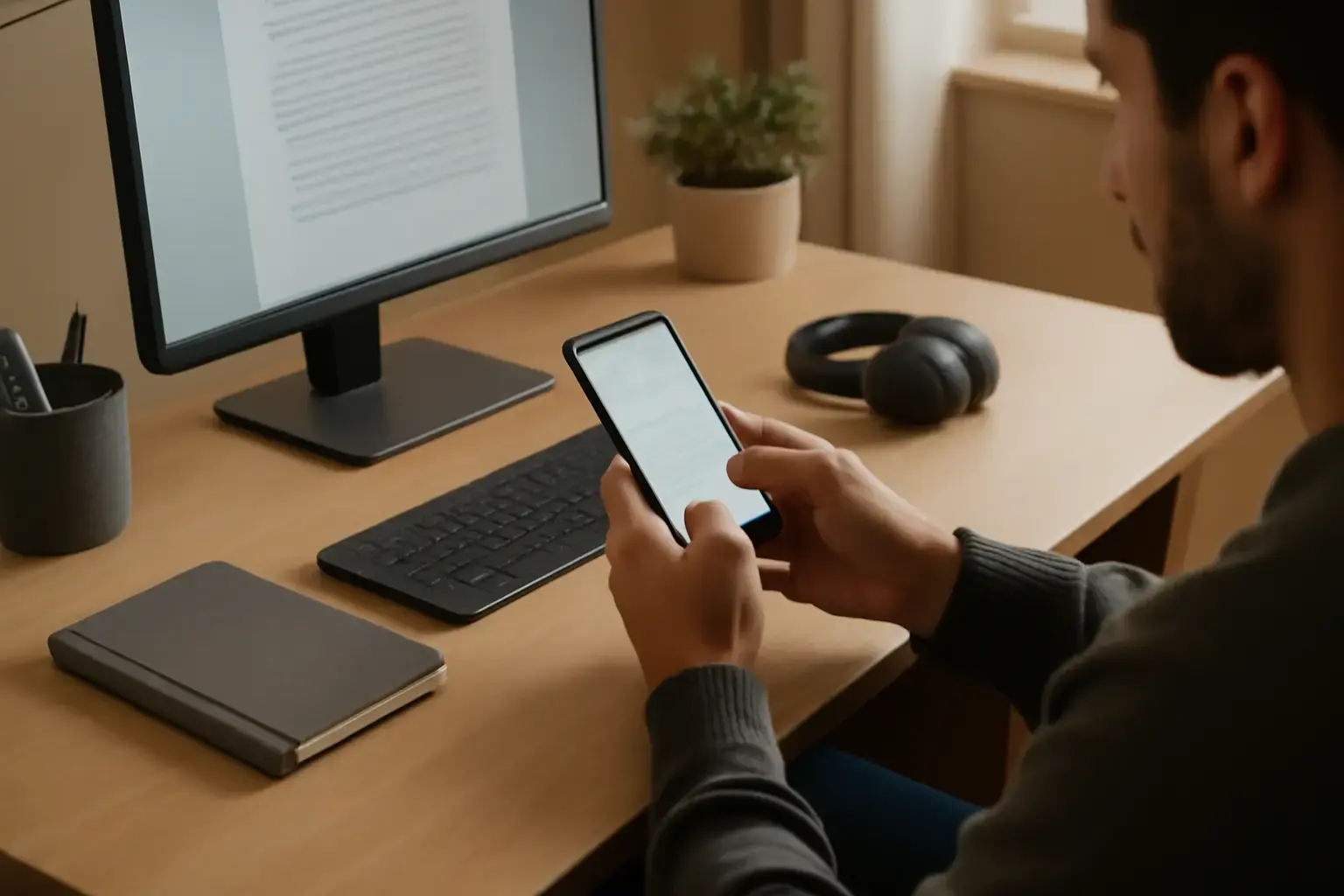
Why Fast Punctuation Access Matters for Remote Mobile Writers
When you’re a remote writer dependent on a mobile keyboard, the ability to insert punctuation quickly is far from a trivial convenience — it’s a key factor that directly impacts your typing speed and writing flow. Unlike physical keyboards, mobile touch keyboards usually hide punctuation marks behind extra taps or long presses, causing disruptive pauses and often leading to mistakes or awkward sentence structures.
For remote writers who juggle emails, content drafts, social media posts, and instant messaging, every millisecond counts. The difference between a keyboard that surfaces commas, periods, quotation marks, and dashes upfront and one that buries these behind layers of menus can mean the difference between a smooth, uninterrupted typing session and a frustrating one filled with autocorrect errors and delayed punctuation.
Choosing the Right Mobile Keyboard App for Fast Punctuation
Not all mobile keyboards are created equal when it comes to punctuation. Some prioritize emoji and GIF access, while others focus on predictive typing or multilingual support. For remote writers focused on punctuation speed, the ideal keyboard should combine several crucial features:
- Dedicated punctuation keys visible in the main layout: The best keyboards offer visible comma, period, question mark, and exclamation point keys without forcing a shift or secondary screen.
- Customizable long-press settings: Long-press punctuation shortcuts allow users to quickly access related symbols like ellipses, quotation marks, and dashes without leaving the primary layout.
- Minimal autocorrect interference: The keyboard's autocorrect should respect punctuation and not try to replace or delay symbol input.
- Quick language and emoji switching without interrupting flow: Because many writers use emojis or switch languages, rapid switching that doesn't interfere with punctuation typing is a plus.
Among currently popular options, Google’s Gboard and Microsoft SwiftKey stand out for offering these features with reliable performance and decent customization. Alternative keyboards like AnySoftKeyboard and Grammarly’s mobile keyboard provide some punctuation advantages but may have limitations in customization or speed.
Related reading: Best Android Keyboard Apps That Balance Fast Typing and Easy Access to Technical Symbols for Developers in 2026
Setting Up Your Mobile Keyboard for Lightning-Fast Punctuation Typing
Once you choose a keyboard app, the next step is configuring it for your specific punctuation workflow. Here are key setup tips that make a measurable difference:
- Enable one-handed or thumb typing mode: This brings punctuation keys closer to your thumb zone if you often type with one hand.
- Turn on dedicated punctuation keys on the main keyboard: In Gboard, for example, you can enable "Show punctuation on number row" to have direct access without switching layouts.
- Customize long-press duration: Reduce the delay to access alternate punctuation marks faster without accidental keypresses.
- Configure key pop-ups and feedback: Enable visual or haptic feedback for punctuation keys to confirm input quickly and avoid errors.
- Adjust autocorrect aggressiveness: Dial down autocorrect’s intrusiveness around punctuation to avoid it auto-removing or changing your symbols.
- Create text shortcuts for common punctuation clusters: Use built-in text expansion features to type sequences like “--” or "..." with just a couple of taps.
This level of customization requires some experimentation to avoid slowing down other parts of your typing, but the payoff is worth it if punctuation slows you down now.
Integrating Additional Tools for Smoother Writing Flow
Fast punctuation access on your keyboard is only one part of an efficient mobile writing workflow. Combined with these complementary tools, you can further streamline typing sessions:
- Text expansion apps: Apps like Texpand or native keyboard shortcuts can auto-insert complex punctuation or formatting you frequently use.
- Clipboard managers: Efficient copy-paste workflows reduce redundant typing of complex punctuation or citations.
- Voice-to-text dictation: Supplement typing with dictation for drafts, then quickly punctuate using your optimized keyboard.
- Multilingual keyboard switching: Set up gesture or key shortcuts to switch instantly while preserving punctuation layout consistency.
- Cloud syncing of keyboard settings: Ensure your punctuation shortcuts and settings carry across devices for seamless typing.
Combining these reduces interruptions and cognitive load, letting you maintain your natural writing rhythm.
Common Mistakes Remote Writers Make with Mobile Punctuation Input
Many remote writers unknowingly sabotage their typing speed and accuracy by falling into these traps:
- Using default keyboard layouts: Most default mobile keyboards do not prioritize punctuation, so sticking with them limits your speed.
- Ignoring long-press customization: Skipping this setting means missing access to useful punctuation variants and slowing down symbol input.
- Over-relying on autocorrect: Autocorrect can interfere with intentional punctuation marks, leading to unexpected changes and frustration.
- Failing to practice punctuation shortcuts: Without repetition, even the best setups won’t translate into faster typing.
- Using bulky third-party keyboards with lag: Some keyboards offer features but cause typing lag, which kills rhythm.
Avoiding these mistakes can boost your writing speed significantly on mobile.
Quick Checklist: Building Your Fast Punctuation Mobile Typing Workflow
- Choose a mobile keyboard app with visible punctuation keys and reliable performance (e.g., Gboard or SwiftKey).
- Customize long-press keys for quick access to ellipses, dashes, and quotation marks.
- Enable one-handed mode or layouts optimized for thumb reach if needed.
- Tweak autocorrect to minimize interference with punctuation input.
- Set up text shortcuts for frequent punctuation sequences.
- Use complementary apps like text expanders and clipboard managers for efficiency.
- Practice punctuation typing to build muscle memory and speed.
- Sync your keyboard settings across devices to maintain consistency.
By following this checklist, you can build a typing workflow that keeps your punctuation fast, accurate, and intuitive even on small mobile screens.
Conclusion: Why Investing Time in a Punctuation-Driven Mobile Keyboard Workflow Pays Off
Remote writing on mobile devices is a challenging environment where every tap counts. Most writers underestimate how much punctuation access slows them down on phones and tablets. Investing time into choosing the right keyboard, customizing punctuation keys, and infusing your workflow with suitable tools can accelerate your typing speed measurably and reduce frustration.
For serious remote writers, this is not about gimmicks but practical typing ergonomics at scale. Instead of accepting cumbersome punctuation input, you can take control of your mobile writing environment and drastically improve your output quality and speed. If you want to get the best mobile typing workflow tailored for punctuation-intensive writing, start by exploring keyboard apps like Gboard and SwiftKey and customize them as outlined above.
Explore more detailed customization advice and the latest keyboard app options in our related posts: How to Choose a Mobile Keyboard App for Writers Needing Quick Access to Punctuation and Diacritics on Smartphones, Best Android Keyboard Apps for Users Needing Rapid Emoji and Symbol Access Without Slowing Typing Speed, and Troubleshooting Autocorrect Lag and Typing Accuracy Issues on Android Keyboard Apps in 2026.