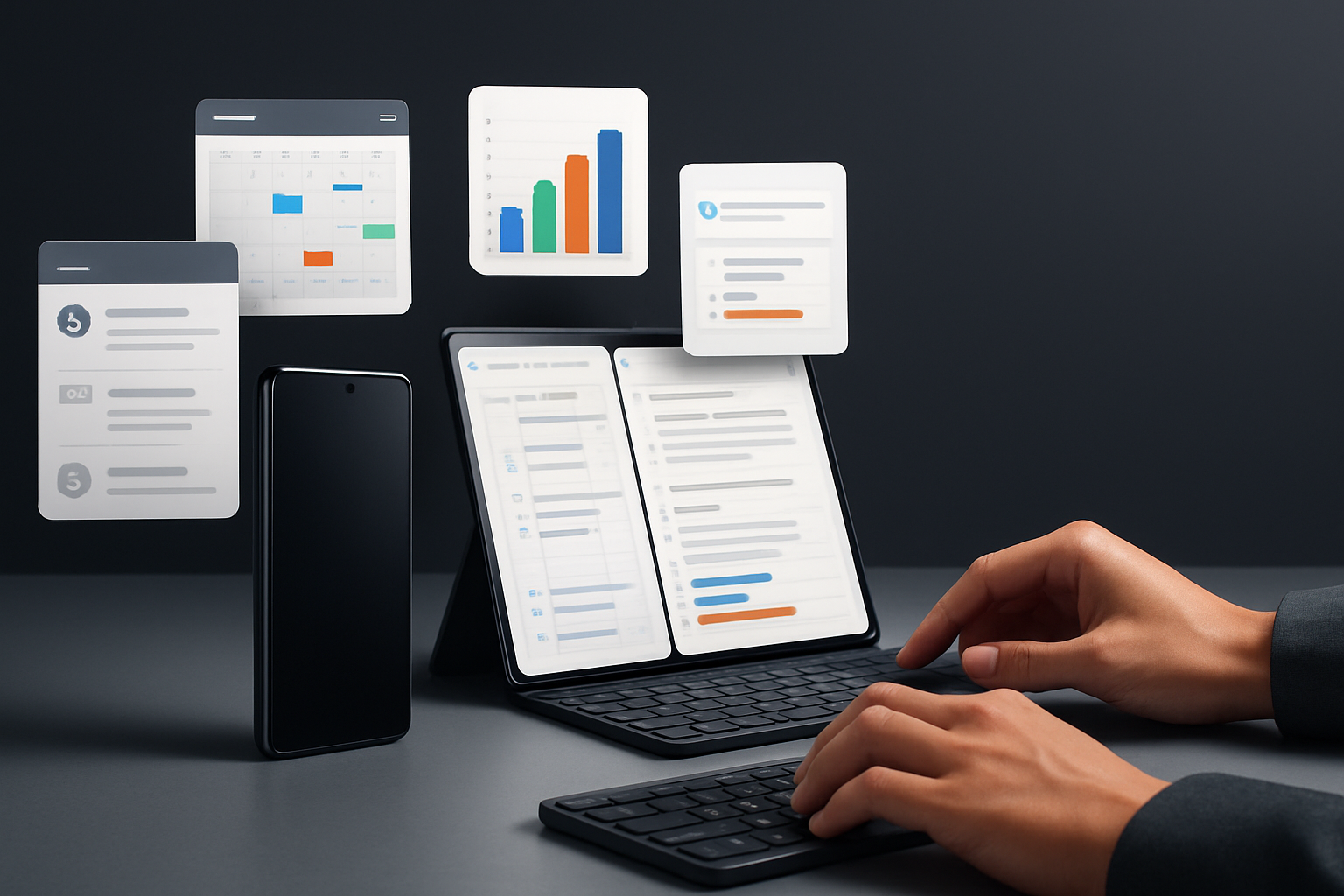
Best Android phones for office work and multitasking are no longer defined by raw specifications or marketing buzzwords—they’re defined by how seamlessly they integrate into your daily workflow. In 2026, your smartphone is effectively a portable workstation. It handles emails, video calls, document edits, task management, navigation, and communication—often simultaneously.
That shift means your choice of phone has a measurable impact on your productivity. The wrong device introduces friction: apps reload too often, notifications become overwhelming, battery anxiety interrupts your focus, or the interface simply slows you down. The right device, on the other hand, disappears into the background and lets you concentrate on actual work.
This updated guide reflects the current generation of Android phones, including newer models like the Galaxy S26 series and beyond. Instead of focusing on outdated picks, it prioritizes devices that deliver a smooth, reliable experience for modern workflows—whether you're managing projects, attending meetings, or juggling multiple apps throughout the day.
What actually matters for productivity (and what doesn’t)
Most buyers still fall into the same trap: chasing specs that look impressive but don’t improve day-to-day productivity. For office work, consistency and usability matter far more than peak performance.
Here are the factors that genuinely make a difference:
- Stable multitasking performance: Modern Android phones are powerful, but not all manage background apps equally. A good work phone keeps your apps active instead of constantly reloading them.
- Battery you can trust: You shouldn’t be thinking about your battery halfway through the day. Phones that combine efficient hardware with fast charging remove a major source of friction.
- Display quality and size: Reading emails, editing spreadsheets, or reviewing documents is significantly easier on a bright, sharp, and sufficiently large screen.
- Software design: Clean interfaces, smart notification grouping, and reliable multitasking tools (split-screen, floating apps) directly affect how fast you can get things done.
- Long-term updates: Work apps evolve constantly. A phone with strong update support stays compatible, secure, and stable for longer.
What doesn’t matter as much? Extreme gaming performance, experimental features, or camera capabilities that you rarely use in a work context. For productivity, predictability beats raw power every time.
Top Android phones for office work and multitasking in 2026
The current generation of devices has shifted the focus from “more power” to “better workflow.” These phones stand out because they actually improve how you work—not just how they benchmark.
- Samsung Galaxy S26 Ultra: This is the most complete productivity phone available right now. The large display makes split-screen multitasking practical, not cramped. The S Pen remains a key advantage for professionals who annotate documents, sketch ideas, or take handwritten notes. Samsung’s multitasking features are still ahead of most competitors. The downside is obvious: it’s large, heavy, and not ideal if you prefer one-handed use.
- Samsung Galaxy S26 (and Plus variant): A better choice for most users than the Ultra. It delivers flagship performance and stability in a more manageable size. You lose the S Pen and some screen space, but gain comfort and portability—often a worthwhile trade-off for everyday work.
- Google Pixel 10 Pro: This is the efficiency-focused option. Google’s strength is software—voice typing, smart replies, and AI-assisted workflows can noticeably reduce repetitive tasks. If your day revolves around communication (emails, chats, meetings), the Pixel can save you time. However, it’s less flexible for advanced multitasking compared to Samsung.
- OnePlus 13: Speed and responsiveness define this device. App switching is fast, animations are fluid, and charging is extremely quick. It’s ideal for professionals who are constantly moving and need their phone to keep up. The trade-off is a less feature-rich productivity ecosystem compared to Samsung.
- Samsung Galaxy A56 5G (or equivalent mid-range): For lighter workloads, this category is often the smartest buy. Email, messaging, document viewing, and basic multitasking run smoothly. The limitation appears when you push the device harder with multiple heavy apps.
The key takeaway: there is no single “best” phone—only the best fit for your workload.
How to choose based on your real workflow
Instead of comparing specs endlessly, focus on how you actually use your phone during a typical workday.
Ask yourself:
- How often do you switch between apps?
- Do you edit documents or mostly review them?
- Are you working mostly at a desk or on the move?
- Do you rely heavily on communication apps?
Use these answers to guide your decision:
- Heavy multitaskers: You need a large display, strong RAM management, and advanced multitasking tools. The Galaxy S26 Ultra is built for this scenario.
- Mobile professionals: Battery life, brightness, and fast charging matter most. The OnePlus 13 is particularly strong here.
- Communication-focused users: If your work is email-heavy and meeting-driven, the Pixel 10 Pro’s AI features can make a real difference.
- Balanced everyday users: The standard Galaxy S26 offers the best mix of performance, usability, and comfort.
- Budget-conscious buyers: Mid-range phones handle most office tasks without unnecessary cost.
This approach prevents one of the most common mistakes: buying a phone for features you rarely use.
Common mistakes that reduce productivity
Even with a good budget, it’s easy to end up with the wrong device if you overlook small but important details.
- Choosing based on specs alone: High numbers don’t guarantee a smooth experience. Software optimization matters more.
- Ignoring ergonomics: A phone that feels uncomfortable after 20 minutes will become frustrating over time.
- Underestimating storage: Work apps, files, and offline content add up quickly. Running out of space slows everything down.
- Poor notification control: If your phone doesn’t manage notifications well, it becomes a distraction instead of a tool.
- Overbuying: Not everyone needs a flagship. Spending more doesn’t automatically improve productivity.
Avoiding these mistakes is often more important than choosing the “perfect” phone.
Practical comparison of key productivity factors
| Factor | Why it matters | Best suited for |
|---|---|---|
| Battery life | Keeps you working without interruptions | Travelers, remote workers |
| Screen size | Improves readability and multitasking | Document-heavy users |
| Software experience | Affects speed and ease of use | Everyone |
| Charging speed | Quick recovery during busy days | On-the-go users |
| Update support | Ensures long-term reliability | Long-term users |
This table reinforces a simple reality: productivity depends on balance, not extremes.
Making a smart decision without overthinking
Once you shift your focus to real-world usage, the decision becomes much clearer. You’re not looking for the most powerful phone—you’re looking for the one that removes friction from your daily routine.
If your work involves complex multitasking and document handling, the Samsung Galaxy S26 Ultra is worth the investment. If you want a cleaner, more efficient experience for communication-heavy workflows, the Google Pixel 10 Pro is a strong choice. If speed and charging convenience matter most, the OnePlus 13 stands out. And for most users, the Samsung Galaxy S26 offers the best overall balance.
Final recommendation: Choose the phone that fits your actual work habits—not trends, not specs, and not future “what if” scenarios. A device that feels fast, reliable, and comfortable every single day will always outperform a more powerful phone that introduces small but constant frustrations. That’s what turns a smartphone into a true productivity tool.