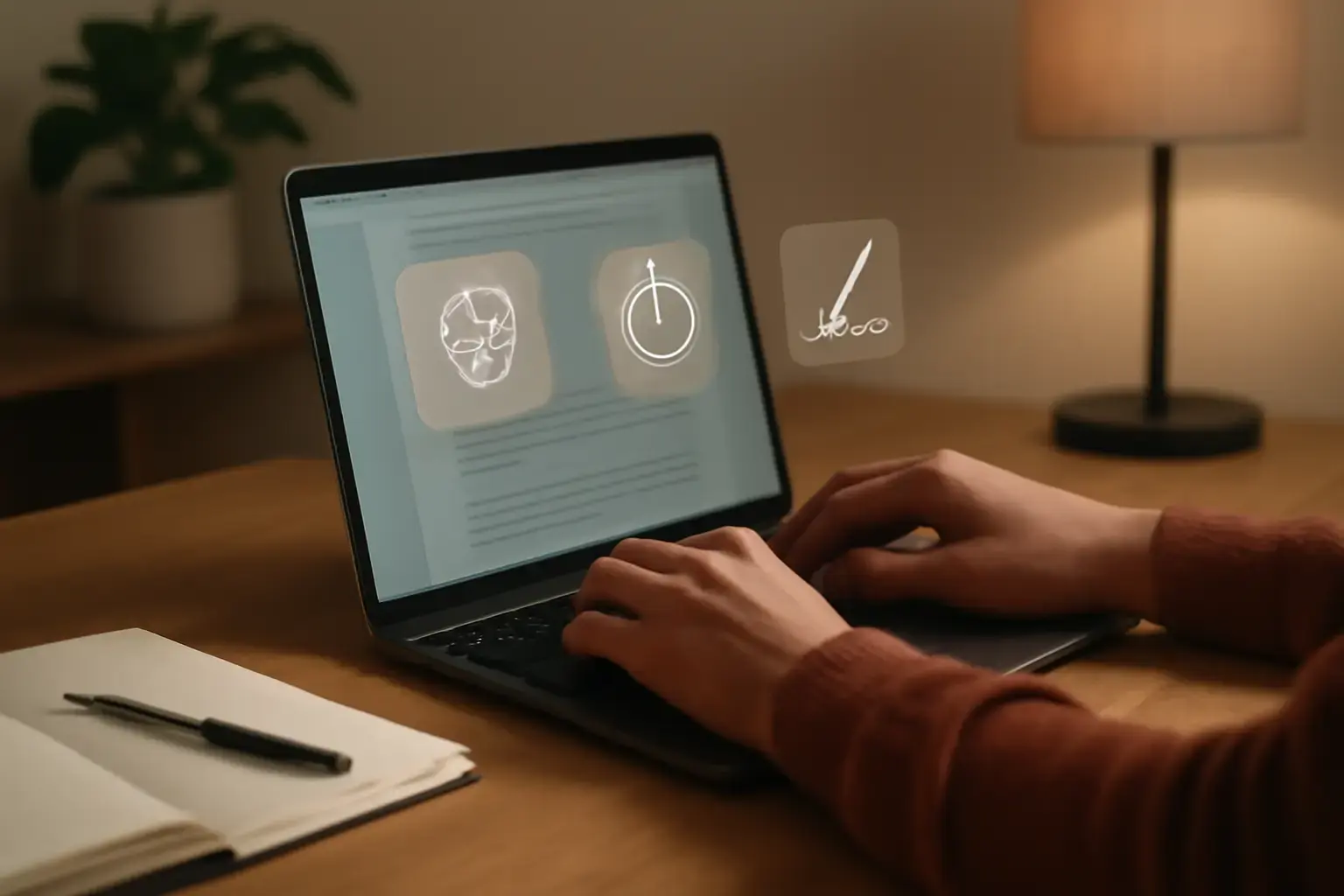
Why AI-Powered Typing Assistants Can Transform Your Writing Speed
For writers, developers, and professionals relying on daily typing, increasing words per minute (WPM) without losing your personal style is a delicate balance. AI-powered typing assistants promise to speed up text input by suggesting completions, correcting mistakes, and even rephrasing sentences. But many users worry that these tools might turn their writing into clichéd or robotic output, stripping away individuality. The key is learning how to harness AI assistants smartly to gain speed and accuracy while staying true to your unique voice.
Choosing AI Typing Assistants That Respect Your Style
Not all AI typing assistants are created equal. Some aggressively rewrite sentences, offering suggestions that may boost speed but dilute your tone. Others provide lightweight support—offering word predictions and typo corrections without changing your phrasing.
When picking an AI assistant, look for features like:
- Customizable suggestion levels: Allows you to control how proactive the AI is in rewriting or just completing your sentences.
- Learning from your input: AI that adapts to your vocabulary and writing quirks over time will assist without overriding your style.
- Multilingual support: If you write in multiple languages or switch keyboard layouts, choose assistants that seamlessly handle multilingual input.
- Integration with your existing workflow: Whether you prefer desktop editors, browser-based writing, or mobile typing, select AI tools that embed naturally without disrupting your rhythm.
Some popular AI typing assistants in 2025-2026 that fit this bill include Grammarly’s latest AI enhancements, Microsoft Editor’s AI-driven suggestions, and advanced predictive text features in keyboard apps like SwiftKey and Gboard. Unlike blunt rewriting tools, these allow you to accept or reject suggestions and stay in control.
Practical Workflows to Speed Up Typing Without Losing Authenticity
To truly benefit from AI typing assistants, you need workflows that balance speed gains and personal expression.
1. Use AI for Boilerplate and Routine Text
AI excels at auto-completing standard phrases, greetings, or technical jargon you use regularly. Train text expanders with AI suggestions to quickly insert these snippets with minimal typing. This frees up mental bandwidth for composing original content.
2. Reserve AI Rephrasing for Editing, Not Drafting
To keep your natural voice intact, avoid accepting AI’s rewriting during the first draft. Instead, draft freely and use AI suggestions during revision, when you want to polish grammar and readability.
3. Enable Smart Autocorrect, Disable Aggressive Autocomplete
Some AI keyboards offer settings to keep autocorrect on for fewer typos but limit autocomplete to simple word predictions rather than full sentence rewrites. This reduces interruptions and stylistic drift.
4. Pair AI with Personal Typing Training
To push your natural WPM higher, combine AI support with focused practice on typing accuracy and speed. Apps like our recommended Best Typing Trainer Apps for Developers help sharpen skills that AI can amplify rather than replace.
Related reading: Best AI Tools for Productivity Without Adding More Busywork 🤖⌨️
Common Pitfalls and How to Avoid Diluting Your Style
Many users fall into traps that reduce the effectiveness of AI assistants or degrade their writing voice:
- Over-reliance on AI rewriting: Accepting every AI suggestion can produce generic, bland prose that feels less personal.
Solution: Be selective with suggestions. Review changes carefully before accepting. - Ignoring keyboard layout and language settings: Using AI tools without configuring for your language or keyboard layout leads to poor suggestions and errors.
Solution: Customize AI assistant settings for your languages and preferred keyboard layouts to maintain accuracy. - Not training text expanders or shortcuts: Missing out on automating repetitive phrases reduces speed gains.
Solution: Use AI-optimized text expander apps to store frequent phrases and code snippets, as discussed in our Best Text Expander Apps for Developers article. - Neglecting ergonomics during long typing sessions: Speed is useless if it leads to fatigue or pain.
Solution: Follow ergonomic practices and choose keyboards that support comfortable high-speed input.
Practical List: Steps to Get Started With AI Typing Assistants Today
- Identify your core typing tasks and pain points: Are you writing reports, coding, messaging, or blogging?
- Choose an AI assistant compatible with your devices and apps: For example, Grammarly for desktop and browser, SwiftKey for mobile, or Microsoft Editor integrated in Office suites.
- Configure the AI settings: Adjust suggestion aggressiveness to “light” or “balanced” to preserve your style.
- Set up text expanders for repeated phrases: Build a library of shortcuts relevant to your work.
- Practice with typing trainers to boost base speed: Use dedicated apps to improve accuracy and speed on your chosen keyboard layout.
- Use AI suggestions primarily for typo correction and grammar polish: Avoid wholesale sentence rewriting during initial drafts.
- Regularly customize AI language and keyboard preferences: Ensure the AI adapts well to your multilingual or technical vocabulary.
Why This Matters: Real-Life Gains From Intelligent AI Typing Support
When applied thoughtfully, AI typing assistants can increase your raw typing output by cutting down errors and speeding up common phrases, saving valuable minutes each day. But the real magic is in keeping your voice unmistakably yours — something no AI can authentically replicate. Writers who blindly accept AI rewrites risk losing audience trust and their signature tone. Developers and multilingual users benefit when AI respects technical symbols and language switches instead of imposing one-size-fits-all corrections.
The best AI typing assistants act as extensions of your natural style, not replacements. They reduce friction while maintaining the unique rhythm and clarity that distinguish your writing.
For more on typing speed benchmarks and how to measure your progress, see Average Typing Speed (WPM) in 2026 and Is 50 WPM Good? What 50 Words Per Minute Really Means in 2026.
Final Recommendation
If you’re serious about improving your typing speed without sacrificing personal style, adopt an AI typing assistant that emphasizes customizable suggestions and integrates smoothly with your existing setup. Avoid tools that rewrite aggressively or limit your control. Pair AI-based correction with targeted typing practice and smart text expanders to maximize gains. This combination delivers real-world speed improvements without diluting the authentic voice that defines your writing.
Start with mainstream AI tools like Grammarly or Microsoft Editor, customize their behavior conservatively, and build a text expansion system for repetitive content. Monitor your WPM progress with professional typing trainers and adjust your AI use as your skills grow. This balanced approach ensures your typing remains fast, accurate, and unmistakably you.