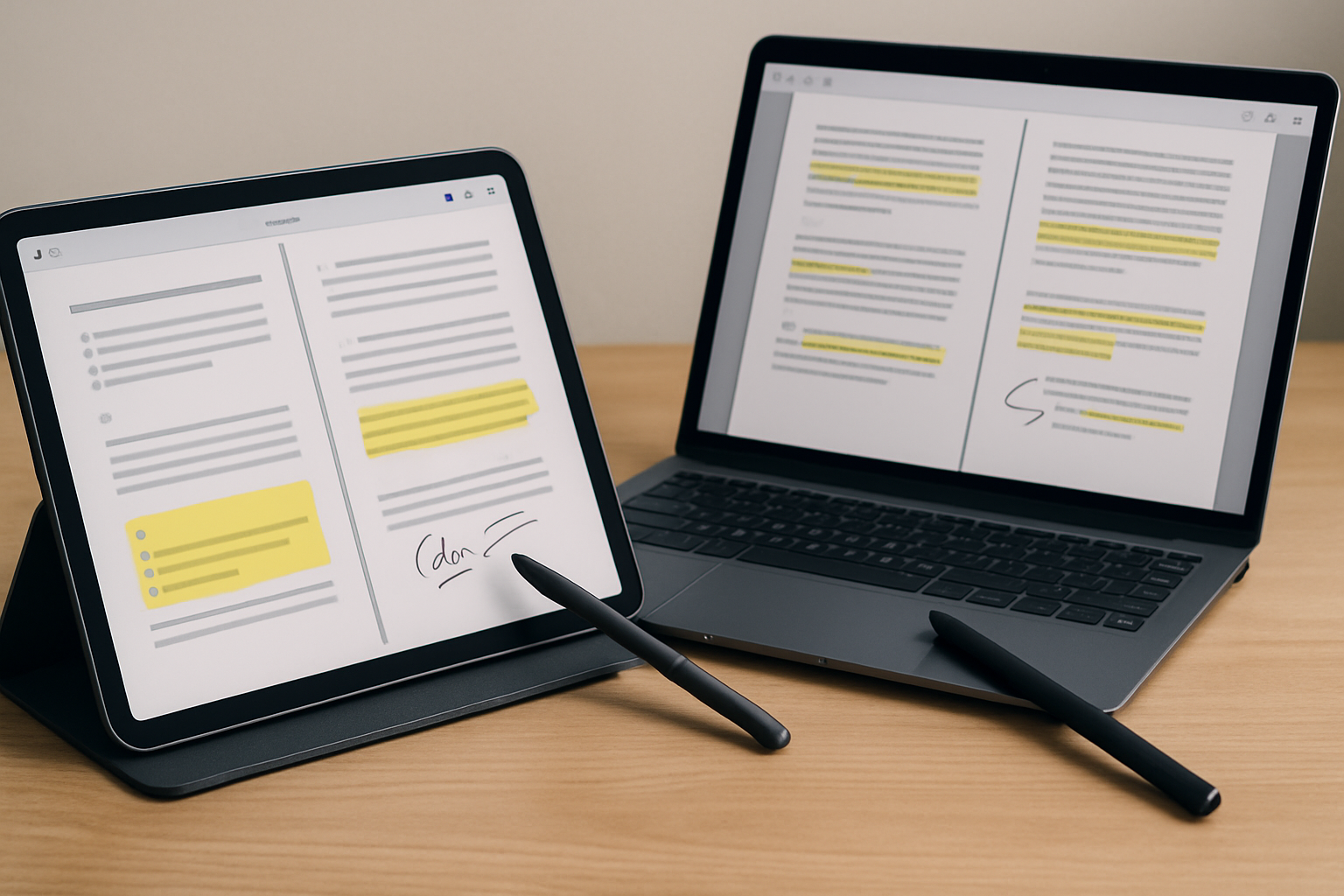
Why PDF Annotation Apps Matter for Tablets and Laptops
PDFs are still the backbone of document sharing across education, business, and creative industries. Their consistency across devices makes them indispensable—but that consistency also creates a limitation: static documents don’t support real productivity unless you can interact with them effectively. That’s where PDF annotation apps become essential.
Whether you’re reviewing contracts, marking up academic papers, or sketching feedback on design drafts, annotation is no longer a “nice-to-have” feature—it’s the core workflow. Tablets and laptops have blurred the line between reading and editing, especially with stylus support and detachable keyboards. But your experience depends heavily on the app you choose.
Some tools prioritize speed and simplicity, while others focus on deep editing and collaboration. Choosing the wrong one often leads to friction: slow performance, missing features, or awkward input handling. This guide breaks down the most relevant PDF annotation apps in 2026—not just by features, but by how they actually fit into real workflows.
Top PDF Annotation Apps: Practical Comparison and Use Cases
Instead of just listing features, it’s more useful to understand where each app shines—and where it falls short. Here’s a breakdown of the most relevant tools and who they’re truly for.
| App | Strengths | Weaknesses | Best For |
|---|---|---|---|
| Adobe Acrobat Reader DC | Industry-standard compatibility, advanced editing, reliable cloud sync | Subscription required for full features, heavier performance | Professionals handling complex documents |
| Foxit PDF Editor | Fast, lightweight, strong editing tools | Interface can feel less polished | Business users needing performance and value |
| PDF Expert | Smooth UI, excellent Apple integration | Apple-only ecosystem | Mac and iPad users |
| Xodo | Free, solid annotation tools, collaboration support | Less refined UX, limited advanced editing | Students and budget users |
| Drawboard PDF | Excellent stylus support, natural drawing experience | Windows-only | Surface and pen-focused users |
| LiquidText | Unique research tools, idea mapping | Learning curve, unconventional workflow | Researchers and analysts |
The key takeaway: there is no universal “best” app. Each tool optimizes for a different type of user. Trying to force one app into every scenario is where most people go wrong.
Choosing Based on Real Workflow Needs
The biggest mistake users make is focusing on feature lists instead of actual usage patterns. Before choosing an app, think about how you interact with PDFs daily.
Light Annotation vs Heavy Editing
If your workflow revolves around highlighting, adding comments, and basic markup, you don’t need a full PDF editor. Apps like Xodo or Drawboard handle these tasks efficiently without unnecessary complexity.
However, if you regularly:
- Edit existing text inside PDFs
- Merge or split documents
- Work with structured forms
- Prepare documents for clients or legal use
then tools like Adobe Acrobat or Foxit become necessary. These apps justify their cost by saving time on tasks that free tools simply can’t handle well.
Keyboard vs Stylus Input
Tablet users often underestimate how much input method affects productivity. Stylus-heavy workflows—like annotating diagrams or handwritten notes—benefit from apps like Drawboard or LiquidText.
On the other hand, if you rely on typing comments and navigating documents quickly, keyboard optimization matters more. Pairing your setup with guidance from how to use external keyboards with tablets can significantly improve efficiency. Not all apps support keyboard shortcuts equally, and this becomes noticeable in long sessions.
Single Device vs Multi-Device Workflows
If you switch between laptop, tablet, and phone, syncing becomes critical. Adobe and Foxit handle this well through cloud integrations, while simpler apps may require manual file management.
For single-device users, especially iPad or Windows tablet owners, native apps like PDF Expert or Drawboard often feel faster and more intuitive because they’re optimized for that ecosystem.
Collaboration and Cloud Integration: What Actually Matters
Collaboration features are often marketed heavily, but their usefulness depends on your environment. If you work solo, basic export and sharing are enough. But in team settings, real-time collaboration and version control can make or break your workflow.
Here’s what to look for:
- Live commenting: Essential for teams reviewing documents simultaneously
- Cloud storage integration: Seamless access to Dropbox, Google Drive, or OneDrive
- Version tracking: Prevents confusion when multiple people edit the same file
- Permission control: Important for sensitive documents
Xodo offers surprisingly strong collaboration features for a free tool, but it may not match the reliability and ecosystem integration of Adobe or Foxit in enterprise environments.
For researchers or students working across multiple sources, LiquidText’s ability to connect excerpts and visualize relationships between documents offers a completely different kind of collaboration—one focused on ideas rather than just comments.
Pricing Models and Long-Term Value
Cost is not just about the monthly fee—it’s about whether the app saves you time or adds friction.
Free apps like Xodo are ideal for:
- Students with limited budgets
- Occasional annotation tasks
- Users who don’t need advanced editing
Subscription-based tools like Adobe Acrobat or Foxit make sense when:
- You handle documents daily
- You need consistent updates and support
- Your work depends on reliability and compatibility
One-time purchase apps like PDF Expert or Drawboard appeal to users who prefer predictable costs. However, keep in mind that long-term updates may not be as consistent as subscription services.
A common mistake is overcommitting to expensive tools without fully using their capabilities. If you’re only highlighting text, paying for advanced editing features is unnecessary.
Common Mistakes That Hurt Productivity
Even experienced users fall into predictable traps when choosing annotation apps. Avoiding these can save both time and frustration.
- Ignoring performance: Some apps slow down significantly with large PDFs, especially on older tablets
- Overlooking input optimization: Not all apps handle stylus or keyboard input equally well
- Assuming feature parity across platforms: An app may have different capabilities on iPad vs Windows
- Skipping real-world testing: Features look good on paper but may feel clunky in practice
- Neglecting export compatibility: Some annotations don’t render properly in other apps
The safest approach is to test your top two or three options with actual documents you use daily. This reveals friction points that reviews rarely mention.
Building a Workflow That Actually Works
The best annotation app is only part of the equation. Productivity comes from how well it integrates into your broader workflow.
For example:
- Students benefit from combining annotation apps with note-taking tools for better organization
- Professionals should align their PDF tools with cloud storage and collaboration platforms
- Tablet users can significantly improve efficiency by pairing annotation apps with external keyboards and stylus setups
If you’re working primarily on tablets, combining your annotation app with setups from best tablets with keyboard support can transform your device into a practical workstation.
Additionally, integrating AI tools—like those discussed in AI productivity tools that complement PDF annotation workflows—can help summarize documents or extract key insights, reducing manual effort.
Final Recommendation: Choose Based on How You Work
If you want a safe, flexible starting point, Xodo offers excellent value without cost, while PDF Expert is the most polished option for Apple users. For professionals dealing with complex documents, Adobe Acrobat remains the most reliable choice, with Foxit as a strong, often faster alternative.
Stylus-heavy users should prioritize Drawboard or LiquidText, depending on whether they need simple markup or deep research tools.
The smartest decision isn’t about choosing the most popular app—it’s about selecting the one that fits your workflow, input style, and device ecosystem without slowing you down. Test realistically, avoid overpaying for unused features, and build a setup that feels effortless over long sessions.