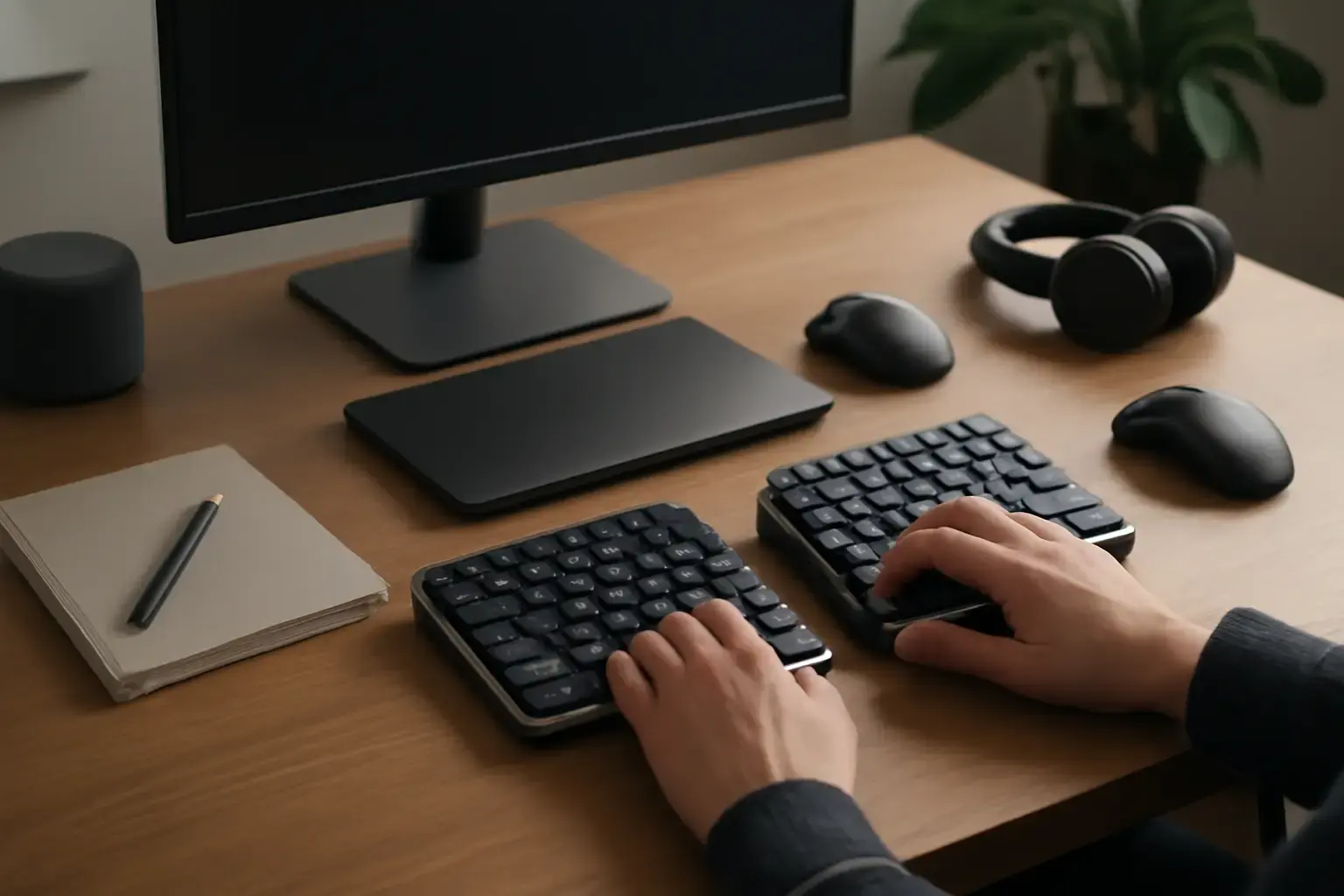
Why Multilingual Typing Speed Slows Down Without Layout Customization
Most multilingual typists experience frustrating slowdowns and errors when switching languages because standard keyboard layouts don’t account for the frequent context changes. Without customization, your fingers must constantly adjust to different key arrangements, diacritics, and punctuation rules. This causes hesitations, more typos, and lower words-per-minute (WPM) rates. The common advice to simply “switch keyboard layouts” is too simplistic for heavy multilingual use—especially if you switch languages multiple times within a paragraph or document.
Real-world multilingual text input demands typing layouts that minimize finger travel and cognitive switching costs. For example, switching between English and French can be painless if keys that represent common French diacritics are placed ergonomically, but switching between English and Arabic or Russian requires different considerations, including how you physically access alternate characters and how shortcuts support a smooth workflow.
Customize Keyboard Layouts for Your Language Pair(s) and Typing Style
The foundation of improving multilingual typing speed is selecting or customizing keyboard layouts optimized for your specific language combination and typing habits. You don’t have to reinvent the wheel; many layouts exist, but few people take the time to customize them for their real workload.
Here are customization strategies that make the biggest difference:
- Create hybrid layouts: Use tools like Microsoft Keyboard Layout Creator, Karabiner-Elements (Mac), or AutoHotkey (Windows) to remap keys so that frequently used characters across languages are on easy-to-reach keys, avoiding complicated modifier combinations.
- Optimize punctuation and numbers: When switching languages, punctuation marks often differ, which breaks flow. Customize layouts to place common punctuation in consistent spots across languages to reduce mental adjustments.
- Map accented characters and diacritics to convenient shortcuts: Rather than using clunky dead key sequences, assign accessible key combinations or layer switches for fast input of accented letters.
- Use language-specific modifier layers: For example, use Caps Lock or a dedicated key to toggle a modifier layer containing language-specific characters, letting you keep the main layout stable.
- For right-to-left (RTL) languages, adjust cursor and editing shortcuts: Customize your editing keys to support smooth cursor movement and symbol input in line with text direction to avoid disruptions.
Set Up Efficient Keyboard Layout Switching Shortcuts
Speeding up language switching is just as critical as the layout itself. The more keys you must press or the more menus you must open to change layouts, the more it breaks your typing rhythm.
Related reading: Best Multilingual Mobile Keyboard Apps with Custom Shortcuts for Frequent Language Switchers in 2026
Effective multilingual typists rely on these practices:
- Use single or double key shortcuts: Assign shortcuts like Ctrl+Shift or Alt+Shift to instantly toggle between layouts without opening menus.
- Integrate third-party switcher tools: Apps like Microsoft Keyboard Layout Switcher or alternative language switcher tools create seamless toggling without interrupting typing flow.
- Utilize system tray or menu bar indicators with quick toggling: Visual cues help you confirm the active layout at a glance.
- Create application-specific layout assignments: Automatically switch keyboard layouts based on the app you're typing in (e.g., email client, code editor) to reduce manual switching.
Practical List: Steps to Customize Your Multilingual Keyboard Layout for Speed
- Identify your primary language pairs and text input scenarios: Note which languages you switch between most and if you need special symbols or diacritics for each.
- Pick base layouts: Choose existing layouts for each language that are closest to your comfort level (e.g., US QWERTY, AZERTY, BÉPO, phonetic Cyrillic).
- Use a layout editor: Modify these base layouts to unify punctuation and place frequent non-English characters on easy keys.
- Create or assign modifier layers: Designate keys like Caps Lock to switch to language-specific symbol layers to avoid cluttering the base layer.
- Configure hotkeys for instant language switching: Use simple, ergonomic shortcuts to toggle without breaking flow.
- Test with real typing: Practice typing paragraphs with frequent switches to identify friction points and iterate your layout.
- Install a visual layout indicator: So you never lose track during rapid switches.
Common Mistakes and What Most People Get Wrong About Multilingual Keyboard Layouts
Many multilingual typists struggle because they treat each language as an isolated typing environment rather than integrating layouts for smooth transitions. Some common misconceptions and mistakes include:
- Relying solely on system default layouts: Most OS default layouts aren’t optimized for rapid switching or multilingual diacritics placement, causing speed drops.
- Using slow language switch methods: Clicking through menus or relying on rarely used shortcuts interrupts typing rhythm unnecessarily.
- Failing to customize punctuation keys: Different punctuation placement across layouts leads to frequent mistakes and slows down typing.
- Overloading a single layout: Trying to cram all languages in one layout without logical layering or modifiers usually results in a cluttered, confusing keyboard.
- Ignoring the ergonomics of frequent character access: Putting accented letters or language-specific symbols on hard-to-reach keys drastically reduces speed.
Addressing these mistakes with targeted layout customization plus shortcut setup transforms your multilingual typing experience.
Who Should Customize Their Multilingual Keyboard Layout and Who Should Avoid It?
Best candidates:
- Multilingual professionals, translators, and writers who switch languages multiple times daily.
- Programmers and coders who type code and comments in multiple languages.
- Students and academics working with multilingual source materials requiring frequent language toggling.
Who might avoid it:
- Casual users who rarely switch languages or only occasionally type phrases in another language.
- Users who use virtual/mobile keyboards exclusively and rely on built-in multilingual support.
- Those without patience or time to tinker with keyboard layouts and shortcuts.
For occasional multilingual users, standardized layouts with quicker switching shortcuts may suffice. But for power multilingual typists, investing time in layout customization yields clear WPM and accuracy gains.
Conclusion: Invest in Keyboard Layout Customization for Real Multilingual Typing Speed
Improving multilingual typing speed is not just about practicing more or memorizing language keys. It requires building a customized and ergonomic keyboard layout workflow that fits the languages you use frequently and the context switching your typing demands.
By thoughtfully customizing layouts, unifying punctuation placement, mapping diacritics for quick access, and setting up instant switching shortcuts, you can eliminate the biggest sources of friction and reduce the cognitive load of juggling multiple alphabets and symbols.
Start small with your most-used language pairs and be ready to iterate. Avoid the common traps of using system defaults or slow switching methods. With the right customization, you’ll see tangible improvements in your typing speed, accuracy, and overall multilingual productivity.
Explore detailed practical tips on how multilingual users can switch keyboard layouts faster and discover how to choose layouts that minimize disruptions for programmers to refine your multilingual typing workflow further.