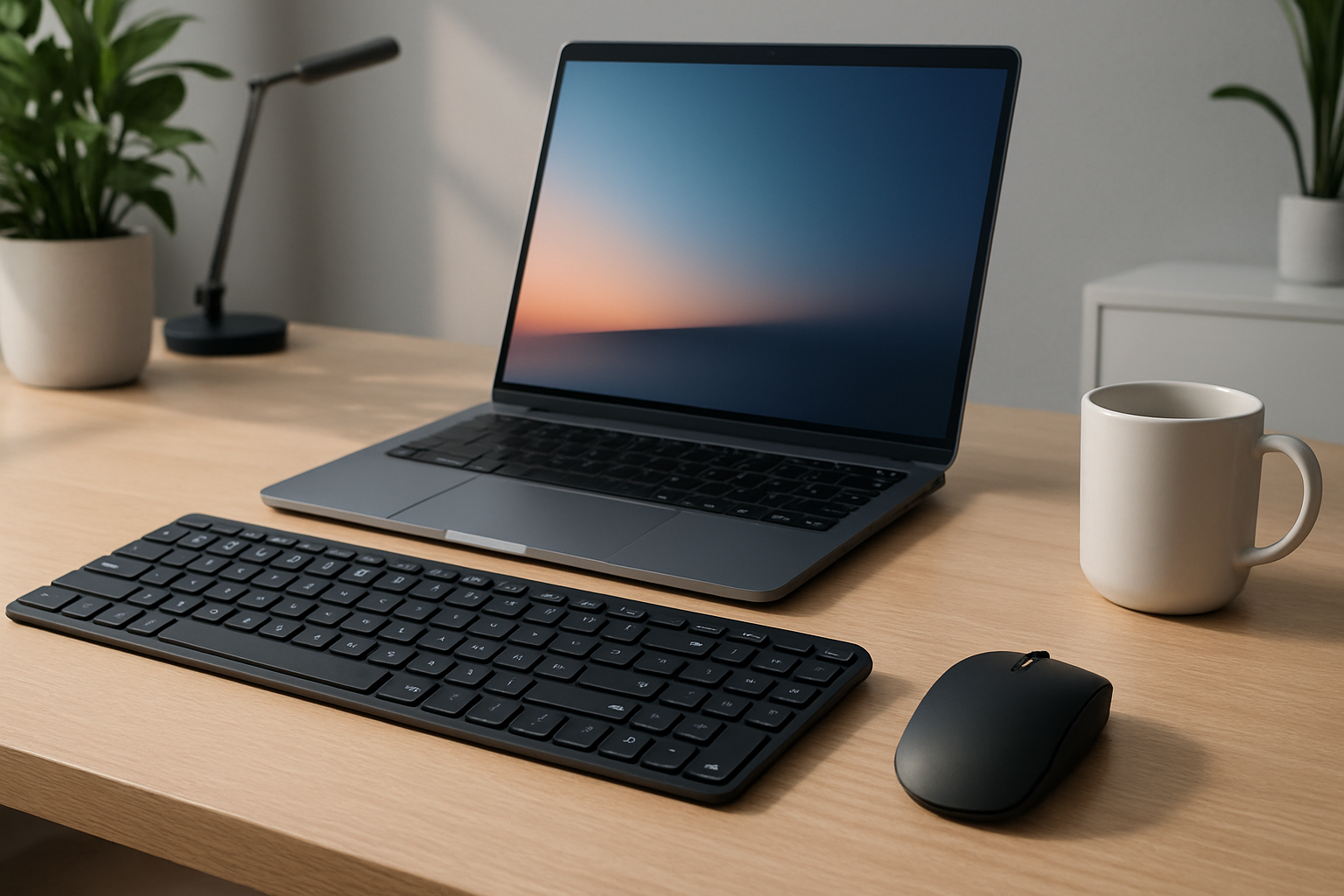
Best Wireless Keyboards for Home Office Productivity in 2026
A great wireless keyboard for home office use is more than just a convenience—it’s a daily tool that directly affects how fast you work, how comfortable you feel, and how long you can stay focused without fatigue. In 2026, wireless keyboards have matured to the point where reliability and latency are no longer major concerns. Instead, the real differences come down to typing experience, ergonomics, and how well a keyboard fits your specific workflow.
If you spend multiple hours a day typing—whether you’re coding, writing, managing spreadsheets, or handling emails—the keyboard you choose will either support you or slowly work against you. This guide breaks down the best options and, more importantly, helps you understand which one actually makes sense for your setup.
Quick Comparison of Top Wireless Keyboards
| Keyboard | Best For | Type | Key Strength |
|---|---|---|---|
| Logitech MX Keys | All-around productivity | Low-profile | Comfort + multi-device |
| Keychron K8 | Developers | Mechanical | Tactile typing |
| Microsoft Designer | Minimal setups | Membrane | Slim & quiet |
| Logitech Ergo K860 | Ergonomics | Split ergonomic | Wrist comfort |
| Apple Magic Keyboard | Mac users | Scissor-switch | Seamless integration |
What Actually Matters in a Wireless Keyboard
Specs alone don’t tell you how a keyboard will feel after eight hours of use. Here’s what separates a good keyboard from one you’ll regret buying:
- Typing feel: This is the biggest factor. Mechanical keyboards offer feedback and precision, while low-profile and membrane keyboards prioritize comfort and quietness.
- Ergonomics: Flat keyboards look nice but can strain your wrists over time. Split layouts or subtle curves can make a noticeable difference.
- Connectivity: Bluetooth is convenient, but a USB receiver can offer more stability in busy wireless environments. The best keyboards support both.
- Multi-device switching: If you use a laptop, desktop, and tablet, this feature quickly becomes essential.
- Battery behavior: Long battery life is good, but predictable charging matters more. A keyboard that dies unexpectedly during work is frustrating.
- Layout and size: Full-size, tenkeyless (TKL), or compact—this choice affects both desk space and productivity.
One common mistake is focusing too much on design and ignoring typing feel. A keyboard can look premium but still be uncomfortable after prolonged use.
Best Wireless Keyboards (Detailed Picks)
Logitech MX Keys
If you want a safe, high-quality choice that works well in almost any setup, this is it. The Logitech MX Keys strikes a balance between comfort, functionality, and premium build.
- Backlit keys that adjust to ambient light
- Seamless switching between up to three devices
- Solid, stable typing experience with minimal noise
Who it’s for: Professionals who switch between devices and want a reliable, comfortable typing experience without going mechanical.
Trade-off: It’s not as tactile as a mechanical keyboard, which some developers and heavy typists may miss.
Keychron K8
The Keychron K8 is a favorite among developers and enthusiasts who want mechanical feedback without giving up wireless flexibility.
- Hot-swappable switches for customization
- Bluetooth and wired modes
- Compact tenkeyless layout
Who it’s for: Developers, writers, and power users who value typing precision and customization.
Trade-off: It’s bulkier and louder than low-profile keyboards, which may not suit shared workspaces or minimal setups.
If you're unsure whether this style fits your workflow, check this detailed comparison: Mechanical vs Low-Profile Keyboards
Microsoft Designer Keyboard
This keyboard focuses on simplicity and aesthetics. It’s slim, quiet, and blends easily into a clean desk setup.
- Ultra-slim profile
- Very quiet typing
- Long battery life with minimal maintenance
Who it’s for: Users who prioritize a distraction-free, minimal workspace and light typing tasks.
Trade-off: Lacks advanced features like multi-device switching or strong tactile feedback.
Logitech Ergo K860
If you experience wrist discomfort or spend long hours typing, the Ergo K860 is designed to reduce strain.
- Split ergonomic layout
- Curved keyframe for natural hand positioning
- Integrated wrist support
Who it’s for: Users dealing with wrist fatigue, repetitive strain, or long daily typing sessions.
Trade-off: Takes time to get used to, and the larger footprint requires more desk space.
Apple Magic Keyboard
For Mac users, the Apple Magic Keyboard offers tight integration and a familiar typing experience.
- Ultra-slim aluminum design
- Reliable Bluetooth connection
- Optimized for macOS shortcuts and layout
Who it’s for: Mac users who want a seamless, no-setup experience.
Trade-off: Limited customization and less satisfying for users who prefer deeper key travel.
Choosing the Right Keyboard for Your Workflow
The best keyboard depends less on features and more on how you actually work day to day. Here’s a practical way to decide:
- Heavy typing (coding, writing): Go for mechanical (Keychron K8) or high-quality low-profile (MX Keys).
- Multi-device workflow: MX Keys is the most convenient option.
- Mac-focused setup: Apple Magic Keyboard keeps things simple and consistent.
- Ergonomic priority: Ergo K860 is the clear choice.
- Minimal desk aesthetic: Microsoft Designer fits best.
A common mistake is buying a keyboard based on someone else’s recommendation without considering your own typing habits. For example, developers often prefer mechanical keyboards, but if you work in a quiet environment, that could quickly become a problem.
Practical Setup Tips That Make a Real Difference
Even the best keyboard won’t fix a poor desk setup. Small adjustments can significantly improve comfort and productivity:
- Wrist positioning matters: Keep wrists neutral, not bent upward. A wrist rest can help, but only if used correctly.
- Desk height alignment: Your elbows should be roughly at a 90-degree angle when typing.
- Keyboard placement: Avoid placing it too far away—this leads to shoulder strain.
- Use shortcuts: Learning keyboard shortcuts often improves productivity more than upgrading hardware.
- Declutter your desk: A clean workspace reduces cognitive load and helps you stay focused.
Another overlooked factor is switching between devices. If you frequently move from laptop to tablet, a multi-device keyboard can eliminate constant reconnecting and interruptions.
Common Buying Mistakes to Avoid
Many people upgrade their keyboard but don’t see any real improvement. Usually, it comes down to these mistakes:
- Choosing based on looks: A sleek design doesn’t guarantee comfort.
- Ignoring typing feel: This is the most important factor for long-term use.
- Overpaying for features: Backlighting, RGB, or advanced customization may not matter for your workflow.
- Wrong layout choice: Compact keyboards save space but can slow you down if you rely on function keys or a numpad.
- Skipping ergonomics: Especially risky if you already feel wrist or hand fatigue.
Think of your keyboard as a long-term tool, not a short-term gadget. The wrong choice becomes noticeable every single day.
Final Recommendation
If you want one keyboard that works for most people, the Logitech MX Keys is the safest and most balanced option—it combines comfort, reliability, and multi-device flexibility without requiring any adjustment period.
If typing feel is your top priority, especially for coding or writing, the Keychron K8 is the better investment. For users dealing with discomfort or long working hours, the Logitech Ergo K860 can make a meaningful difference in daily comfort.
The key is to match the keyboard to your workflow, not the other way around. A well-chosen wireless keyboard won’t just clean up your desk—it will make your work faster, more comfortable, and more consistent over time.