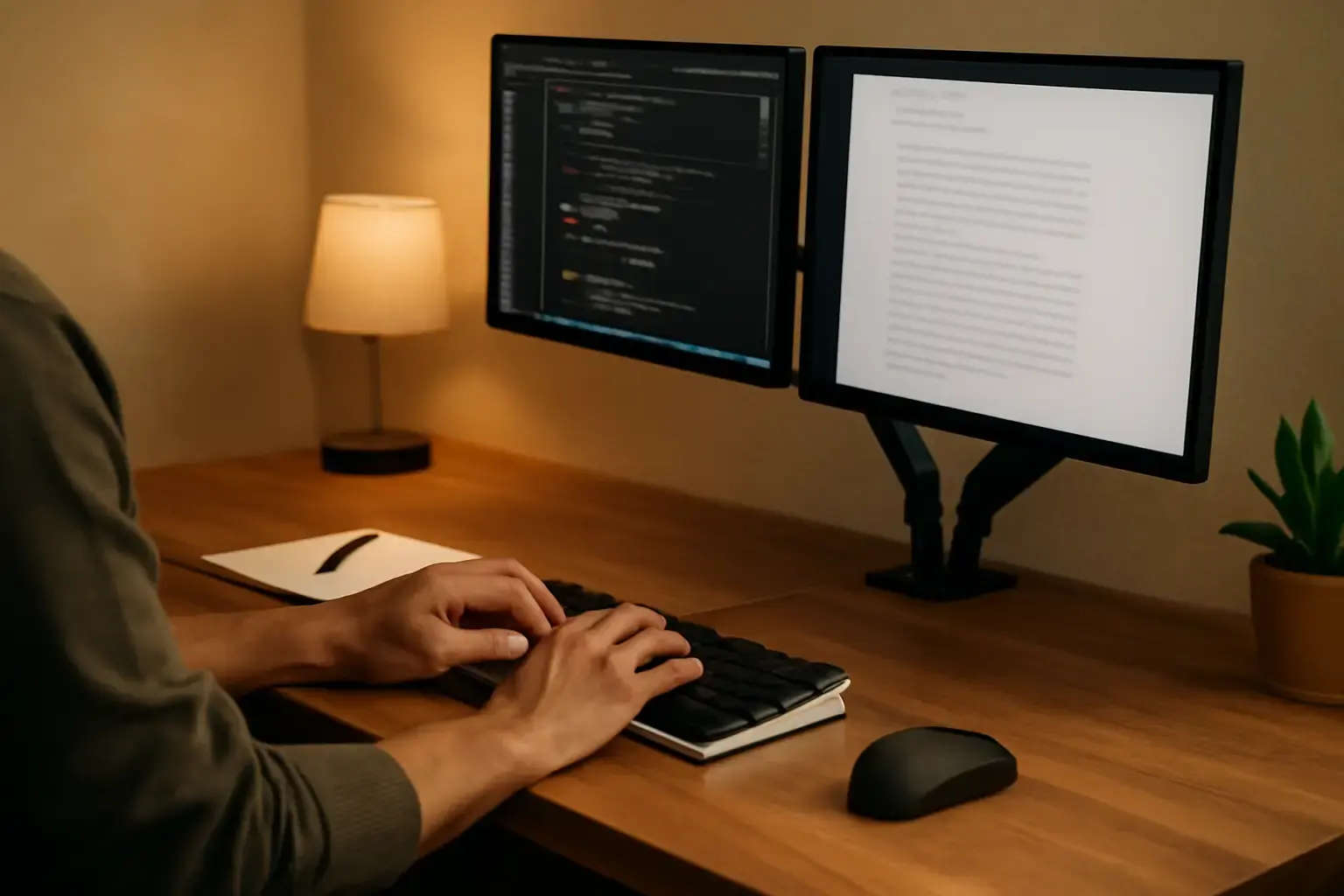
Why a Dual-Screen Setup Makes a Difference for Typists in Development and Writing
Developers and writers who spend long hours typing often struggle with workflows confined to a single screen and a conventional keyboard setup. Dual-screen configurations, when optimized for typing, can reduce context switching, increase visible information, and improve typing speed and comfort. However, not every dual-monitor setup delivers these benefits by default. The key is building a typing-first dual-screen workspace that supports long sessions, minimizes neck and wrist strain, and streamlines how you interact with text and code.
Related reading: Average Typing Speed (WPM) in 2026: What Is a Good WPM and How Fast Should You Really Type?
Choosing the Right Screens: Size, Resolution, and Placement Matter More Than You Think
A common mistake is picking two identical large monitors without considering the typing angle or eye distance, which can cause neck and eye strain. For developers and writers, the screens need to complement the typing position rather than dominate it.
- Screen size and resolution: Aim for 24-27 inch monitors with 1440p (QHD) resolution for crisp text without excessive scaling. This size balances screen real estate with comfortable viewing distances.
- Primary vs secondary screen: Your main screen should be directly in front, slightly below eye level, minimizing neck tilt. The secondary screen can be slightly smaller or tilted towards your dominant hand side to reduce head turning.
- Adjustable stands or arms: Use monitor arms that allow height, tilt, and swivel adjustments. This flexibility lets you position screens at ergonomic angles optimized for typing and reading.
- Screen layout: Position the monitors side-by-side with minimal bezel gap for seamless horizontal workflow. Alternatively, a vertical stack with a portrait screen can be effective for reading long documents or logs.
Keyboard Choices: Mechanical, Low-Profile, or Split? Matching Your Keyboard to Your Typing Needs
The keyboard is your primary input device, so comfort and accuracy directly impact typing speed and fatigue. For dual-screen setups, your keyboard choice should complement the monitor arrangement—both spatially and ergonomically.
See also: How to Choose Text Expansion Apps That Handle Complex Code Snippets Without Slowing Down Typing Flow
- Mechanical keyboards: Favored by developers and writers who type long sessions, mechanical switches provide tactile feedback and reduce finger fatigue. Popular switches like Cherry MX Brown or similar tactile switches balance comfort and noise.
- Low-profile keyboards: Useful if you prefer laptop-style key travel and want to reduce wrist extension. These work well when your desk space is limited between monitors.
- Split keyboards: Ideal for users with wrist discomfort or those wanting to customize hand spacing. Split designs can be angled independently to match the angle and height of dual monitors, promoting a natural arm position.
- Keep media and navigation keys accessible: For developers and writers, having quick access to arrow keys, function keys, and macros can speed up editing and navigation without breaking typing flow.
Ergonomics and Desk Setup: Positioning for Comfort, Reducing Typing Fatigue
A setup focused on comfort prevents common problems like wrist strain, neck pain, and eye fatigue that slow typing speed and reduce long-term productivity.
- Desk depth and keyboard placement: Ensure your keyboard sits close enough to keep elbows at about 90 degrees. Your forearms should be parallel to the floor or slightly angled down.
- Monitor height: The top of your primary monitor should be at or just below eye level to avoid looking down too much, which strains the neck. The secondary monitor can be marginally higher or tilted for glance efficiency.
- Chair and posture: A good ergonomic chair with lumbar support and adjustable height helps keep spine alignment during typing marathons.
- Wrist support: Use a padded wrist rest that keeps your wrists neutral, preventing extension or flexion during typing.
Software and Workflow Tweaks That Leverage Dual Screens for Faster Typing and Editing
Beyond hardware, software configuration dramatically shapes how effectively you use dual screens for text work.
You may also like: How to Set Up and Use Text Expansion Tools to Speed Up Repetitive Typing Tasks Without Losing Accuracy
- Window management tools: Invest in utilities like Microsoft PowerToys FancyZones or Rectangle for macOS to snap windows precisely to halves or thirds of your monitors, letting you quickly position code editors, browsers, or reference documents.
- Text expansion apps: For developers, apps that insert code snippets or templates can reduce repetitive typing. Writers benefit from snippet tools for common phrases or formatting.
- Multilingual keyboard shortcuts: If you switch languages, configure fast keyboard layout switching to avoid breaking typing flow.
- Dedicated typing trainers: Use online or desktop apps to track typing speed and accuracy improvements, especially aiming for balanced speeds across both screens when typing while referencing.
Practical Checklist: Building Your Productive Dual-Screen Typing Setup
- Select two monitors around 24-27 inches with at least 1440p resolution.
- Use adjustable monitor arms to align screens at comfortable height and angles.
- Choose a mechanical or low-profile keyboard based on typing preference and desk space.
- Position keyboard and chair to maintain neutral wrists and 90-degree elbow angles.
- Set primary monitor directly in front; place secondary monitor to the side or vertically oriented if needed.
- Install window management software for fast window snapping and organization.
- Set up text expansion tools to minimize repetitive typing and boost coding or writing flow.
- Regularly evaluate typing speed and ergonomics, adjusting setup to reduce fatigue.
Building a dual-screen typing setup is more than just plugging in a second monitor. Developers and writers must consider the interplay between screen placement, keyboard style, ergonomic desk layout, and software tools to truly maximize typing speed and comfort. By carefully selecting hardware and refining workflow, you transform your desk into a productivity powerhouse tailored to your typing demands.
For further guidance on boosting development typing speed, see our Best Typing Workflows for Developers to Maximize Coding Speed and Accuracy in 2026. To explore how AI tools can complement your setup without compromising typing accuracy, check out How to Choose AI-Powered Typing Assistants That Enhance Coding Speed Without Introducing Syntax Errors.