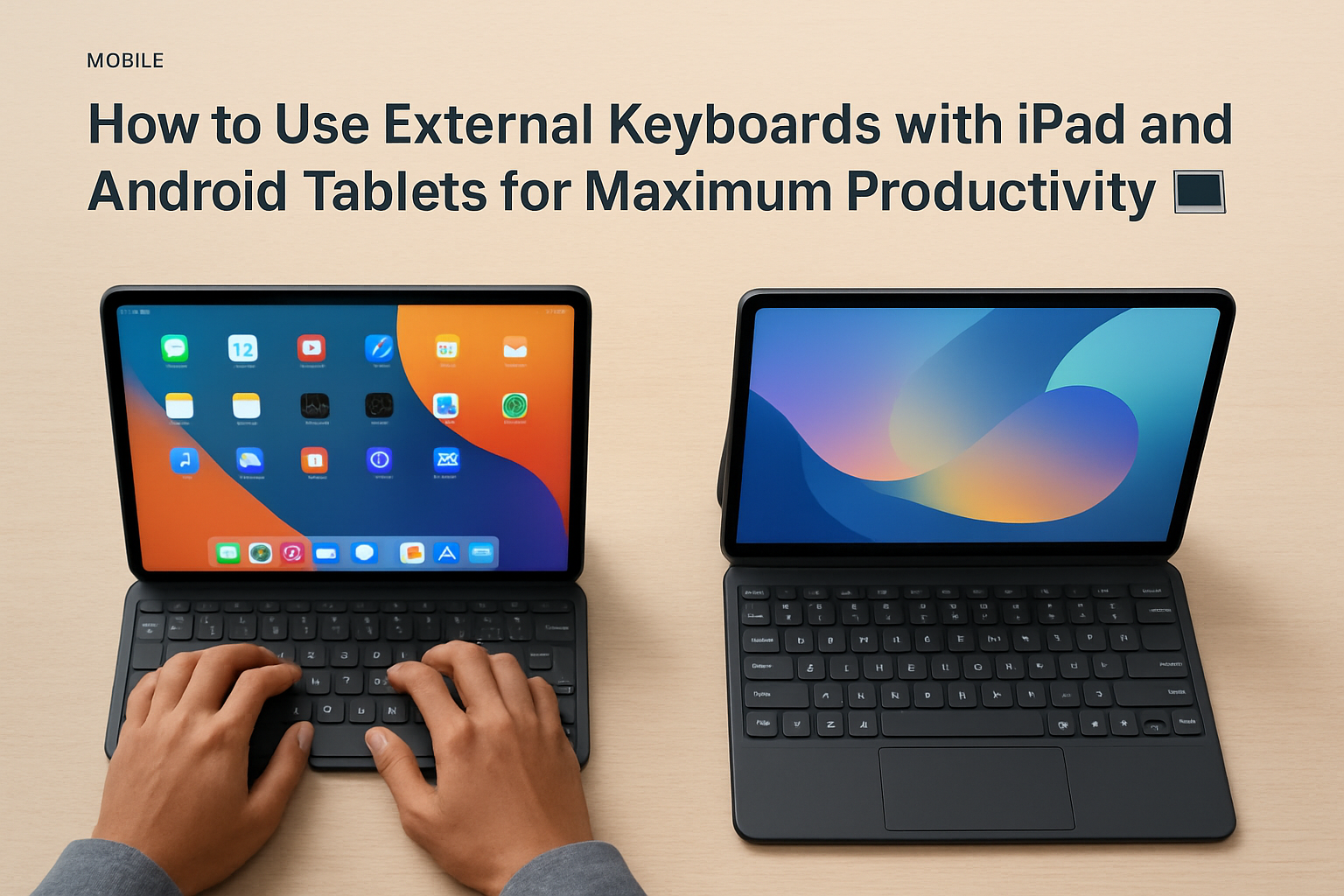
Why Use an External Keyboard with Your Tablet?
Tablets have evolved into powerful, versatile devices. From the Apple iPad to modern Android tablets, today’s options offer fast performance, high-resolution displays, and access to professional apps. But even with all this progress, one limitation remains: typing on a touchscreen is rarely efficient for extended work.
If you’ve ever tried writing long emails, drafting documents, coding, or taking detailed notes on a tablet, you know how quickly on-screen typing becomes slow and frustrating. That’s where an external keyboard changes everything.
Adding a physical keyboard dramatically improves typing speed, accuracy, and comfort. More importantly, it transforms your tablet into a lightweight laptop alternative—without sacrificing portability. Whether you’re working remotely, studying, or building projects on the go, the right keyboard setup can significantly boost your productivity.
Let’s break down how to choose the best keyboard, connect it properly, and optimize your workflow for real-world efficiency.
Choosing the Right Keyboard for Your iPad or Android Tablet
Choosing the right keyboard is essential if you want a smooth and productive experience. Not all keyboards are optimized for tablets, so focusing on the right features makes a big difference.
- Connectivity: Most keyboards use Bluetooth for convenience, but some iPads support a Smart Connector for a direct, cable-free connection without pairing or charging. Android tablets typically support Bluetooth and USB-C wired connections.
- Size and Layout: Compact keyboards are ideal for travel, but may sacrifice key spacing or layout familiarity. Full-sized keyboards offer better comfort for long typing sessions.
- Key Feel: Mechanical keyboards provide tactile feedback and durability, while membrane and scissor-switch keyboards are quieter and more portable. Your choice depends on your typing style and environment.
- Shortcut Keys: Dedicated keys for media control, brightness, and navigation can speed up your workflow significantly.
- Battery Life: A long-lasting battery reduces interruptions and keeps your setup reliable throughout the day.
Reliable options include the Apple Magic Keyboard for seamless iPad integration and the Logitech K380 for multi-device compatibility across tablets, phones, and laptops.
How to Connect and Optimize Your External Keyboard
For iPad Users:
- Bluetooth Pairing: Turn on your keyboard’s Bluetooth, go to Settings, and connect it from the Bluetooth menu.
- Smart Connector: If supported, attach the keyboard directly for instant power and connectivity.
- Keyboard Settings: Navigate to Settings > General > Keyboard to customize behavior, shortcuts, and auto-correction.
- Use Shortcuts: Hold the Command (⌘) key to reveal useful shortcuts within apps.
For Android Tablet Users:
- Bluetooth Pairing: Connect your keyboard through Settings > Connected Devices.
- USB-C or OTG: Use a wired connection for faster, lag-free typing.
- Layout Settings: Ensure the correct keyboard layout is selected under Languages & Input.
- Shortcut Customization: Use system or app-specific shortcuts to streamline navigation.
Optimizing these settings ensures your keyboard feels like a natural extension of your tablet rather than an add-on.
Practical Tips for Using External Keyboards with Tablets
To get the most out of your setup, small improvements can have a big impact on your daily workflow:
- Use a Stand or Case: Proper positioning improves posture and reduces strain during long sessions.
- Enable Text Expansion: Save time by creating shortcuts for frequently used phrases.
- Learn Keyboard Shortcuts: Apps like Word, Google Docs, and coding tools offer shortcuts that significantly boost efficiency.
- Switch Between Devices: Multi-device keyboards allow seamless transitions between tablet, phone, and laptop.
- Customize Keys: Remap modifier keys to match your preferred workflow, especially if you're used to desktop setups.
For deeper insights into tablet and keyboard combinations, explore our detailed guides on Top Tablets with Keyboard Support for Study and Work in 2026 💻⌨️ and Best Tablets with Keyboard Support for Students and Remote Workers in 2026 💻⌨️. These resources will help you choose the best setup based on your workflow, budget, and performance needs.
Common Challenges and How to Solve Them
Bluetooth Issues: Re-pair the keyboard and reduce interference from other devices. Keeping firmware updated can improve stability.
Wrong Key Layout: Double-check that your system layout matches your physical keyboard to avoid typing errors.
Battery Problems: Choose keyboards with strong battery life and turn them off when not in use.
Typing Lag: Use a wired connection via USB-C for near-zero latency, especially for coding or fast typing.
Shortcuts Not Working: Some apps don’t fully support external keyboards—try alternatives with better integration.
Final Thoughts: Unlock Your Tablet’s Full Potential
An external keyboard is one of the most impactful upgrades you can make to your tablet. It bridges the gap between mobility and productivity, allowing you to work faster, more comfortably, and with greater precision.
The key is choosing a setup that fits your real workflow—not just one that looks good on paper. When your keyboard integrates seamlessly into how you work, your tablet becomes a powerful tool for writing, coding, studying, and managing tasks.
Start with the right keyboard, optimize your setup, and refine your workflow—and you’ll unlock a level of productivity most tablet users never reach.
Take action today: evaluate your current setup, upgrade where needed, and build a system that helps you work smarter every single day.
Practical takeaways
Using an external keyboard with your tablet becomes far more effective when your setup aligns with your daily tasks, not just technical specifications.
Common mistakes to avoid
Avoid choosing keyboards based only on trends or features. The best option is the one that fits your workflow, remains comfortable over time, and integrates seamlessly with your device.
- Check workflow compatibility first
- Verify device and layout support
- Prioritize long-term comfort and usability