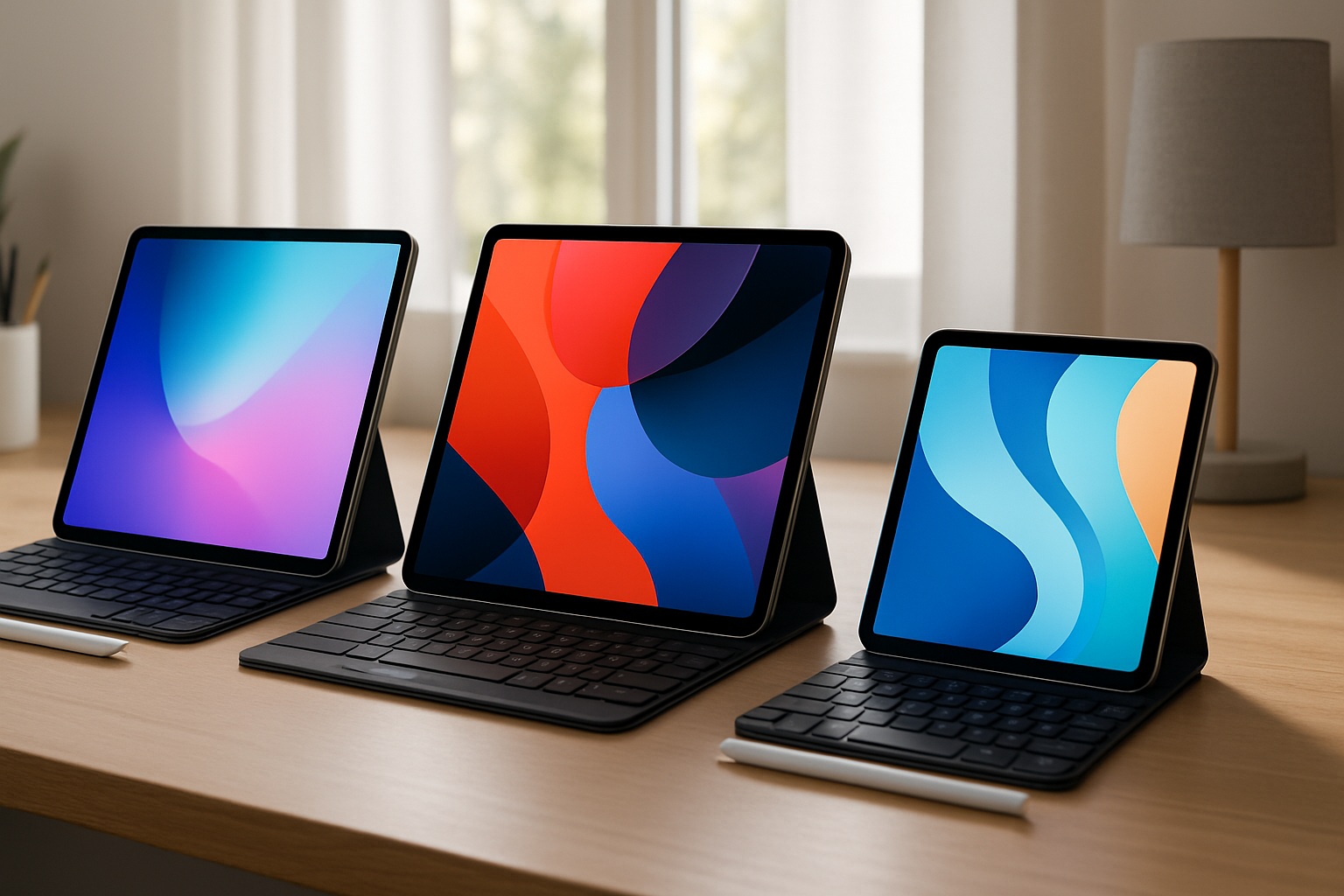
Understanding Apple's 2026 iPad Lineup
Apple’s iPad range in 2026 looks deceptively simple: three main models—the iPad Air, iPad Pro, and iPad Mini. But once you move beyond marketing pages and spec sheets, the decision becomes less obvious.
All three devices are powerful. All three support modern apps. And all three can be used for work, study, and entertainment. Yet in real-world use, they behave very differently. The gap isn’t just about performance—it’s about how comfortable each device feels in your daily routine.
If you’ve ever bought a device that looked perfect on paper but didn’t fit your workflow, you already know the problem. The goal here isn’t to compare specs—it’s to help you avoid that mismatch.
This guide takes a practical approach: what each iPad actually feels like to use, where it delivers value, where it doesn’t, and how to choose without overpaying or underestimating your needs.
Think in Use Cases, Not Product Names
Before you even look at models, step back and define your primary use. Most buyers skip this step and end up choosing based on hype instead of habits.
Ask yourself:
- Will this replace a laptop or just complement one?
- Do you need a device for focused work sessions or quick, flexible use?
- How often will you type vs. write by hand?
- Will you regularly run multiple apps side-by-side?
Your answers matter more than any benchmark number. A device that fits your workflow will feel faster and more capable—even if it’s technically less powerful.
The iPad Air: The “Right Enough” Choice for Most People
If you’re unsure which iPad to buy, the iPad Air is the safest starting point—and for many people, the final decision.
What makes it compelling isn’t that it excels in one area. It’s that it avoids major compromises. The size is practical, the performance is strong, and it supports the same ecosystem of accessories as the Pro models.
In everyday use, that balance matters more than peak performance. Writing documents, managing emails, attending video calls, and switching between apps all feel smooth and predictable.
It’s also the easiest iPad to integrate into different workflows. One day it’s a note-taking device. The next, it’s a lightweight laptop replacement. That flexibility is its biggest strength.
Why the Air works so well in practice
- It handles multitasking without feeling cramped or sluggish
- It’s portable enough to carry daily without thinking about it
- It supports both keyboard and stylus workflows effectively
- It avoids the “overkill” pricing of the Pro
Where you might feel limitations
- Scrolling and animations aren’t as fluid without ProMotion
- Heavy creative workflows can push its limits over time
- External connectivity is basic compared to Pro models
Real-world example: If you’re a student writing essays, annotating PDFs, and joining online lectures, the Air will feel complete. Upgrading to a Pro won’t significantly improve that experience.
Bottom line: If you want one device that adapts to different tasks without forcing trade-offs, the iPad Air is the most sensible default.
iPad Pro: Not for Everyone—But Indispensable for Some
The iPad Pro is often misunderstood. It’s either overhyped as a “laptop killer” or dismissed as unnecessary. The reality sits in between.
For casual use, it is excessive. But for specific workflows, it’s the only iPad that truly keeps up.
The difference becomes obvious when you push the device:
- Editing high-resolution video timelines
- Working with large design files
- Running multiple demanding apps simultaneously
- Using external displays and advanced setups
In those scenarios, the Pro doesn’t just perform better—it feels fundamentally smoother and more responsive.
The 120Hz ProMotion display is another key factor. It’s easy to dismiss on paper, but in daily use—especially for drawing, scrolling, or reading—it makes the entire interface feel more fluid and precise.
What justifies the Pro’s price
- Consistent performance under heavy workloads
- High-quality display for color-sensitive tasks
- Better multitasking with less slowdown
- More capable external connectivity
What you give up
- Significantly higher total cost (especially with accessories)
- Reduced portability, especially with larger models
- Diminishing returns for basic tasks
Real-world example: A designer working in illustration apps will notice the smoother pen input and better display. A student taking notes won’t.
Important perspective: Buying the Pro “just in case” is rarely justified. If you don’t already know why you need it, you probably don’t.
iPad Mini: Small Size, Very Specific Strength
The iPad Mini exists for a completely different type of user—someone who values portability above all else.
It’s the only iPad you can comfortably use with one hand. That changes how and where you use it. It feels less like a computer and more like a digital notebook or reading device.
For certain workflows, that’s exactly what you want.
Where the Mini feels uniquely useful
- Reading documents, ebooks, or articles for long periods
- Annotating PDFs or taking quick notes in meetings
- Using it while standing, commuting, or moving around
- Carrying it everywhere without thinking about weight or space
Performance is not the issue here—it’s strong enough for everyday apps. The limitation is space.
Where it becomes restrictive
- Split-screen multitasking feels cramped
- Typing long documents is uncomfortable
- Keyboard accessory options are limited
Real-world example: A medical professional reviewing notes on the go may love the Mini. A remote worker writing reports will quickly outgrow it.
Key takeaway: The Mini is excellent—but only if your workflow fits its size.
What Actually Impacts Daily Experience (More Than Specs)
When comparing iPads, buyers often focus on performance and features. In reality, these factors matter more:
| Factor | Why It Matters | Common Mistake |
|---|---|---|
| Screen Size | Defines comfort for multitasking and reading | Choosing too small for daily work |
| Weight & Portability | Affects how often you carry and use it | Ignoring daily mobility needs |
| Input Method | Typing vs handwriting changes everything | Not budgeting for accessories |
| Workflow Fit | Determines long-term satisfaction | Buying based on specs instead of habits |
These are the differences you’ll feel every day—not the processor upgrade you rarely notice.
Accessories: The Hidden Cost—and Value
An iPad on its own is only part of the story. The real experience often depends on what you pair it with.
- Keyboard (Magic Keyboard or external): Essential for writing-heavy workflows. Without it, productivity drops significantly.
- Apple Pencil: Transforms the iPad into a note-taking and annotation tool.
- External keyboard setups: A more flexible and often more affordable alternative. If you want to optimize this setup, check this guide on how to use external keyboards with iPads and Android tablets for maximum productivity.
Common mistake: Buying a powerful iPad but skipping accessories to save money. This often results in a worse experience than buying a slightly cheaper model with the right setup.
Where Buyers Go Wrong (And How to Avoid It)
Even experienced tech buyers fall into predictable traps:
- Buying for future needs: You don’t need Pro-level power unless your current workflow demands it.
- Underestimating ergonomics: Size and weight matter more than most people expect.
- Overvaluing specs: Real-world usability matters more than theoretical performance.
- Ignoring long-term use: Think about daily habits, not occasional tasks.
The best decision is rarely the most expensive one—it’s the one that fits your routine without friction.
Choosing With Confidence: A Practical Shortcut
If you want a quick, experience-based way to decide:
- Choose the iPad Air if you want flexibility and balance without overthinking it.
- Choose the iPad Pro if your work already pushes devices to their limits.
- Choose the iPad Mini if portability is your top priority and typing is secondary.
If you’re still comparing options across ecosystems, this breakdown of best tablets with keyboard support for students and remote workers in 2026 can give you additional perspective.
What You’ll Notice After a Month of Use
The first few days with an iPad are usually about excitement—new features, fast performance, clean design. But the real test comes after a few weeks.
That’s when patterns emerge:
- Do you actually carry it everywhere?
- Is typing comfortable or frustrating?
- Does multitasking feel natural or cramped?
- Are you using it more—or less—than expected?
These questions reveal whether you chose the right model.
In the long run, the best iPad isn’t the one with the most features. It’s the one that disappears into your workflow and simply works—whether you’re studying in the morning, working in the afternoon, or relaxing in the evening.
Choose based on how you live and work—not what looks impressive—and you’ll get far more value from your decision.