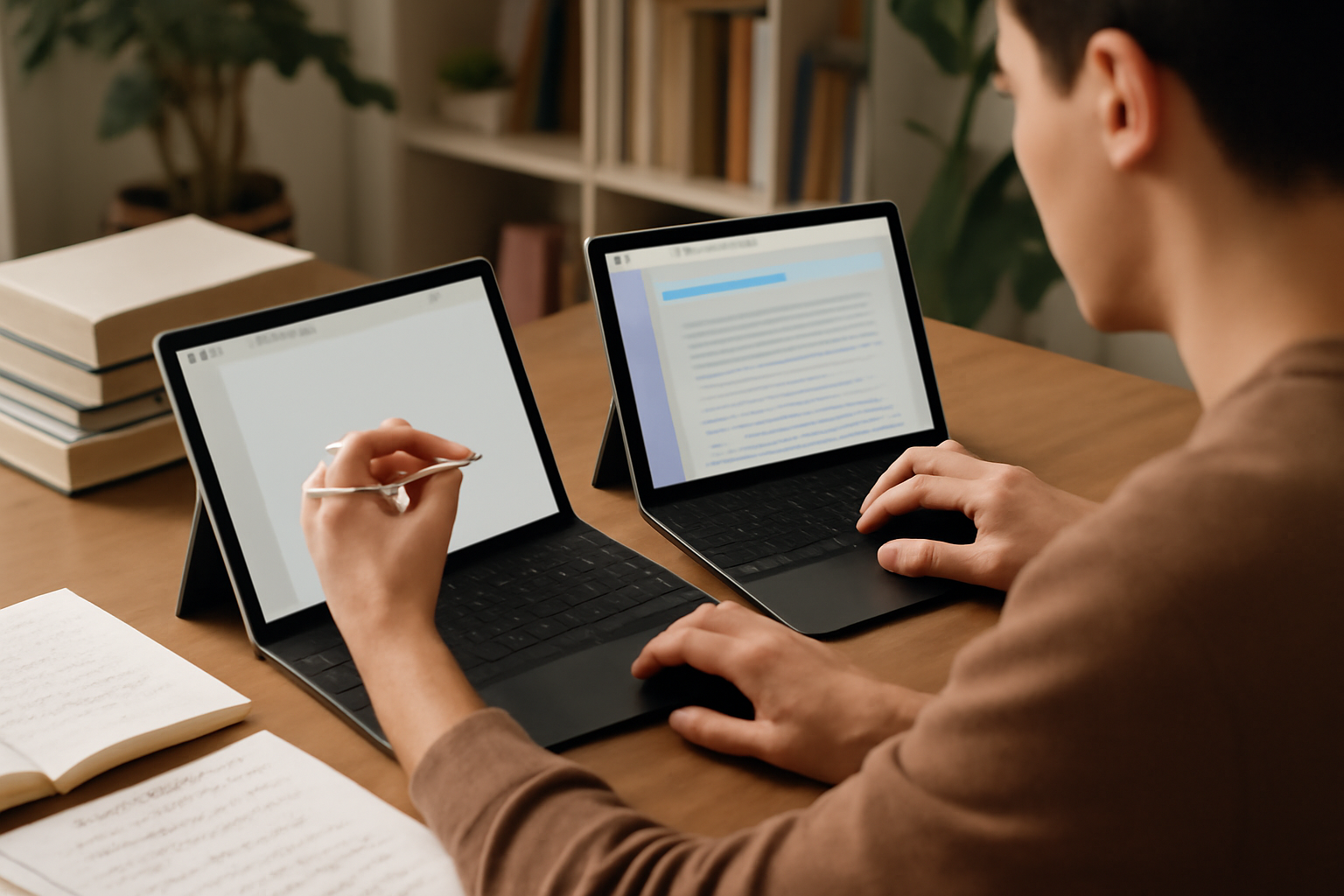
Why Your Tablet Choice Is More Than Just Hardware in 2026
Tablets have matured into serious work machines. For many students, freelancers, and remote professionals, they’re no longer secondary devices — they’re replacing laptops for writing, research, communication, and even creative work. But the decision between an Android tablet and an iPad isn’t about screen quality or chip performance anymore. It’s about how the device behaves under pressure: long typing sessions, multitasking between apps, handling files, and staying reliable day after day.
If you’re choosing a tablet for productivity in 2026, you’re really choosing a workflow. And that decision has long-term consequences. Switching later isn’t just inconvenient — it often means rebuilding your entire setup. So instead of chasing specs, focus on how each platform fits your habits, tools, and expectations.
1. Software Ecosystem: Where Real Productivity Happens
Hardware might get the headlines, but software determines whether your tablet actually helps you get work done.
iPads run on iPadOS, which has steadily evolved into a platform designed specifically for tablets. Apps are generally optimized, interfaces are consistent, and performance tends to be predictable. This matters more than most people realize — especially when you rely on apps for note-taking, document editing, or creative work.
iPadOS stands out for:
- High-quality, tablet-optimized apps with consistent UI and performance
- Professional tools that behave similarly to their desktop counterparts
- Reliable updates that keep devices usable for years
- Smooth integration with other Apple devices
If you frequently switch between writing, annotating PDFs, editing presentations, and attending video calls, this consistency reduces friction. You spend less time troubleshooting and more time working.
Android tablets, on the other hand, offer flexibility — but at the cost of consistency. The experience depends heavily on the manufacturer. A premium Samsung tablet may feel polished, while a budget model might struggle with app scaling or multitasking quirks.
Android excels in areas like:
- Open file system with easier drag-and-drop workflows
- Deep customization options for power users
- Better integration with Google services and cloud workflows
- Access to niche apps and automation tools
However, the trade-off is clear: you may need to experiment more to find apps that behave the way you expect. For users who enjoy tweaking and optimizing their setup, that’s a benefit. For those who just want things to work, it can become frustrating.
2. Keyboard Experience: The Hidden Make-or-Break Factor
Most productivity tasks come down to typing. Whether you’re writing essays, coding, answering emails, or drafting reports, your keyboard setup will define your experience more than the tablet itself.
iPads have a clear advantage in keyboard integration. Apple’s own keyboards are expensive, but they’re designed to feel like an extension of the device. Trackpad support is smooth, gestures are consistent, and system-wide shortcuts are well implemented.
What makes iPad keyboards effective:
- Stable connections with minimal lag or dropouts
- Consistent shortcut support across apps
- High-quality typing feel, especially on premium accessories
- Reliable trackpad behavior that mimics laptop navigation
For users who write daily, this reliability matters. You don’t want to fight your keyboard during a deadline.
Android tablets support keyboards well in theory, but the experience varies. Some devices handle shortcuts and trackpads smoothly, while others feel inconsistent. Even basic things like switching apps or navigating text can behave differently depending on the app or manufacturer.
Common Android keyboard challenges:
- Inconsistent shortcut support across apps
- Trackpad gestures that don’t always match expectations
- Occasional input lag with certain Bluetooth keyboards
- More trial-and-error when finding the right setup
This doesn’t mean Android tablets are bad for typing — far from it. But you’ll need to be more selective with accessories and possibly adjust your workflow to get the best experience.
If typing is central to your work, this is one area where testing before buying pays off significantly.
3. Multitasking and Workflow Flexibility
Modern productivity isn’t linear. You’re switching between apps, referencing documents, replying to messages, and managing multiple tasks at once.
iPadOS has improved multitasking with features like split view and stage management. It’s clean, visually intuitive, and works reliably once you learn it. But it still enforces certain limits — especially compared to desktop operating systems.
Android tablets often take a more flexible approach. Many allow multiple resizable windows, floating apps, and more freedom in arranging your workspace.
iPad multitasking strengths:
- Simple and predictable interface
- Stable performance even with multiple apps open
- Less clutter and fewer unexpected behaviors
Android multitasking strengths:
- Greater control over window placement and size
- More desktop-like experience on some devices
- Better suited for users who juggle many apps simultaneously
The trade-off is complexity versus reliability. Android gives you more control, but you may need to manage that complexity. iPadOS simplifies things, but sometimes at the cost of flexibility.
4. Portability, Battery Life, and Daily Use Reality
Specs sheets rarely reflect real-world usage. What matters is how your tablet performs over a full day of work or study.
iPads are known for consistent battery life. You can typically rely on them to last through lectures, meetings, or long writing sessions without needing to think about charging. This predictability is valuable, especially if you’re often on the move.
Android tablets vary more widely. Premium models can match or even exceed iPads in certain scenarios, but budget devices often struggle with efficiency.
Key practical considerations:
- Charging speed — some Android tablets recharge faster
- USB-C flexibility — Android often supports more accessories
- Standby efficiency — iPads tend to lose less battery when idle
Portability isn’t just about weight. It’s about whether your device fits seamlessly into your routine without constant adjustments.
5. Price vs. Long-Term Value
Price is often the starting point, but it shouldn’t be the deciding factor.
Android tablets are attractive upfront. You can get a capable device at a lower entry cost, which makes them appealing for students or casual users.
However, long-term value depends on more than initial savings:
- Software updates may be shorter or inconsistent
- App optimization can decline over time
- Accessory ecosystems are less standardized
iPads require a higher initial investment, but they tend to hold their value longer — both in resale and usability. Devices often remain supported and functional for years, which spreads the cost over time.
| Factor | iPad | Android Tablet |
|---|---|---|
| Upfront Cost | Higher | Lower (wide range) |
| Software Longevity | Strong | Varies by brand |
| Accessory Ecosystem | Highly optimized | Less consistent |
| Resale Value | Higher | Lower |
Looking beyond the price tag helps avoid a common mistake: saving money upfront but losing productivity over time.
Common Mistakes Buyers Still Make
Even experienced users fall into predictable traps when choosing a tablet for productivity.
- Focusing too much on specs: A faster processor won’t fix poor app optimization or a bad keyboard experience.
- Ignoring workflow compatibility: If your key apps don’t work well on your chosen platform, everything else becomes irrelevant.
- Underestimating accessories: A great tablet paired with a mediocre keyboard can ruin the experience.
- Assuming all tablets behave the same: Especially on Android, differences between brands can be significant.
- Skipping hands-on testing: Typing feel, trackpad behavior, and multitasking are hard to judge from specs alone.
A smart buyer prioritizes daily usability over theoretical performance.
Who Should Choose Which Platform?
There’s no universal winner — only the right tool for your needs.
Choose an iPad if:
- You want a stable, predictable productivity environment
- You rely on polished apps for writing, design, or note-taking
- You value a high-quality keyboard and trackpad experience
- You already use other Apple devices and want seamless integration
Choose an Android tablet if:
- You prefer flexibility and customization
- You work heavily with files across different systems
- You rely on Google services and Android-specific tools
- You’re willing to fine-tune your setup for better results
For a deeper dive into keyboards for both platforms, check out How to Use External Keyboards with iPad and Android Tablets for Maximum Productivity ⌨️💻. If you’re torn between models, our iPad vs Android Tablet for Work and Study article dives into practical pros and cons based on recent software and hardware trends.
Final Recommendation: Choose the Workflow, Not the Device
The best tablet for work and study isn’t the one with the best specs — it’s the one that disappears into your routine and lets you focus on your tasks.
If you want reliability, consistency, and minimal friction, the iPad remains the safer long-term investment. It’s especially strong for writing, note-taking, and creative work where stability matters more than flexibility.
If you value control, customization, and a more open system, a well-chosen Android tablet can be just as powerful — but only if you’re willing to invest time in setting it up properly.
Think about your daily tasks. How you write, switch apps, manage files, and connect devices. The closer your tablet aligns with those habits, the more productive you’ll be.
Choose based on how you work — not what looks impressive on paper.