How to Reduce Typing Fatigue During Long Work Sessions (2026 Guide)
Quick answer: If your hands, wrists, or shoulders feel tired after long typing sessions, the fix isn’t one single trick—it’s a combination of posture, equipment, and habits. Keep your wrists in a neutral position, invest in a keyboard that reduces strain, take structured breaks, and adjust your workspace so your body isn’t fighting your desk all day.
Typing fatigue is often underestimated. It starts subtly—slightly stiff fingers, a bit of wrist tension—but over weeks or months, it can escalate into chronic discomfort or even repetitive strain injuries like carpal tunnel syndrome. If you spend several hours a day at a keyboard (developers, writers, analysts, students), this isn’t optional optimization—it’s basic maintenance for your productivity and long-term health.
The good news: most typing fatigue isn’t caused by extreme workloads. It’s caused by small inefficiencies repeated thousands of times. Fix those, and the difference is immediate.
Common Causes vs Practical Fixes
| Cause | What’s Actually Happening | What to Do Instead |
|---|---|---|
| Poor wrist angle | Constant tension in tendons and nerves | Keep wrists straight and level with keyboard |
| No breaks | Muscles never reset, fatigue accumulates | Use timed microbreaks |
| Bad posture | Neck and shoulders compensate for poor alignment | Adjust chair, monitor, and sitting position |
| Wrong keyboard | Too much force required per keystroke | Switch to ergonomic or low-force keyboard |
| Overtyping force | Unnecessary impact stress on fingers | Type lighter, not harder |
Most people try to “push through” fatigue. That’s the mistake. Fatigue is feedback—your setup or habits are inefficient.
Build an Ergonomic Setup That Actually Works
An ergonomic setup isn’t about buying expensive gear—it’s about alignment. Your goal is to remove tension, not add accessories blindly.
- Desk height matters more than you think: Your elbows should rest at roughly a 90° angle. If your desk is too high, your shoulders lift. Too low, and you hunch.
- Neutral wrists are non-negotiable: Your wrists should not bend upward or downward. A flat, straight line from forearm to hand reduces strain significantly.
- Keyboard position: Keep it close. If your arms are reaching forward, you’re creating constant tension in your shoulders.
- Chair support: Sit upright with lower back support. Slouching shifts the strain to your neck and wrists.
- Monitor height: The top of your screen should be roughly at eye level to prevent neck tilt.
Many people fixate on keyboards while ignoring posture. That’s backwards. Even the best keyboard won’t save a poor setup.
If you’re choosing between keyboard types, it’s worth understanding how key travel and resistance affect fatigue: Mechanical vs Low-Profile Keyboards
Typing Habits That Make a Real Difference
Even with a perfect setup, bad habits can undo everything. The way you type matters just as much as what you type on.
- Stop hitting keys so hard: Many people bottom out keys aggressively. Modern keyboards don’t require force—light keystrokes reduce impact stress.
- Learn proper touch typing: If you’re hunting and pecking or constantly repositioning your hands, you’re increasing unnecessary movement.
- Relax your hands: Your fingers should hover, not press down constantly between keystrokes.
- Use shortcuts: Reduce repetitive mouse-keyboard switching. Keyboard shortcuts save both time and strain.
- Mix input methods: Voice typing can be surprisingly useful for emails, notes, or drafts. It’s not perfect, but it gives your hands a break.
One overlooked factor: tension. If your shoulders are tight while typing, your hands will fatigue faster. Relaxation is part of efficiency.
A Break Strategy You’ll Actually Stick To
“Take breaks” is common advice—but vague advice doesn’t change behavior. You need a system that fits real work.
- Microbreaks every 30–60 minutes: Stand up, move, or stretch for 1–2 minutes. This resets muscle tension.
- 20-20-20 rule for eyes: Every 20 minutes, look at something 20 feet away for 20 seconds. Eye fatigue contributes to posture issues.
- Scheduled longer breaks: Every 2–3 hours, step away completely. Not just switching tabs—actually leave your desk.
- Use reminders: Don’t rely on memory. Use a timer or app to enforce breaks until it becomes habit.
The biggest mistake? Skipping breaks when you’re “in the zone.” That’s exactly when fatigue builds fastest.
Accessories That Are Worth It (and Ones That Aren’t)
Accessories can help—but only if they solve a real problem. Buying everything labeled “ergonomic” is not the solution.
Worth considering:
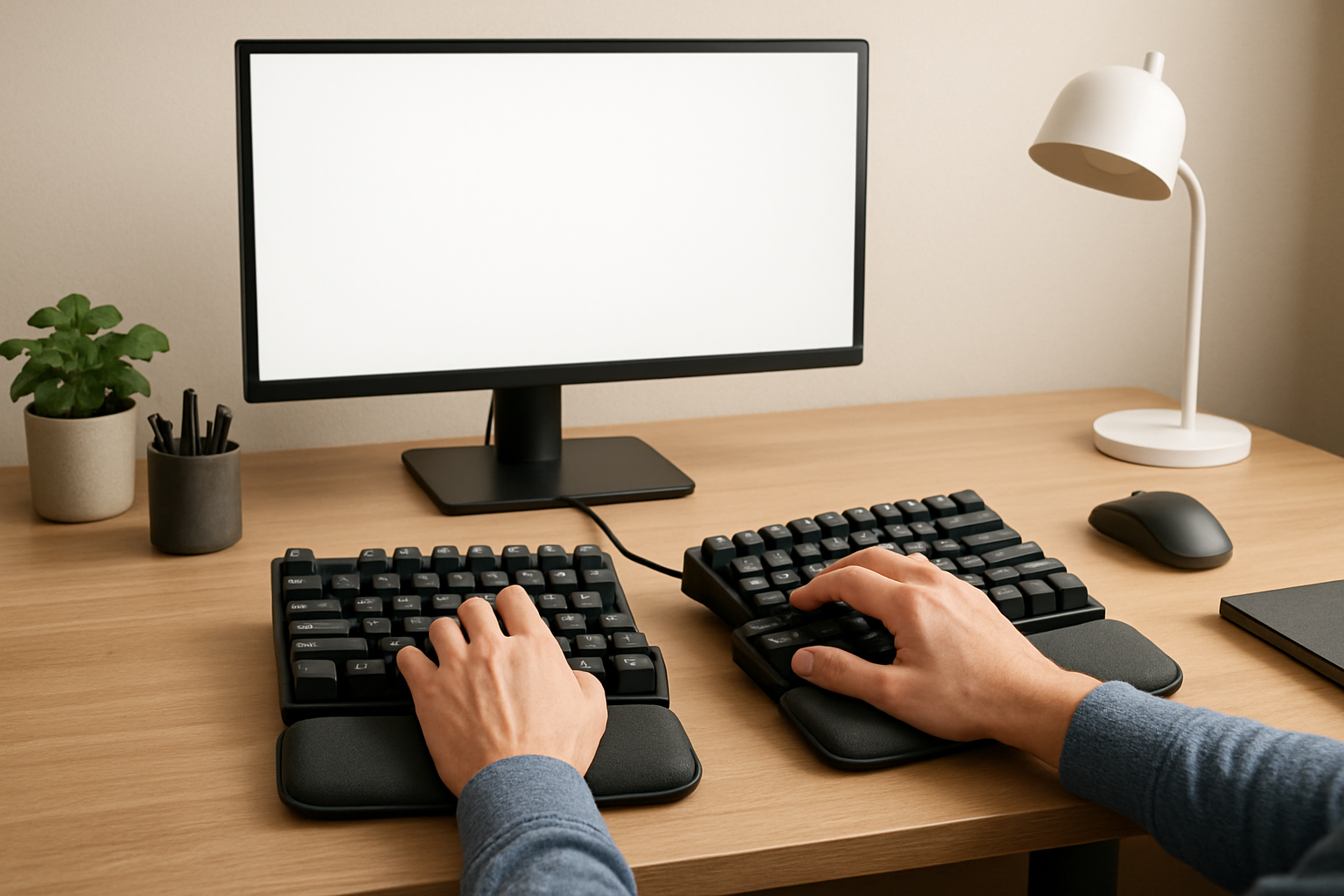
- Ergonomic keyboard: Split keyboards or models with low-force switches reduce wrist deviation and typing effort.
- Wrist rest: Useful for support between typing—not while actively pressing keys.
- Vertical mouse: Reduces forearm rotation and complements a better typing posture.
- Adjustable monitor stand: Fixes neck alignment, which indirectly reduces wrist strain.
Often overhyped or misused:
- Thick wrist pads: Can force wrists into unnatural angles if too high.
- Cheap “ergonomic” keyboards: Poor design can be worse than standard layouts.
- Standing desks (used incorrectly): Standing all day introduces new fatigue instead of solving it.
Focus on fit, not features. The best tool is the one that aligns with your body—not the one with the most marketing.
Real-World Example: Small Changes, Big Impact
A software developer working 8–10 hours daily started experiencing persistent wrist pain and shoulder stiffness. Instead of a complete setup overhaul, they made three targeted changes:
- Switched to a low-force ergonomic keyboard
- Lowered desk height to fix elbow angle
- Set a timer for breaks every 45 minutes
Within a few weeks, discomfort dropped significantly. No drastic intervention—just consistent adjustments. This is typical: most typing fatigue problems are solved with incremental fixes, not extreme solutions.
Common Mistakes That Make Fatigue Worse
- Ignoring early warning signs: Mild discomfort is the time to act—not when pain becomes constant.
- Overcorrecting too quickly: Switching to a radically different keyboard without adaptation can create new strain.
- Typing through pain: This turns short-term fatigue into long-term injury.
- Focusing only on hands: Neck, shoulders, and back alignment are part of the same system.
- No consistency: Ergonomics only works if you maintain it daily.
Think of your setup like code quality: small issues compound over time.
Practical Takeaways for Daily Use
- Start with posture and desk setup before buying new gear
- Use lighter keystrokes and reduce unnecessary force
- Take structured breaks—even during busy sessions
- Choose accessories that solve a specific problem
- Adjust gradually and observe what improves comfort
Final Recommendation
If you’re dealing with typing fatigue, don’t look for a single fix. The most effective approach is layered: correct your posture, optimize your workspace, improve your typing habits, and support it all with the right tools. Start with the basics—desk height, wrist position, and breaks—before investing in new hardware.
For most people, the best return comes from a combination of an ergonomic keyboard, better posture, and disciplined break routines. Ignore any one of these, and fatigue will return. Get all three right, and you’ll not only reduce discomfort—you’ll type longer, faster, and with far less effort.