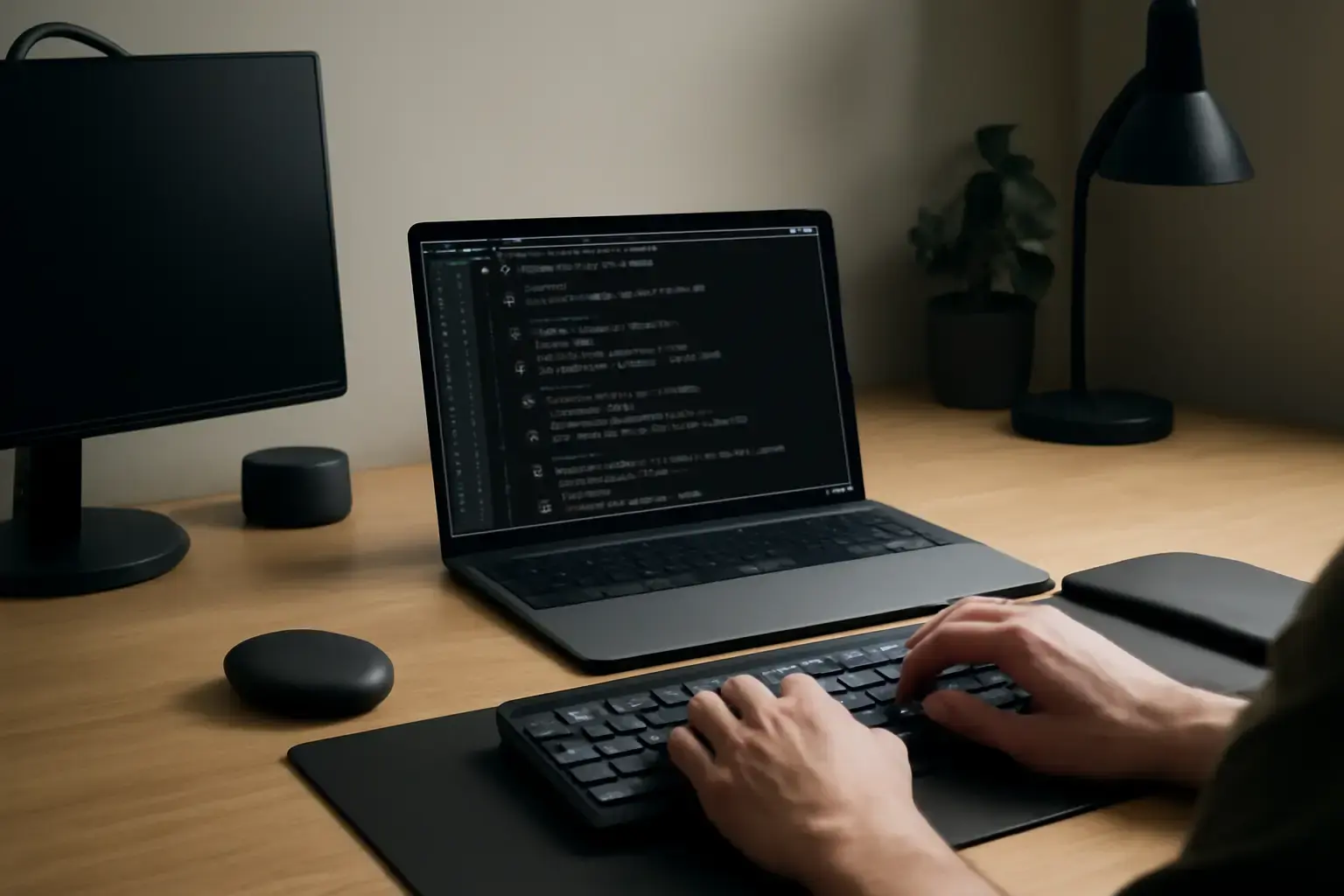
Why Low Latency and Symbol Efficiency Matter for Remote Developers
Remote developers who code intensively with symbols—such as brackets, operators, and punctuation—are especially sensitive to keyboard latency. Even a slight delay between keypress and onscreen input can disrupt typing rhythm, cause mistakes, and increase cognitive load during debugging or complex logic writing. Wireless keyboards traditionally lag behind wired models in latency, but advances in technology and careful setup choices mean it’s possible to build a wireless setup that feels almost as responsive as wired keyboards while giving developers freedom of movement and cleaner desks.
Moreover, heavy symbol use demands keyboard layouts and tools that put these keys within quick reach. This means that choosing the right wireless keyboard is only half the battle; the developer typing workflow and software configuration also play critical roles.
Choosing the Right Wireless Keyboard: Prioritizing Low Latency and Symbol Accessibility
When selecting a wireless keyboard for development work that involves frequent symbol typing, consider these key aspects:
- Connection Type: Bluetooth keyboards are convenient but often suffer from higher latency and occasional connectivity drops. In contrast, proprietary 2.4GHz wireless keyboards with USB dongles (like Logitech’s Lightspeed) provide significantly lower latency, often approaching wired levels.
- Mechanical Switches: Mechanical keyboards with tactile or clicky switches tend to encourage faster and more accurate typing, especially for symbol-heavy input. Many low-profile mechanical wireless options are now available, balancing comfort and compactness.
- Key Layout and Programmability: Developers benefit enormously from keyboards with easily accessible symbol keys or programmable layers/macros that reduce finger travel for commonly used symbols. Look for options with dedicated keys for brackets, braces, tilde, pipes, and other operators, or those with reliable software for remapping.
- Battery Life and Charging: Long battery life ensures uninterrupted typing sessions. Keyboards with fast charging or swappable batteries reduce downtime even more.
For practical models that meet these criteria, see our detailed review in Best Wireless Mechanical Keyboards for Remote Developers in 2026.
Optimizing Your Setup for Minimal Wireless Delay and Maximum Reliability
Even the best wireless keyboard can underperform if the setup is suboptimal. Consider these setup tips to squeeze out the lowest possible latency and most stable connection:
- Use a Dedicated USB Dongle: Avoid relying on generic Bluetooth receivers integrated into laptops, which can share bandwidth with other peripherals and degrade performance. Dedicated proprietary dongles typically outperform standard Bluetooth stacks.
- Minimize Interference: Wireless 2.4GHz and Bluetooth bands are crowded. Keep the keyboard within 2 meters of the receiver and away from metal objects, Wi-Fi routers, and other wireless peripherals that cause radio interference.
- Regularly Update Firmware and Drivers: Keyboard manufacturers often release firmware updates that improve wireless performance and fix latency bugs. Update your keyboard firmware and your OS Bluetooth/drivers regularly.
- Adjust Power Settings: On laptops, aggressive power management for USB and Bluetooth can cause delays or disconnects. Customize power plans to disable selective suspend and optimize for performance during coding sessions.
If you encounter latency issues, our guide Troubleshooting Bluetooth Keyboard Latency Issues for Developers dives into detailed diagnostics and fixes.
Related reading: Best Low-Latency Wired Keyboards for Developers Who Need Fast and Accurate Symbol Input Without Wireless Lag
Enhancing Symbol Input with Software and Workflow Adjustments
Hardware is just one side of the equation. To speed up symbol-heavy coding without losing accuracy, developers should tune their software environment and typing workflow:
- Use Text Expansion and Snippet Tools: Utilities like AutoHotkey (Windows), aText (Mac), or built-in IDE snippet managers can expand short abbreviations into complex code blocks or symbol sequences, minimizing manual keypresses.
- Customize Keyboard Layouts: Consider layouts optimized for programming such as Programmer Dvorak or Colemak Mod-DH, which reposition symbols closer to the home row. Alternatively, remap seldom used keys to frequently typed symbols.
- Leverage Modifier Layers: Some keyboards support Fn layers that expose additional keys for symbols without leaving the main typing area. Designing an efficient layer system reduces finger travel and strain.
- Practice Symbol-Focused Typing Drills: Specialized typing trainers help improve speed and accuracy on programming symbols. Our recommended drills are detailed in How to Build a Developer Typing Workflow That Balances Fast Symbol Input and Comfortable Long Sessions.
Practical List: Steps to Build Your Ultimate Low-Latency Wireless Developer Setup
- Assess Your Current Latency: Use online keyboard latency tests and note any lag or missed keystrokes during symbol-heavy coding.
- Select a Premium Wireless Keyboard: Prioritize 2.4GHz mechanical keyboards with strong reviews on latency and symbol key access.
- Optimize Your Workspace: Place the receiver close and in line of sight, reduce wireless interference, and adjust power settings.
- Customize Key Mappings: Remap keys or set up layers to make frequently used symbols easier to reach.
- Install Text Expansion Tools: Automate repetitive symbol sequences and common code snippets.
- Update Firmware and Software Regularly: Keep all drivers, firmware, and IDE plugins current for best performance.
- Practice Targeted Typing Exercises: Work on drills that emphasize programming symbols to improve muscle memory and speed.
Who Should Avoid Wireless for Heavy Symbol Coding?
Despite many improvements, wireless setups may still disappoint developers who:
- Work in extremely latency-sensitive environments, such as competitive programming contests or live coding streams where every millisecond counts.
- Frequently experience unstable wireless environments, such as congested office spaces with heavy Wi-Fi and Bluetooth traffic causing interference.
- Require specialized keyboards unavailable in wireless versions or need full-size keyboards with dedicated macro pads for symbol-heavy workflows.
For these users, wired mechanical keyboards may remain the best choice. See Best Low-Latency Wired Keyboards for Developers for wired options.
Conclusion: Wireless Can Work for Heavy Symbol Coding If You Choose and Tune Wisely
Building a low-latency wireless keyboard setup for remote developers who rely on heavy symbol input is achievable with the right hardware and workflow optimizations. Prioritizing 2.4GHz mechanical keyboards designed for coding, optimizing your wireless environment, leveraging remapping and text expansion, and training typing skills around symbols are the pillars of a productive setup.
While wireless setups won’t fully replace wired ones for all developers, especially those with zero tolerance for delay or unstable connections, the freedom and desk cleanliness they offer now come without as severe a latency penalty as before. If your workflow demands mobility and comfort alongside fast, accurate symbol input, investing time and some money in a carefully planned wireless keyboard system is worth it.
For a deeper dive into related wireless typing setups, troubleshooting, and workflow guides, check out how to build a productive typing setup for remote workers and how to build a developer typing workflow.