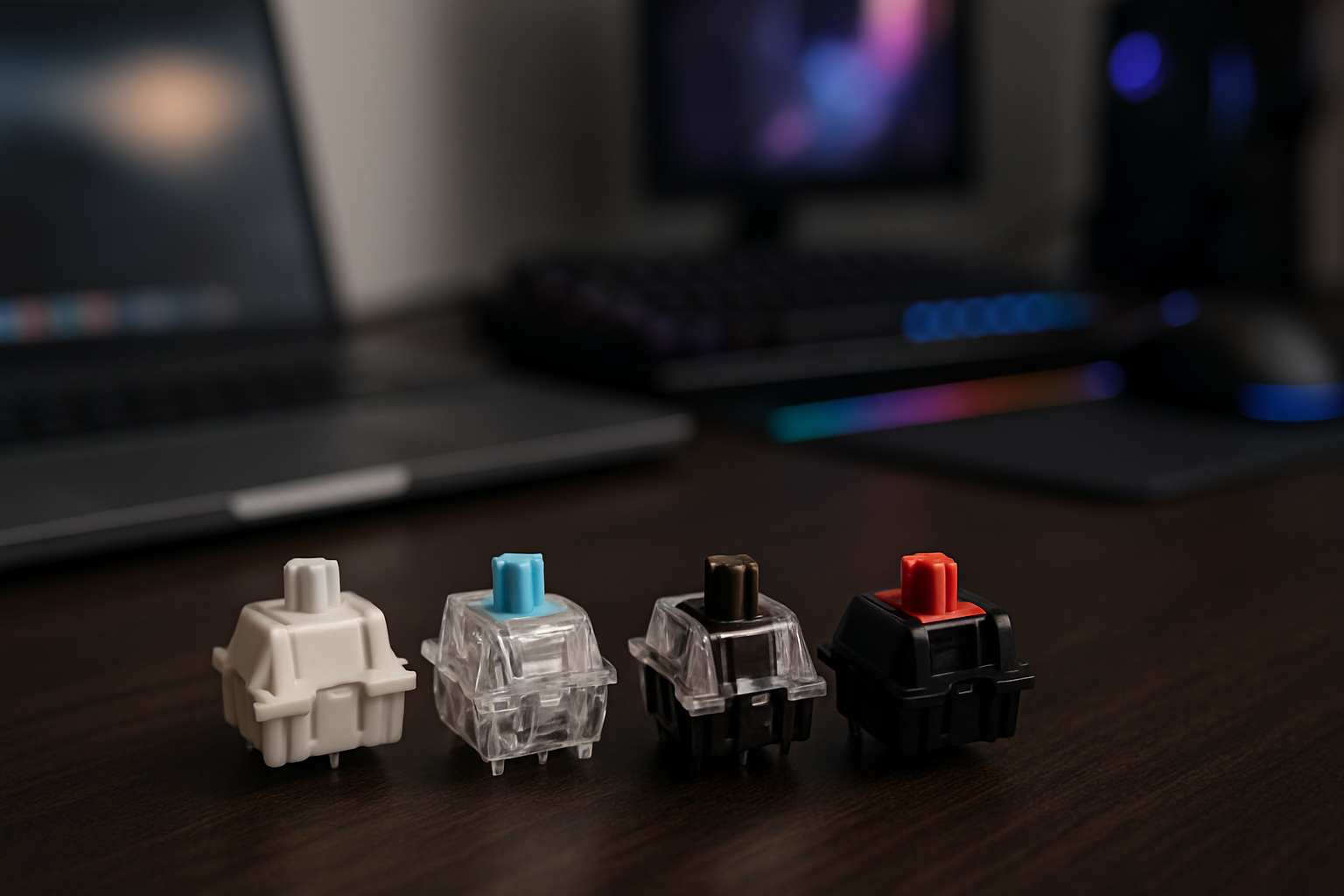
Keyboard Switch Types Explained: Linear vs Tactile vs Clicky
Choosing the right keyboard switch looks like a small decision on paper, but in practice it shapes how you work every single day. If your keyboard feels off—too loud, too soft, too vague—you’ll notice it in subtle but persistent ways: more typos, slower flow, or even physical fatigue.
For developers, writers, and gamers alike, a keyboard isn’t just a peripheral. It’s a primary interface. And the switch beneath each key determines whether that interface feels precise and responsive—or frustrating and inconsistent.
Mechanical keyboard switches generally fall into three categories: linear, tactile, and clicky. On paper, the differences seem straightforward. In real-world use, however, the trade-offs are more nuanced. The right choice depends not just on preference, but on your environment, typing style, and the kind of work you do most.
Quick Comparison of Keyboard Switch Types
| Switch Type | Feel | Noise | Best For |
|---|---|---|---|
| Linear | Smooth, consistent | Low | Gaming, fast repetitive input |
| Tactile | Noticeable bump | Medium | Work, coding, balanced typing |
| Clicky | Bump + audible click | High | Typing-focused workflows |
This overview is useful as a starting point, but it doesn’t tell you how these switches behave after eight hours of coding, or during a late-night gaming session, or in a shared office. That’s where the real differences start to matter.
Linear Switches: Speed and Smoothness with Fewer Boundaries
Linear switches offer a completely smooth keystroke from top to bottom. There’s no tactile bump, no audible click—just a consistent motion. This simplicity is exactly why they’re favored in competitive gaming environments.
When you’re repeatedly pressing the same keys—think movement keys in FPS games or rapid commands in RTS titles—any interruption in the keystroke can slow you down. Linear switches remove that resistance, allowing for faster actuation and easier repetition.
Where linear switches excel in real use:
- Rapid, repeated key presses where speed matters more than feedback
- Setups where noise needs to be minimized (shared apartments, late-night sessions)
- Users who prefer a fluid, uninterrupted typing motion
However, this smoothness comes with trade-offs that are often underestimated.
Common drawbacks:
- Higher risk of accidental key presses, especially with lighter springs
- Lack of feedback can reduce typing accuracy
- Encourages bottoming out, which increases fatigue over time
In practice, many developers transitioning from tactile switches initially struggle with linear switches. Without a clear signal of actuation, it’s easy to press keys harder than necessary. Over long sessions, this can negate the theoretical comfort advantage.
Another overlooked factor is spring weight. A slightly heavier linear switch can feel significantly more controlled than a very light one, without sacrificing smoothness. This is often a better compromise for mixed-use setups.
Best suited for: gamers, users who prioritize smoothness, and those working in quieter environments.
Not ideal for: heavy typists, precision-focused work, or anyone relying on physical feedback to maintain rhythm.
Tactile Switches: The Balanced Choice for Real Work
Tactile switches introduce a small bump during the keypress. This bump indicates the actuation point—the moment your input is registered. It’s subtle, but incredibly useful.
For most users, especially those who type for a living, this feedback improves both comfort and accuracy. You don’t need to press the key all the way down; once you feel the bump, you can move on to the next keystroke.
Why tactile switches work so well in practice:
- They provide clear feedback without excessive noise
- They reduce unnecessary force, helping prevent fatigue
- They improve typing consistency over long sessions
In a development workflow, this becomes especially valuable. When writing code, small errors can break entire builds. The tactile bump helps reinforce each keystroke, reducing missed inputs and improving overall confidence.
Trade-offs to be aware of:
- Slightly less efficient for rapid double-tapping compared to linear switches
- Tactile feedback varies widely between models—some are barely noticeable
- Not silent, though significantly quieter than clicky options
One mistake many buyers make is assuming all tactile switches feel the same. In reality, the strength and position of the bump can differ dramatically. Some feel soft and subtle, while others are sharp and pronounced.
This is why tactile switches are often recommended as a starting point rather than an endpoint. They give you a reference: you’ll quickly learn whether you want more feedback, less resistance, or a quieter experience.
Best suited for: developers, writers, office users, and anyone who values balance and reliability.
Less ideal for: users who want completely smooth keystrokes or maximum auditory feedback.
Clicky Switches: Precision Feedback at the Cost of Noise
Clicky switches combine tactile feedback with a distinct audible click. You feel the actuation—and you hear it clearly.
For some users, this creates a highly engaging typing experience. The sound reinforces each keystroke, making typing feel more deliberate and rhythmic. For writing-heavy workflows, this can actually improve focus and consistency.
Why users choose clicky switches:
- Unmistakable confirmation of each keypress
- Strong tactile feedback combined with sound
- A satisfying, mechanical typing experience
But there’s no way around the biggest drawback: noise.
What makes clicky switches difficult to recommend broadly:
- They are loud enough to disturb others in shared spaces
- The sound can become fatiguing over long sessions
- They limit where and when you can comfortably use your keyboard
This is one of the most common buyer mistakes—falling in love with the sound in online videos without considering real-world environments. What sounds satisfying in isolation can quickly become disruptive in an office or apartment setting.
Best suited for: solo workspaces, dedicated writing setups, and users who enjoy auditory feedback.
Not suitable for: shared offices, meetings, or late-night use around others.
How Switch Choice Impacts Daily Performance
Switches don’t just change how your keyboard feels—they influence how efficiently you work. The differences show up over time, not just in quick tests.
- Typing speed: Linear switches can enable faster bursts of input, but tactile switches often deliver more consistent real-world speed due to fewer corrections.
- Accuracy: Tactile and clicky switches reduce missed keystrokes by providing clear feedback.
- Fatigue: Lighter switches require less force, but lack of feedback can lead to harder bottoming out.
- Noise management: Quiet switches improve focus, especially in shared environments.
Your typing style also plays a major role. If you naturally bottom out every key, the benefits of tactile feedback may be less noticeable. If you type lightly, tactile switches can significantly reduce effort and strain.
Beyond Switch Type: What Actually Shapes the Experience
Focusing only on switch type is one of the biggest beginner mistakes. Two keyboards with identical switches can feel completely different depending on other factors.
- Actuation force: Determines how hard you need to press. Too light can cause errors; too heavy can cause fatigue.
- Key travel: Shorter travel feels faster; longer travel feels more cushioned.
- Stabilizers: Poor stabilizers make large keys feel inconsistent and rattly.
- Keycaps: Material and profile affect both sound and comfort.
- Case design: The keyboard’s build influences acoustics more than many expect.
This is why experienced users evaluate the entire keyboard, not just the switch. A well-built board with average switches can feel better than a poorly built one with premium switches.
Smart Buying Tips (That Actually Matter)
If you want to avoid regret and unnecessary upgrades, approach your purchase with a bit of strategy:
- Test switches in person whenever possible—even briefly
- Use a switch tester to compare different types side by side
- Consider your environment before your preference
- Prioritize your primary use case, not occasional tasks
- Be skeptical of hype—popular doesn’t mean suitable for you
If you’re unsure, tactile switches are the safest entry point. They provide enough feedback to guide your typing without locking you into a specific preference.
For full keyboard recommendations, check: Best Mechanical Keyboards Under $150 for Developers in 2026.
Also explore: Mechanical vs Low-Profile Keyboards.
Common Mistakes to Avoid
- Buying based solely on sound tests or online reviews
- Ignoring how loud the keyboard will be in your environment
- Choosing the lightest switch without considering accuracy
- Assuming all switches of the same type feel identical
- Focusing only on switches and ignoring overall build quality
Many users end up replacing their first mechanical keyboard within months. Not because the keyboard is bad—but because it doesn’t match how they actually work.
Final Recommendation
If you need a dependable, versatile option that works across coding, writing, and general use, tactile switches are the most practical starting point. They strike a balance between feedback, comfort, and noise that fits most workflows.
If your priority is speed and smoothness—especially for gaming—linear switches are worth considering, as long as you’re comfortable with the learning curve.
If you value strong feedback and enjoy a pronounced typing sound, clicky switches can be satisfying—but only in environments where noise isn’t an issue.
The smartest choice isn’t the most popular one—it’s the one that aligns with how you actually use your keyboard every day. Get that right, and it’s one of the most noticeable upgrades you can make to your setup.