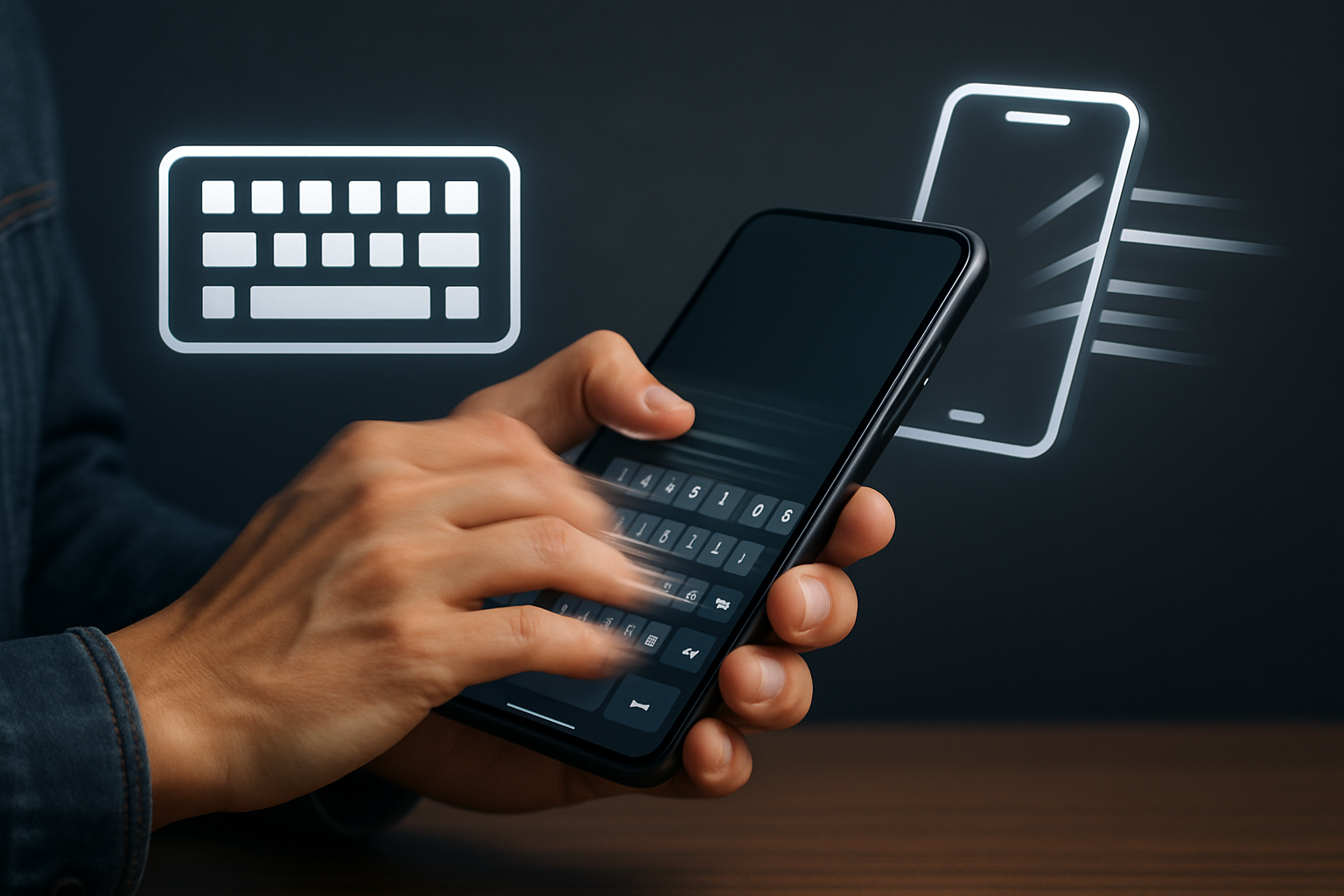
Why Mobile Typing Speed Matters More Than You Think
For many people, smartphones have quietly replaced laptops for everyday work. Emails get answered between meetings, notes are written on the go, and entire conversations happen in messaging apps. If you type slowly on your phone, that friction adds up quickly—lost time, more errors, and unnecessary frustration.
Mobile typing speed isn’t just about convenience. It directly affects how efficiently you communicate, how quickly you respond, and even how professional your messages appear. A typo-filled email or delayed reply can make a poor impression, especially in work contexts.
The key point: faster typing on mobile doesn’t come from tapping faster. It comes from reducing friction—fewer errors, smarter tools, and a setup that works with your habits instead of against them.
Optimize Your Keyboard Before Changing Your Habits
Most people try to improve speed by practicing more. That helps, but it’s the wrong starting point. Your keyboard settings have a bigger immediate impact than practice alone. Both Android and iOS offer powerful features—many of which are underused or poorly configured.
Start with prediction and correction
Predictive text and autocorrect are often misunderstood. When configured well, they reduce keystrokes and correct minor mistakes without interrupting your flow. When configured poorly, they become annoying and slow you down.
- Enable predictive text: It suggests entire words or phrases, cutting down typing time significantly.
- Tune autocorrect: If it constantly “fixes” correct words, reduce its aggressiveness instead of disabling it entirely.
- Use personalized dictionaries: Add names, technical terms, or slang you use frequently.
On iPhone, these options are in Settings > General > Keyboard. On Android, they’re typically found in your keyboard app settings (for example, Gboard or SwiftKey).
Swipe typing: faster, but not for everyone
Swipe (or glide) typing allows you to drag your finger across letters instead of tapping each one. For short messages, it can feel awkward at first. But for longer sentences, many users find it significantly faster.
That said, it’s not universal. If you write technical content, use multiple languages, or rely heavily on precise punctuation, swipe typing can become frustrating. Test it for a few days before committing.
Adjust keyboard size and layout
Small keyboards are one of the biggest causes of typing errors. Increasing key size—even slightly—can dramatically improve accuracy.
- Use one-handed mode if you often type while walking or multitasking
- Switch to landscape mode for longer writing sessions
- Resize the keyboard if your app allows it
This is especially important on larger phones, where stretching your thumbs can slow you down more than you realize.
Consider third-party keyboards carefully
Apps like Microsoft SwiftKey, Gboard, or Grammarly Keyboard offer advanced features such as better predictions, grammar suggestions, and multilingual typing. They can be faster—but only if they match your workflow.
For example:
- SwiftKey excels at learning your writing style over time
- Gboard integrates tightly with Google services and offers strong voice typing
- Grammarly helps with professional writing but can feel slower for casual typing
Switching keyboards can improve speed, but constantly switching between them usually has the opposite effect. Pick one and stick with it long enough for it to adapt to you.
Habits That Actually Make You Type Faster
Once your keyboard is optimized, your habits become the main factor. Small changes here can have a bigger impact than any feature or app.
- Prioritize accuracy over speed
Typing faster while making more mistakes is counterproductive. Every correction interrupts your flow. Focus on clean input first—speed follows naturally. - Use text shortcuts aggressively
Text expansion is one of the most underused productivity features on mobile. Set up shortcuts for:- Email addresses
- Common replies (“Thanks, I’ll check and get back to you.”)
- Meeting confirmations
- Train your thumb positioning
Consistent thumb placement builds muscle memory. Switching between one-thumb and two-thumb typing constantly slows you down. - Practice without looking at the keyboard
This sounds difficult, but even partial “blind typing” improves speed over time. You don’t need perfection—just reduce how often you look down. - Use voice typing strategically
Voice dictation is extremely fast for long text, but not ideal for everything. It works best for:- Notes and drafts
- Long messages
- Brainstorming ideas
Solving Real-World Mobile Typing Problems
Most users struggle with the same set of issues. Fixing them requires targeted adjustments, not general advice.
“Fat finger” typing errors
If you constantly hit the wrong keys, the problem isn’t your skill—it’s your layout.
- Increase keyboard size
- Enable haptic feedback to improve key awareness
- Try keyboards with adjustable spacing
Autocorrect ruining messages
Disabling autocorrect completely is rarely the best solution. Instead:
- Reduce correction aggressiveness
- Switch to a keyboard that learns better (like SwiftKey)
- Review suggested corrections instead of accepting them blindly
Typing long content on a small screen
At some point, your phone becomes the bottleneck. If you regularly write long emails or documents, consider switching devices instead of forcing the experience.
For example, tablets with keyboard support can dramatically improve productivity. If that’s relevant to your workflow, check out Top Tablets with Keyboard Support for Study and Work in 2026 💻⌨️.
Frequent language switching
If you type in multiple languages, switching keyboards manually can slow you down. Use a keyboard that supports multilingual prediction, so you can type seamlessly without toggling settings.
Trade-offs You Should Actually Care About
Improving typing speed always involves trade-offs. The goal is not perfection—it’s choosing what works best for your use case.
| Feature | Advantage | Trade-off |
|---|---|---|
| Swipe typing | Faster for casual writing | Less precise for technical text |
| Autocorrect | Reduces typos | Can introduce wrong corrections |
| Voice typing | Extremely fast for long input | Not ideal in public or noisy areas |
| Third-party keyboards | Advanced features and prediction | May require adjustment period |
Understanding these trade-offs helps you avoid chasing features that don’t actually improve your daily typing.
Common Mistakes That Slow You Down
Many users unknowingly sabotage their own typing speed. These mistakes are easy to fix once you recognize them.
- Constantly switching keyboards: This prevents any system from learning your habits
- Disabling useful features too quickly: Give predictive text and autocorrect time to adapt
- Typing too fast too early: Accuracy builds speed, not the other way around
- Ignoring ergonomics: Uncomfortable hand positions reduce both speed and endurance
- Using the wrong device for the task: Phones are not ideal for everything
A more effective approach is to build a consistent setup and refine it over time instead of constantly chasing new tools.
Final Recommendation: Build a Setup That Works for You
Improving your mobile typing speed is less about raw skill and more about removing friction. Start by optimizing your keyboard settings, then build habits that prioritize accuracy and consistency.
If you type occasionally, small tweaks like predictive text and shortcuts are enough. If you rely heavily on your phone for work, invest more effort—choose the right keyboard, learn swipe typing or voice input, and consider when to switch to a larger device.
For heavy typing tasks, pairing your phone with a Bluetooth keyboard can be a practical upgrade. If you're considering that route, take a look at the Best Wireless Keyboards for Home Office Productivity in 2026 ⌨️💻 to find options that fit your workflow.
The most effective setup is the one you don’t have to think about. Once your tools and habits align, faster typing becomes a natural side effect—not something you have to force.