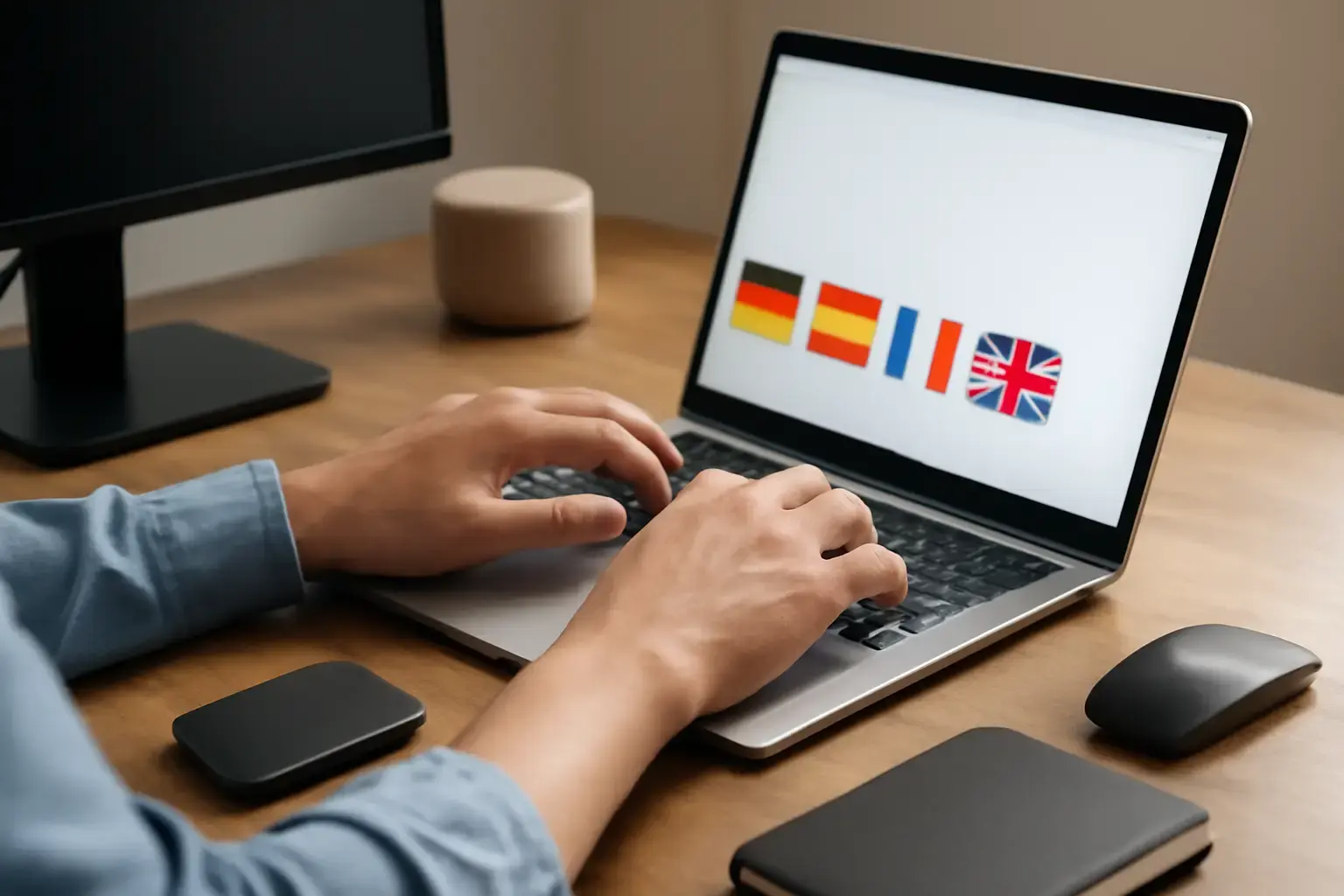
Why Faster Keyboard Layout Switching Matters for Multilingual Typists
If you regularly type in two or more languages, the time it takes to switch keyboard layouts can add up to wasted seconds, broken concentration, and more typing errors. Whether you’re a bilingual office worker toggling between English and Spanish, a developer coding with symbols in multiple languages, or a student writing essays in several tongues, inefficient layout switching hurts your productivity and accuracy.
This article focuses on practical ways multilingual users can speed up layout switching on Windows, macOS, Android, and iOS devices. Beyond enabling faster commands, we’ll cover workflow considerations, hardware and app recommendations, and common pitfalls to avoid.
Use Keyboard Shortcuts and Customize Them for Quick Layout Switching
Default language switching shortcuts often cause friction because they clash with other system or app shortcuts or are awkwardly positioned.
Windows: The classic default shortcuts are Alt + Shift or Windows Key + Space. However, many users find these imprecise or disruptive. You can customize shortcuts by going to Settings > Time & Language > Keyboard > Advanced keyboard settings > Input language hotkeys. Assign shortcuts that don’t conflict with your daily apps or create one-key toggle shortcuts with third-party tools like AutoHotkey.
macOS: The default shortcut is Control + Space, but if you switch languages frequently, consider remapping it to something easier like Command + Space or a custom key combination under System Preferences > Keyboard > Shortcuts > Input Sources. Using the Touch Bar on MacBook Pros can also speed up visual layout selection.
Related reading: Best Keyboard Layouts for Programmers Who Need Fast Access to Coding Symbols Without Sacrificing Speed
Mobile OSes: Both iOS and Android support language switching with a globe icon on the virtual keyboard, but holding it down to select can slow you down. Enable quick swipe gestures or customize shortcuts where supported. Android keyboards like Gboard and SwiftKey allow users to assign shortcuts or use floating keyboards to switch layouts faster.
Leverage Third-Party Keyboard Apps with Built-In Multilingual Support
- Gboard (Android & iOS): Supports multiple languages simultaneously and automatically switches autocorrect based on what you type. You can also long-press the space bar or globe icon to toggle layouts quickly.
- Microsoft SwiftKey: Recognizes up to five languages enabled at once and offers multilingual autocorrect and prediction. It supports custom shortcuts for layout switching, saving time.
- AnySoftKeyboard (Android): Open source keyboard supporting custom layouts and quick switching gestures, especially useful for less common languages.
For less common or custom layouts, consider keyboards that support importing layout files or allow you to build custom keyboards, enabling instant switching without leaving the typing flow.
Physical Keyboard Features and Layouts That Ease Multilingual Switching
Many multilingual users prefer physical keyboards for the tactile feedback and better ergonomics. But not all keyboards are equal when it comes to switching languages comfortably.
Multi-lingual key labeling: Some keyboards come with legends for multiple languages. While useful for learning, the cluttered keycaps can be distracting for fast typists.
Programmable keyboards: Keyboards like the Keychron Q-series or Kinesis Advantage2 allow you to program keys or layers that switch layouts or input languages instantly via a dedicated key or key combination. This eliminates the need to rely on OS shortcuts and reduces errors.
Compact keyboards with dual-function keys: Some 65% or smaller keyboards feature function keys that you can program to switch languages or layouts. For fast-moving multilingual writers or coders, this can be a game-changer.
Choosing a keyboard with good driver support for your OS is vital so that custom shortcuts and macros work seamlessly without delays or missed inputs.
Workflows and Software Settings to Minimize Layout Switching Disruptions
Switching layouts mid-document can be jarring, causing you to slow down or introduce typing mistakes.
Consider these workflow tips:
- Use per-application language settings: Both Windows and macOS let you assign default input languages per app or window. For example, use English in your IDE and Spanish in your word processor. This reduces manual switching.
- Adopt multilingual text expansion tools: Applications like PhraseExpress or Espanso support multilingual snippets and can insert accented characters or code symbols without switching layouts.
- Script or automate switching based on context: Power users can use scripting tools (e.g., AutoHotkey on Windows, AppleScript on macOS) to detect app focus or content and switch layouts automatically.
These approaches reduce the frequency and cognitive load of manual switching, improving your overall typing speed and fluidity.
You may also like: Top Keyboard Layout Switcher Apps for Android Users Needing Instant Multilingual Typing
Common Mistakes Multilingual Users Make When Switching Layouts
Understanding pitfalls helps avoid unnecessary frustration and wasted effort.
- Relying solely on default OS shortcuts: These often slow you down or conflict with other shortcuts.
- Switching layouts visually instead of with shortcuts: Clicking icons or opening menus mid-typing disrupts flow and wastes seconds.
- Forgetting to configure autocorrect for multiple languages: This leads to frequent errors and slows typing.
- Ignoring hardware support: Not all keyboards or drivers handle layout switching well, which can cause lag or missed key presses.
Addressing these mistakes by customizing shortcuts, using smarter keyboards and apps, and adapting workflows can save significant time and improve typing accuracy.
Practical Tips Summary: How to Switch Keyboard Layouts Faster Without Losing Flow
- Customize OS keyboard layout shortcuts to key combos that feel intuitive and don’t conflict with your apps.
- Use third-party keyboard apps like Gboard or SwiftKey on mobile for seamless multilingual autocorrect and quick toggling.
- Invest in programmable physical keyboards that allow dedicated layout switch keys or macro layers.
- Set per-application language defaults where possible to reduce manual switching.
- Leverage text expansion tools to reduce the need for switching when typing accented or special characters.
- Avoid clicking icons or menus to switch layouts mid-typing; get comfortable with shortcuts.
For more advanced multilingual keyboard layout recommendations and setup advice, see our detailed guide on Choosing the Best Keyboard Layout for Multilingual Office Users Who Switch Between Three or More Languages Daily.
Also check out Best Mobile Typing Apps Supporting Custom Keyboard Layouts for Users Typing in Less Common Languages to find the best apps for your specific multilingual needs on smartphones and tablets.
Final Recommendation: Choose Tools and Shortcuts That Match Your Typing Rhythm
Faster keyboard layout switching is less about sheer speed and more about fitting language toggling naturally into your typing rhythm. Customize shortcuts to avoid disruptions, use apps that intelligently handle multiple languages, and, if you type heavily on a physical keyboard, opt for hardware that supports instant switching with dedicated keys or macros.
Multilingual typing is a nuanced workflow—investing time upfront to set up your environment with these approaches will repay itself in smoother, faster, and more accurate typing sessions every day.