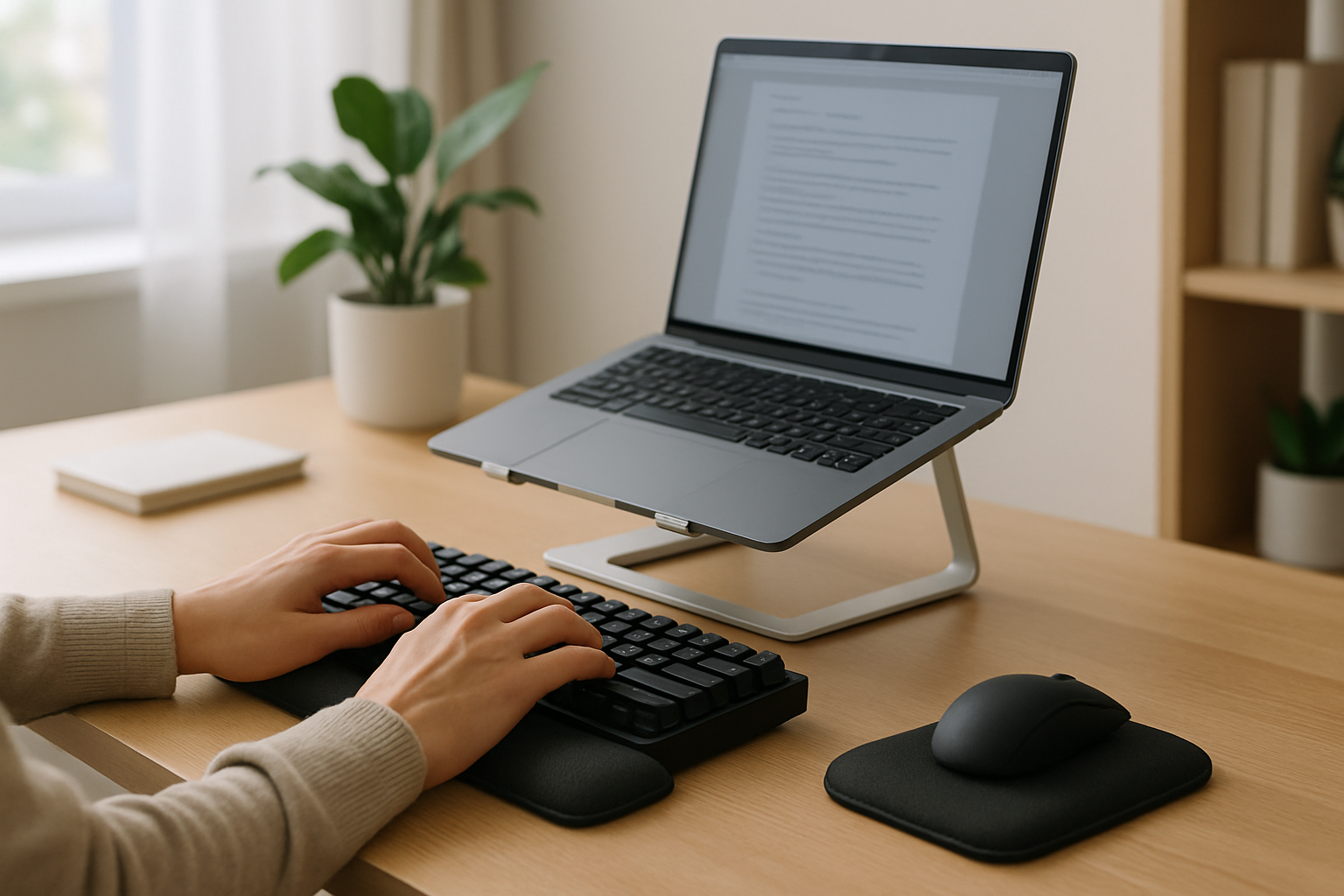
Why Laptop Typing Causes Wrist Pain
Wrist pain from typing on a laptop isn’t just a minor annoyance—it’s one of the most common productivity killers for developers, remote workers, and students who spend hours at their keyboards. The problem isn’t typing itself. It’s how laptops force you to type.
Laptops are engineered for portability first, ergonomics second. The keyboard and screen are physically connected, which creates a fundamental compromise: if your screen is at the correct height, your keyboard is too high; if your keyboard is comfortable, your screen is too low. Most people default to the latter, which results in bent wrists, hunched shoulders, and gradual strain.
When you repeatedly type with your wrists extended or angled, you increase pressure on tendons and compress nerves—especially in the carpal tunnel. Over time, this can lead to chronic issues like tendonitis or carpal tunnel syndrome. What starts as mild discomfort often evolves into persistent pain that affects not only your work but also everyday tasks.
The key takeaway: wrist pain is rarely random. It’s almost always the result of compounding ergonomic mistakes that can—and should—be corrected.
Common Symptoms of Typing-Related Wrist Pain
Most people ignore early warning signs until the pain becomes disruptive. That’s a mistake. Early symptoms are your body’s way of signaling that your setup is unsustainable.
- Pain or soreness in the wrist joint after typing
- Numbness or tingling in fingers, especially thumb and index finger
- Stiffness or reduced flexibility after long sessions
- Weak grip strength (e.g., difficulty holding objects)
- Burning or aching sensation extending into the forearms
If these symptoms show up consistently—even mildly—you should treat them as a sign to act immediately. Waiting until the pain becomes severe often means longer recovery time and more drastic changes later.
Common Causes vs Practical Fixes
Most wrist pain issues can be traced back to a few recurring problems. The good news is that they’re fixable with targeted adjustments.
| Problem | Root Cause | Practical Fix |
|---|---|---|
| Wrists bending upward | Keyboard sits too low relative to elbows | Raise laptop + use external keyboard |
| Side wrist strain | Mouse placed too far away | Keep mouse close and aligned |
| Pressure points on wrists | Hard desk edge contact | Use padded wrist rest or desk mat |
| Fatigue and stiffness | Continuous typing without breaks | Take microbreaks every 30–45 minutes |
These fixes are simple, but their effectiveness depends on consistency. Applying them once won’t solve the issue—you need to integrate them into your daily workflow.
Best Ergonomic Fixes for Wrist Pain
If you want meaningful, long-term relief, you need to move beyond quick fixes and address the root of the problem. These are the most impactful changes you can make:
- Separate Your Screen and Keyboard
This is non-negotiable for serious users. Raising your laptop screen to eye level while using an external keyboard allows both your neck and wrists to stay in a neutral position. It’s the single most effective upgrade you can make. - Invest in a Proper External Keyboard
Not all keyboards are equal. Low-profile laptop keyboards often require more force than expected and provide poor tactile feedback. A well-designed external keyboard improves typing efficiency and reduces strain. If you’re unsure where to start, check this guide: Best Mechanical Keyboards Under $150 for Developers in 2026 ⌨️. - Keep Wrists Neutral—Not Flat on the Desk
A common misconception is that wrists should rest on the desk while typing. In reality, they should hover slightly above, staying aligned with your forearms. Excessive resting creates pressure and restricts movement. - Use a Wrist Rest Correctly
Wrist rests are often misused. They are meant for pauses, not constant support while typing. Choose a soft, slightly elevated rest, but avoid putting full weight on it during active typing. - Reduce Typing Force
Many users type harder than necessary, especially on stiff keyboards. Switching to lighter switches or adjusting your typing habits can significantly reduce cumulative strain over time. - Adopt the Microbreak Habit
Short, frequent breaks are more effective than long, infrequent ones. Even 30 seconds to stretch your fingers and relax your wrists can reset tension and improve circulation.
Skipping any of these steps limits your results. The biggest improvements come from combining multiple adjustments rather than relying on a single fix.
Optimize Your Workspace for Pain-Free Typing
Your keyboard is only one part of the equation. Wrist pain is often a symptom of a poorly configured workspace. Fixing your environment creates a ripple effect that improves posture, comfort, and efficiency.
- Desk Height: Your elbows should form roughly a 90° angle and stay close to your body. If your desk is too high, your shoulders lift; too low, and you slump forward.
- Chair Support: A chair with proper lumbar support keeps your spine aligned, which indirectly affects wrist positioning.
- Mouse Placement: Keep your mouse within easy reach and at the same height as your keyboard. Overreaching introduces subtle but constant strain.
- Monitor Position: The top of your screen should be at or slightly below eye level. This prevents forward head posture, which often leads to compensatory wrist positioning.
- Lighting Conditions: Poor lighting encourages leaning forward or squinting, which disrupts your overall posture.
One overlooked factor is consistency across locations. If you work from multiple setups (home, office, café), try to replicate your ergonomic baseline as closely as possible. Switching between good and bad setups can undo your progress.
Advanced Ergonomic Solutions for Heavy Users
If you spend most of your day coding or writing, basic improvements might not be enough. Advanced ergonomic tools can provide additional relief—but they come with trade-offs.
- Split Ergonomic Keyboards: These allow your hands to rest in a natural, shoulder-width position. The downside is a learning curve and reduced portability.
- Negative Tilt Keyboards: Tilting the keyboard away from you keeps wrists in a more neutral angle, reducing extension strain.
- Vertical Mice: These reduce forearm rotation and can significantly decrease wrist tension. However, they may feel awkward initially.
- Low-Force Mechanical Switches: Lighter actuation reduces finger fatigue during long typing sessions.
- Voice Input Tools: Useful for reducing repetitive typing, but not always practical for coding or precise input tasks.
These tools are best suited for users who already have a solid ergonomic foundation. Buying advanced gear without fixing posture and habits is a common—and expensive—mistake.
Long-Term Prevention: Habits That Actually Work
Ergonomics isn’t a one-time setup—it’s a set of habits. The difference between temporary relief and lasting comfort comes down to consistency.
- Keep wrists aligned and avoid extreme angles
- Break up long typing sessions into manageable intervals
- Stretch fingers, wrists, and forearms daily
- Adjust your setup as soon as discomfort appears
- Rotate tasks when possible to avoid repetitive strain
One practical tip: set a recurring reminder or use productivity tools that enforce break intervals. Relying on memory alone rarely works during focused work sessions.
Common Mistakes That Make Wrist Pain Worse
Many users unintentionally sabotage their own progress. Avoid these common pitfalls:
- Ignoring early discomfort and continuing to type through pain
- Relying solely on a laptop keyboard for long sessions
- Buying ergonomic gear without fixing posture
- Resting wrists heavily on hard surfaces while typing
- Skipping breaks during intense work periods
The biggest mistake is assuming that pain is “normal.” It isn’t. It’s a sign that something in your setup or habits needs to change.
Final Recommendation
If you’re serious about eliminating wrist pain from laptop typing, start with the fundamentals: separate your screen and keyboard, maintain neutral wrist alignment, and build consistent break habits. These changes deliver far more value than any single piece of equipment.
For most users, the best investment is a simple combination: a laptop stand, a quality external keyboard, and a properly positioned mouse. From there, refine your setup based on your workload and comfort.
Don’t wait for pain to force change. Fix your setup early, stay consistent with good habits, and you’ll not only protect your wrists—you’ll also improve your speed, focus, and long-term productivity.