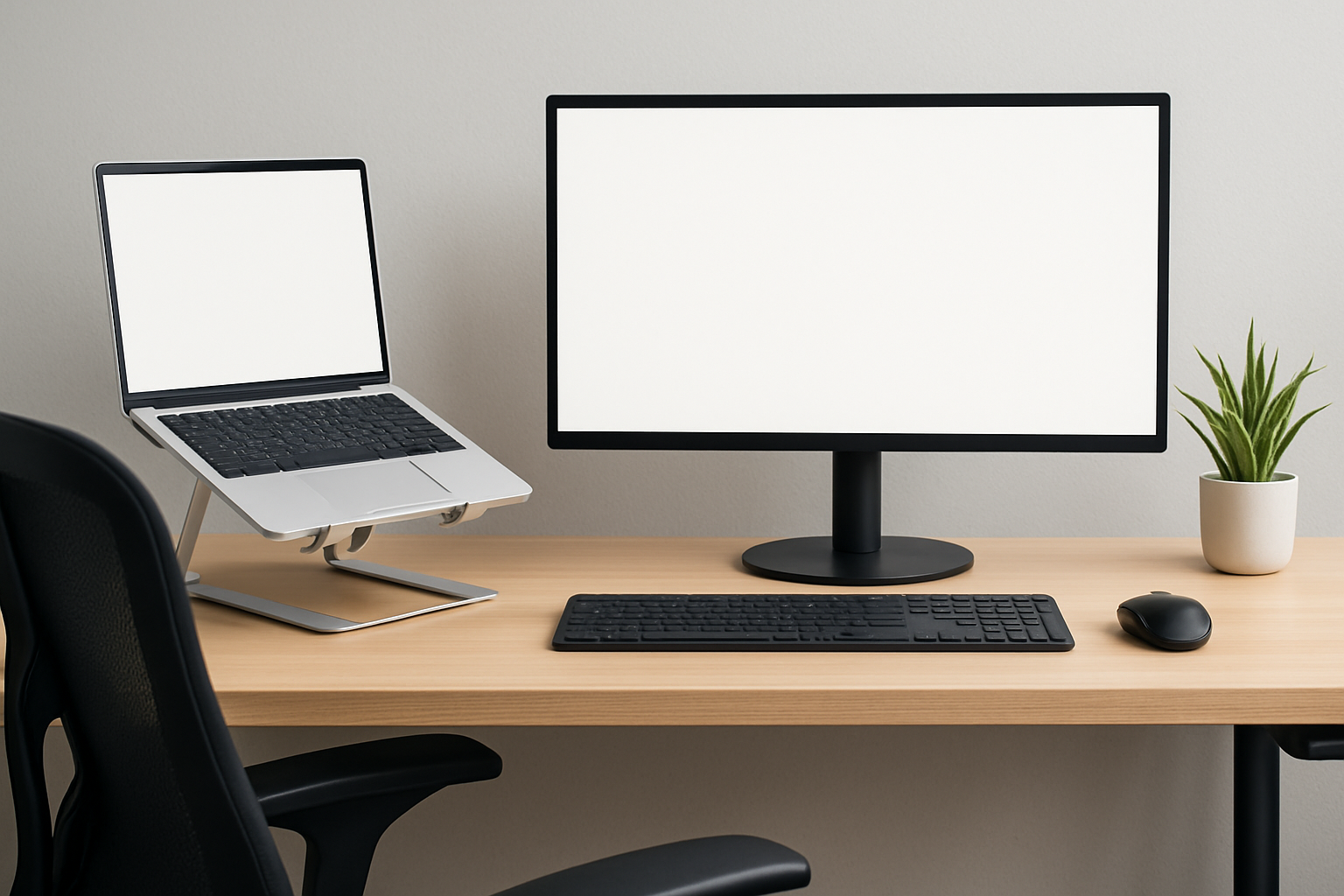
Why Posture Matters in a Laptop Setup
Laptops are built for portability and convenience—not for long-term comfort. That design compromise becomes obvious the moment you try to use one for hours at a desk. The screen sits too low, the keyboard is fixed in place, and your body adapts in ways it shouldn’t. Over time, this leads to the familiar symptoms: neck tension, tight shoulders, wrist discomfort, and lower back fatigue.
If your daily work involves extended laptop use—whether you're coding, writing, designing, or managing data—your setup directly affects how well you perform. Poor posture doesn’t just cause discomfort; it reduces focus, increases fatigue, and quietly impacts productivity. Many people underestimate how much their physical setup influences their mental performance.
This is where the decision between a laptop stand and an external monitor becomes more than a simple accessory choice. Both aim to fix the same fundamental issue, but they do it in very different ways. Understanding those differences is key to building a setup that actually works for you—not just one that looks good on a desk.
Two Different Philosophies: Adjust the Laptop vs Replace the Screen
At a glance, laptop stands and external monitors seem like interchangeable solutions. In reality, they represent two distinct approaches to ergonomics.
- Laptop stand: Adjusts your existing device to improve viewing angle
- External monitor: Replaces your primary viewing experience entirely
This distinction matters because it defines the limits of each option. A stand works within the constraints of your laptop. A monitor removes those constraints altogether.
If you’ve ever tried to “fix” your posture by stacking books under your laptop, you’ve already experienced the first approach. It helps—but only to a point.
What a Laptop Stand Really Fixes (and What It Doesn’t)
A laptop stand is often marketed as a complete ergonomic solution. In practice, it solves one major problem very well: screen height.
Raising the screen closer to eye level reduces the constant downward tilt of your head. This alone can significantly reduce neck strain, especially during long sessions. For many users, this is the first noticeable improvement after upgrading their setup.
Where Laptop Stands Make Sense
- Limited desk space: Compact and easy to integrate into small work areas
- Frequent movement: Ideal if you switch between locations regularly
- Simple setups: Minimal cables, quick to set up and pack away
- Occasional laptop use: Good for part-time or lighter workloads
The Hidden Trade-Off
The moment you raise your laptop, you introduce a new issue: the keyboard is now too high.
This leads to awkward typing angles, elevated shoulders, and increased wrist strain. Many users overlook this and assume the stand alone is enough. It isn’t.
A proper laptop stand setup requires:
- An external keyboard
- A separate mouse or trackpad
Skipping these accessories is one of the most common mistakes. Without them, you’re simply shifting the problem from your neck to your arms and shoulders.
Real-World Scenario
If you’re working from a café or a temporary workspace, carrying a lightweight stand plus a compact keyboard can dramatically improve comfort without sacrificing mobility. But if you’re sitting at the same desk every day, the limitations of this setup become more obvious over time.
External Monitors: Why They Feel Like a Bigger Upgrade
An external monitor doesn’t try to “fix” the laptop—it replaces its biggest limitation. By separating the screen from the keyboard entirely, you gain full control over your posture.
This independence is what makes a monitor setup fundamentally more ergonomic. You can position each component exactly where it belongs:
- Screen at eye level
- Keyboard at a comfortable typing height
- Mouse positioned naturally beside it
This alignment allows your body to stay in a neutral, relaxed position. Over long work sessions, that difference becomes significant.
Why Bigger Screens Change Behavior
One of the most underrated benefits of an external monitor is how it changes the way you sit. With a larger display, you naturally lean back instead of forward. You stop squinting, stop hunching, and interact with your workspace more comfortably.
This is especially noticeable when working with multiple windows, timelines, or complex interfaces. Less zooming and scrolling means fewer micro-adjustments—and less strain.
Where External Monitors Shine
- Long work sessions: Ideal for full-time desk work
- Multitasking: More space reduces constant window switching
- Consistent workflow: Setup stays the same every day
- Professional environments: Better suited for focused, uninterrupted work
What You Give Up
- Portability: Not something you can easily move around
- Desk space: Requires a dedicated area
- Setup effort: Cables, positioning, and adjustments take time
These downsides are real, but for anyone spending several hours a day at a desk, they’re usually worth accepting.
A Practical Comparison That Reflects Daily Use
| Aspect | Laptop Stand Setup | External Monitor Setup |
|---|---|---|
| Neck posture | Improved | Optimized |
| Wrist comfort | Depends on peripherals | Consistently good |
| Flexibility | Moderate | High |
| Mobility | Excellent | Limited |
| Setup complexity | Low | Moderate |
| Long-term comfort | Good (with accessories) | Excellent |
If your goal is maximum ergonomic benefit, the monitor clearly offers more control. But that doesn’t automatically make it the right choice for everyone.
How to Choose Based on Your Work Reality
The best setup isn’t the most advanced—it’s the one that fits how you actually work.
Choose a Laptop Stand If:
- You frequently change locations
- Your desk space is limited
- You prefer a minimal, clean setup
- Your work sessions are shorter or varied
This is a practical, flexible solution—but only when paired with proper peripherals.
Choose an External Monitor If:
- You work primarily at a fixed desk
- You spend long hours in front of the screen
- You need better multitasking capabilities
- You want a more comfortable, sustainable setup
This is the better long-term investment for posture and productivity.
Consider a Hybrid Setup If You Want Flexibility
Many experienced users end up combining both approaches:
- Laptop on a stand (secondary display)
- External monitor as the main screen
- External keyboard and mouse
This setup offers the best balance between ergonomics and versatility. You get a proper workstation at your desk while still maintaining the option to work elsewhere when needed.
Common Mistakes That Undermine Even Good Setups
Buying the right equipment is only half the equation. Small setup mistakes can cancel out most of the benefits.
- Screen too low: Even external monitors are often left at default height
- Typing on a raised laptop: Leads to wrist and shoulder strain
- Sitting too close: Encourages hunching and eye fatigue
- No external mouse: Trackpads limit natural hand positioning
- Ignoring chair ergonomics: A bad chair ruins a good setup
The goal is not perfection—it’s consistency. A slightly imperfect setup you use correctly is far better than an ideal one you don’t maintain.
What Actually Makes a Setup “Ergonomic”
It’s easy to focus on devices, but ergonomics is about alignment. Regardless of what you choose, these principles matter most:
- Eyes aligned with the top third of the screen
- Elbows at roughly 90 degrees
- Wrists in a neutral position
- Feet flat on the ground
- Screen about an arm’s length away
These fundamentals apply whether you’re using a laptop stand, an external monitor, or both.
Useful Resources for Improving Your Setup
- How to Reduce Wrist Pain from Laptop Typing: Practical Ergonomic Tips and Tools ⌨️
- How to Build a Productive Dual-Monitor Desk Setup ⌨️💻
- Best Ways to Reduce Typing Fatigue During Long Work Sessions ⌨️💡
Key Decision Insight: It’s About How You Work, Not Just What You Buy
If you strip away marketing claims and focus on real usage, the decision becomes straightforward:
- An external monitor offers the most complete ergonomic solution for long-term desk work
- A laptop stand is a flexible, portable improvement—but incomplete on its own
- A combined setup delivers the best balance for many professionals
The smartest choice isn’t the most expensive or feature-rich—it’s the one that fits your daily habits and encourages better posture without effort.
Because in the end, posture isn’t something you actively maintain all day. It’s something your setup either supports—or constantly fights against.
Practical Takeaway
Don’t think in terms of devices—think in terms of behavior. If your setup naturally keeps your head upright, shoulders relaxed, and hands comfortable, you’ve made the right choice. Everything else is secondary.
Common Pitfalls to Avoid
- Choosing based on aesthetics instead of comfort
- Underestimating how long you actually work each day
- Skipping essential accessories
- Not adjusting your setup after buying the hardware
Good ergonomics isn’t complicated—but it does require intentional decisions. Make those decisions based on how you work, and your setup will support you instead of slowing you down.