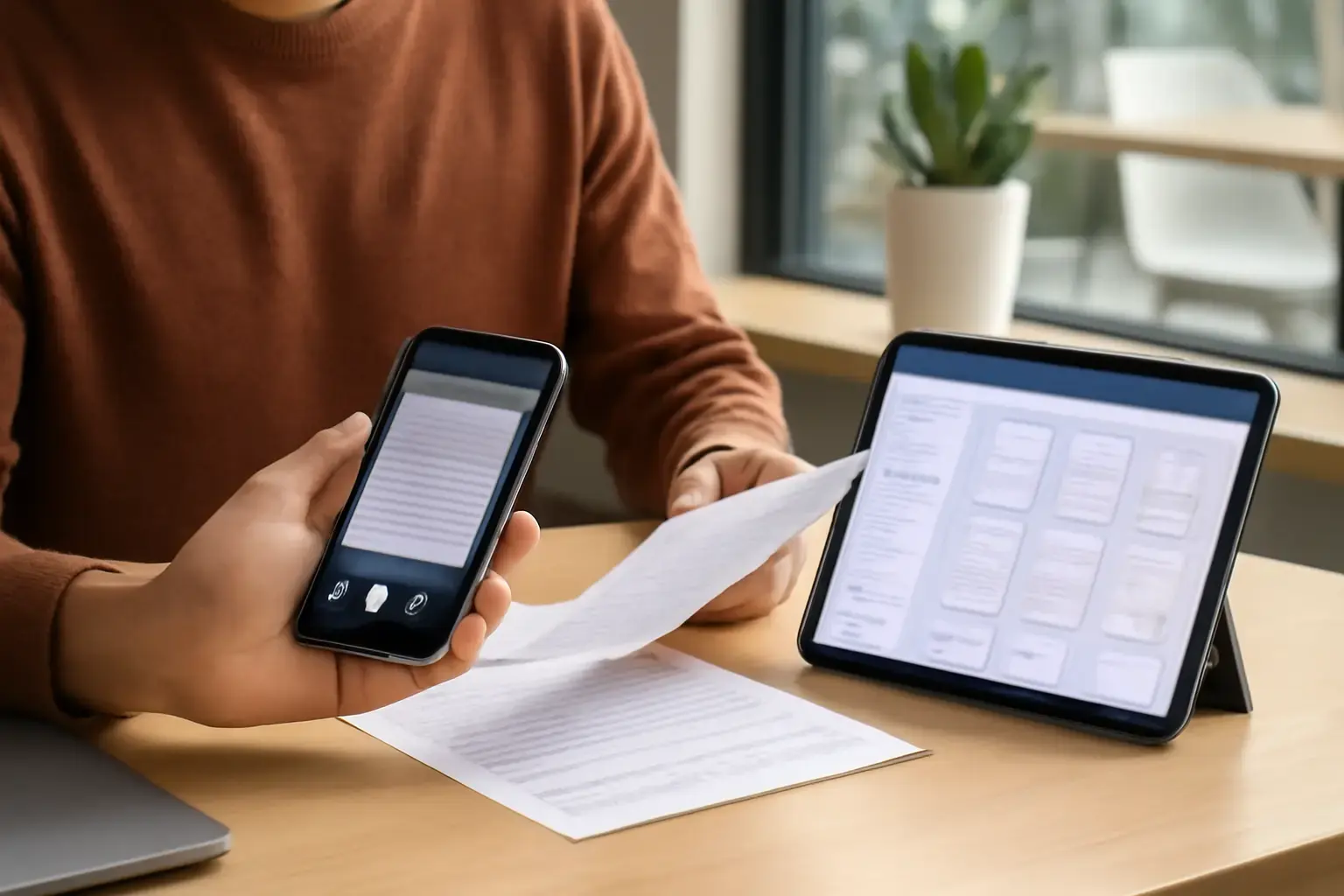
Why Your Choice of Document Scanning App Matters More Than Ever
In a world overwhelmed by paper clutter, the ability to quickly digitize and organize physical documents on your phone or tablet is no longer a luxury—it’s essential. While many apps promise to be simple mobile scanners, the best solutions in 2026 go far beyond mere capture. They integrate intelligent file organization, multi-format exports, and seamless syncing with cloud and local storage. This article dives into the leading apps for scanning and managing documents on phones and tablets and explains which features matter most depending on your real-world needs.
What Makes a Document Scanning App Truly Useful?
Before we jump into app recommendations, consider what problems you want your scanning tool to solve beyond just snapping photos of pages. Here are the key capabilities that separate gimmicks from genuinely productive apps:
- Accurate edge detection and perspective correction: Avoid distorted scans that require redoing.
- OCR (Optical Character Recognition): Enables searching within scanned documents and easy text extraction.
- Batch scanning and multi-page PDF creation: Essential for handling multi-page contracts or notebooks efficiently.
- Flexible file organization: Tagging, folders, smart search, and integration with cloud drives like Google Drive or OneDrive.
- Offline-first capability: Scan and organize without immediate internet access and sync later.
- Data privacy and security: Especially if you scan sensitive documents.
Top Document Scanning Apps on Phones and Tablets in 2026
We shortlisted the leading apps considering recent updates, ecosystem support, and real-world user reviews. Each has strengths suited to different use cases.
1. Adobe Scan
Best for: Professionals needing powerful OCR with cloud integration.
Adobe Scan excels with high-quality scans, automatic text recognition, and seamless connection to Adobe Document Cloud and Acrobat Reader apps. Its batch scanning lets you quickly capture long documents, and you can reorder pages before exporting. The search function within PDFs is robust, making document retrieval fast. However, full features require an Adobe subscription, and the interface can feel feature-heavy for casual use.
Related reading: Why Offline-First Productivity Apps Are Essential for Phones and Tablets in 2026
2. Microsoft Lens (formerly Office Lens)
Best for: Microsoft 365 users and students who want tight integration with OneNote and OneDrive.
Microsoft Lens is especially effective if you live in the Microsoft ecosystem. It offers sharp scans with auto-cropping, and integrates directly into OneNote, Word, or PowerPoint. It supports whiteboard capture and handwriting recognition, which makes it great for note-takers. Its organization relies more on the Microsoft cloud folders than on in-app file management. Free to use and light on your device’s storage.
3. Scanbot (now called Scanner Pro)
Best for: iPhone and iPad users seeking an offline-first, privacy-focused scanner.
Scanbot offers excellent edge detection, manual fine-tuning, and a clean interface. It works offline, letting you organize files locally with tags and folders before syncing to your preferred cloud. Its OCR is fast and offline-capable, a key advantage for privacy-conscious users. The downside is some premium features require a one-time purchase or subscription.
4. CamScanner
Best for: Users needing a balance between robust features and easy collaboration.
CamScanner is popular worldwide for its usability and cloud syncing. You can scan documents, receipts, and whiteboards, annotate PDFs, and share files with teams easily. However, recent concerns about privacy and ads in the free version warrant cautious use for sensitive documents. Subscription removes ads and grants access to more export formats.
See also: Best Voice Typing Apps for Android and iPhone to Boost Productivity in 2026
5. Evernote Scannable (iOS only)
Best for: Evernote users who want simple, reliable document capture on iPhone or iPad.
This app scans documents quickly and auto-saves them directly into Evernote notebooks. It supports business card scanning and multi-page PDFs. The simplicity is a virtue but it lacks advanced file organization within the app itself, relying on Evernote’s tagging and search.
Common Mistakes When Choosing or Using Document Scanning Apps
Many users pick a scanner app based on flashy features or brand alone, overlooking practical daily-use factors that cause frustration:
- Ignoring ecosystem fit: An app tightly integrated with Google Drive won’t help much if you use iCloud or Dropbox predominantly.
- Overlooking offline functionality: Relying solely on cloud scanning can stall work in poor network areas.
- Neglecting file management: Scanned files pile up disorganized, defeating the purpose unless the app supports meaningful sorting and tagging.
- Choosing apps with aggressive ads or privacy risks: Free versions of some popular apps may include intrusive ads or data collection.
- Failing to test OCR accuracy: If you need searchable documents or text extraction, ensure OCR meets your language and font needs.
Practical Tips for Organizing Scanned Documents Efficiently
Beyond picking the right app, your system for naming and sorting files is crucial. Here's a practical checklist to help you stay on top of scanned document clutter:
- Consistent file naming convention: Use dates, document type, and brief descriptors (e.g., 2026-06_invoice_AcmeCorp.pdf).
- Create folders by category: Separate bills, contracts, receipts, and notes for easy browsing.
- Leverage in-app tags or labels: Use keywords to cross-reference documents spanning categories.
- Schedule regular review sessions: Delete duplicates, archive old documents to long-term storage.
- Back up scans securely: Utilize encrypted cloud storage or local backups to avoid data loss.
- Use OCR search regularly: Get into the habit of searching your scans rather than scrolling.
Integrating Document Scanning Into Your Mobile Productivity Setup
If your phone or tablet doubles as a productivity hub, your scanning app should play nicely with your other essential tools. For example, if you use note-taking apps, project managers, or email clients extensively, look for scanner apps with easy sharing and export options. For offline-first users, pairing a scanner app with offline-capable productivity tools improves resilience. You can explore this synergy further in our guide on offline-first productivity apps in 2026. For managing class notes alongside scanned handouts, the apps recommended in our notes and assignments app guide complement scanning workflows well.
Final Recommendation: The Best Scanner App Depends on Your Ecosystem and Workflow
There is no one-size-fits-all winner for scanning and organizing physical documents in 2026. Professionals invested in Adobe’s ecosystem will benefit from Adobe Scan’s extensive OCR and cloud features, while Microsoft 365 users will find Microsoft Lens more convenient and cost-effective. Privacy-minded iOS users should seriously consider Scanner Pro for offline-first security and intelligent organization. Casual users wanting ease of sharing and collaboration might like CamScanner despite its freemium model quirks. Whatever your choice, avoid apps with poor OCR or clunky file management that lead to digital clutter and frustration. Treat your scanning app as a core component of your mobile productivity toolkit, not just a camera shortcut, and your physical-to-digital workflow will be more efficient, secure, and future-proof.
Explore related tools to boost your mobile productivity: