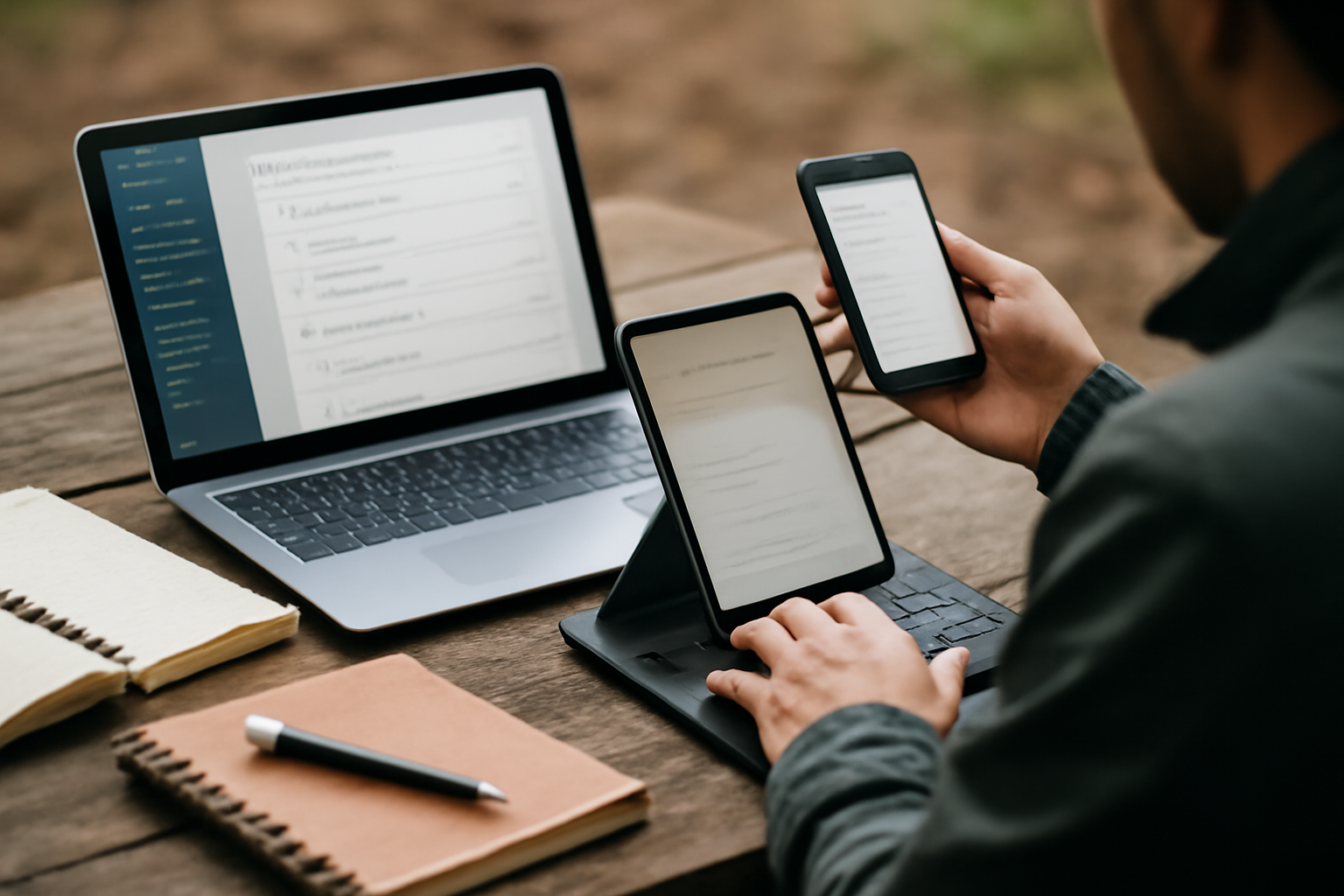
Why Offline Productivity Apps Still Matter in a Connected World
It’s easy to assume that constant connectivity has made offline work irrelevant. On paper, modern mobile networks and ubiquitous Wi-Fi should eliminate the need for offline-first apps. In practice, anyone who relies on a phone or tablet for real work knows that connectivity is still fragile, inconsistent, and sometimes simply unavailable.
Airplane mode, rural travel, congested conference networks, underground transit, or even aggressive battery-saving settings can all disrupt access to cloud-based tools. When that happens, productivity either stalls—or continues seamlessly, depending on how well your apps handle offline scenarios.
The difference between a “technically offline-capable” app and a truly reliable offline productivity tool is massive. The best apps don’t just cache data; they allow full workflows without interruption, then sync intelligently when you reconnect. Poorly designed ones force you into awkward workarounds, create version conflicts, or worse, lose data entirely.
This guide focuses on mobile-first productivity apps that genuinely respect offline use on phones and tablets across Android and iOS. More importantly, it helps you choose based on your workflow, not just feature lists.
Top Offline Productivity Apps for Phones and Tablets in 2026
Each of the apps below approaches offline work differently. Understanding those differences is key to choosing the right one.
-
Microsoft OneNote
OneNote remains one of the most dependable offline productivity tools available. Its biggest advantage is how aggressively it caches data—entire notebooks are stored locally, allowing full access to notes, images, drawings, and even embedded media without needing a connection.
In real-world use, this matters more than it sounds. You can walk into a meeting, lecture, or flight and continue working exactly where you left off, without manually preparing files. Syncing happens quietly in the background once connectivity returns.
Where it excels:
- Structured note-taking with sections and notebooks
- Handwritten notes and stylus support on tablets
- Reliable background syncing with minimal user intervention
Trade-offs:
- Interface can feel dense on smaller phones
- Less flexible than newer tools like Notion for databases or workflows
Best suited for students, researchers, and professionals who need a dependable, no-surprises note system.
-
Notion
Notion has evolved from a cloud-dependent tool into a more capable offline workspace. You can now create, edit, and reorganize content without an internet connection, and sync conflicts are handled more gracefully than in earlier versions.
However, Notion still behaves differently from traditional offline-first apps. It relies heavily on cached data, and performance can degrade with large pages or complex databases. If your workspace is massive, offline responsiveness may suffer.
Where it excels:
- All-in-one workspace combining notes, tasks, and databases
- Flexible layouts for personal or team workflows
- Improved offline editing compared to previous years
Trade-offs:
- Heavier on storage and processing power
- Offline performance depends on how much content is cached
Best for users who want a unified system and can tolerate occasional offline limitations in exchange for flexibility.
-
Google Docs (with Offline Mode Enabled)
Google Docs is often underestimated as an offline tool—not because it lacks capability, but because it requires deliberate setup. Offline mode must be enabled, and documents need to be opened or marked available beforehand.
When configured correctly, the experience is surprisingly robust. You can edit documents, spreadsheets, and presentations with most core features intact. Once reconnected, changes sync seamlessly, preserving version history and collaboration context.
Where it excels:
- Document editing with strong collaboration integration
- Familiar interface across devices
- Smooth syncing and version control
Trade-offs:
- Requires planning ahead for offline access
- Limited functionality for advanced features while offline
Best for teams and professionals already invested in Google Workspace who need continuity between offline and collaborative work.
-
Obsidian
Obsidian takes a fundamentally different approach: it is offline by design. All notes are stored locally as Markdown files, meaning your entire knowledge base is always accessible, regardless of connectivity.
This makes it one of the most reliable options for users who prioritize control and privacy. There is no dependency on cloud services unless you choose to add one.
Where it excels:
- Full offline access with zero reliance on internet
- Powerful linking system for building knowledge networks
- Extensive plugin ecosystem
Trade-offs:
- No built-in sync unless you configure it yourself
- Learning curve is higher than traditional note apps
Best for developers, writers, and advanced users who want full ownership of their data and workflows.
-
Trello (with Offline Boards)
Trello’s offline capabilities are often overlooked but surprisingly practical. Boards you’ve opened recently are cached locally, allowing you to view and update tasks without a connection.
For mobile users managing projects on the go, this means you can continue organizing tasks, moving cards, and updating details even during connectivity gaps.
Where it excels:
- Visual task management with Kanban boards
- Simple offline updates that sync later
- Good for quick task tracking during travel
Trade-offs:
- Boards must be opened beforehand to be available offline
- Limited offline functionality compared to full desktop use
Best for individuals or teams who rely on lightweight project management and need occasional offline access.
Choosing the Right Offline App for Your Workflow
The best offline app isn’t the one with the most features—it’s the one that matches how and where you work. The wrong choice can lead to frustration, especially when you’re disconnected and under time pressure.
| Use Case | Recommended App | Why It Fits |
|---|---|---|
| Structured note-taking | OneNote | Reliable offline notebooks with rich media support |
| All-in-one workspace | Notion | Flexible system for notes, tasks, and databases |
| Document collaboration | Google Docs | Strong syncing and version control |
| Personal knowledge base | Obsidian | Local-first storage with deep linking capabilities |
| Task and project tracking | Trello | Simple offline board updates with later sync |
Also consider your device. Older phones or budget tablets can struggle with heavier apps like Notion or Google Docs when offline caching is extensive. In those cases, lighter apps or local-first solutions like Obsidian may perform better.
Common Mistakes That Break Offline Productivity
Even experienced users often get caught by avoidable issues. Offline productivity isn’t just about the app—it’s about how you use it.
- Assuming offline mode is automatic
Many apps require manual setup. If you don’t enable offline access or preload files, you may find yourself locked out when you need them most. - Not preparing critical files in advance
Opening or marking documents before going offline is essential in tools like Google Docs and Trello. - Ignoring sync conflicts
Editing the same file across multiple devices can create conflicts. Some apps handle this gracefully, others don’t. Always verify important changes after reconnecting. - Overloading device storage
Offline caching can consume significant space, especially with media-heavy notes or large documents. - Expecting identical online and offline features
Real-time collaboration, embedded content, and integrations often don’t work offline. Plan your workflow accordingly.
Real-World Usage Scenarios That Change Your Decision
Understanding how these apps behave in real situations can clarify which one actually fits your needs.
Scenario 1: Traveling consultant
You need to edit documents mid-flight and review meeting notes. A combination of OneNote and Google Docs (offline-enabled) provides the best balance of reliability and compatibility.
Scenario 2: Student with a tablet
You take handwritten notes in lectures and organize study material. OneNote stands out due to stylus support and offline notebooks.
Scenario 3: Developer or writer building a knowledge base
You need structured, interconnected notes without cloud dependency. Obsidian offers unmatched control and flexibility.
Scenario 4: Startup team managing tasks on the go
You need quick updates during commutes or travel. Trello’s offline boards keep workflows moving without complexity.
Scenario 5: Power user consolidating everything
You want notes, tasks, and databases in one place. Notion can work, but only if you accept its heavier offline footprint.
Final Recommendation
If you want a dependable, low-friction offline experience, Microsoft OneNote is the safest starting point. It handles offline scenarios gracefully without requiring constant attention or setup. Pair it with Google Docs (offline mode enabled) if document editing and collaboration are central to your workflow.
If you value control and privacy above all else, Obsidian is the most robust offline-first option, though it demands more effort to configure syncing and backups. For flexible, all-in-one workflows, Notion has become viable offline—but only for users willing to manage its performance trade-offs.
For task management, Trello remains a practical choice when you need lightweight offline access without overcomplicating your setup.
The most important shift is mindset: offline productivity doesn’t happen by accident. It requires choosing tools that respect disconnection, preparing your data in advance, and understanding each app’s limitations. Get that right, and your phone or tablet becomes a reliable work machine—whether you’re online or not.
For more on choosing devices that fit your mobile work style, see our guide on Best Phones Launched in Early 2026 for Mobile Productivity Users and how to Use External Keyboards with iPad and Android Tablets for Maximum Productivity.
Related: Top Tablets with Keyboard Support for Study and Work in 2026 💻⌨️
Related: Best Android phones for office work and multitasking
Related: Best AI Tools for Productivity Without Adding More Busywork 🤖⌨️