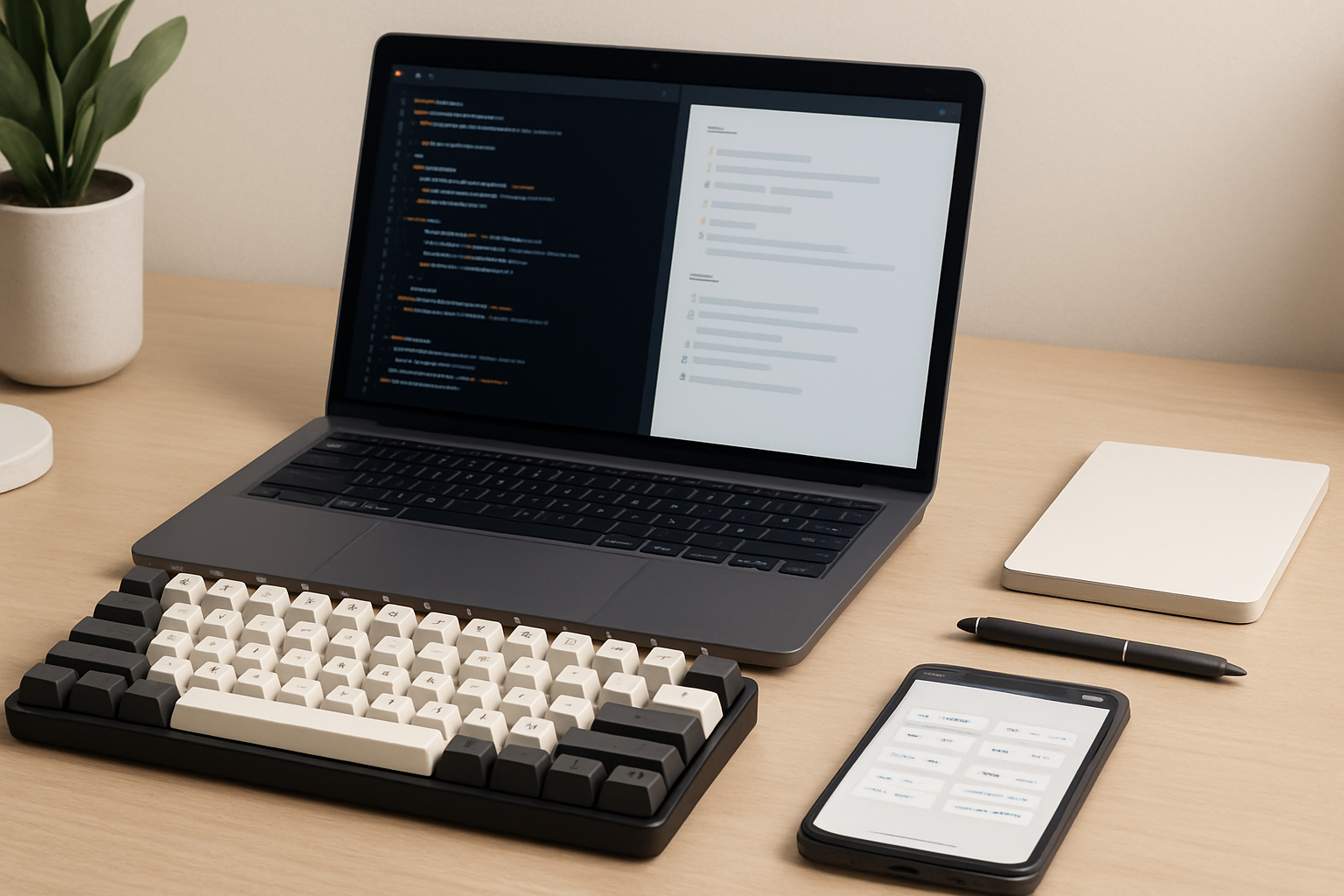
Why Keyboard-First Productivity Apps Matter
If you spend most of your day in front of a computer, small inefficiencies compound quickly. Reaching for the mouse, switching contexts, and navigating menus may seem trivial—but over hours, they break concentration and slow you down. That’s exactly where keyboard-first productivity apps stand out.
These tools are designed around the idea that your keyboard is not just for typing—it’s your primary control interface. Instead of hunting through menus or clicking through UI layers, you execute commands instantly. The result is faster navigation, fewer interruptions, and a smoother mental flow.
This approach isn’t just for developers or power users. Writers, analysts, project managers, and even students benefit from staying in a “flow state” longer. If your work involves repetitive digital tasks, learning to operate primarily from the keyboard is one of the highest-leverage productivity upgrades you can make.
What Makes an App Truly Keyboard-First?
Not every app with shortcuts qualifies. Many tools offer basic keyboard commands, but true keyboard-first apps go further. They’re designed so that nearly every action—navigation, editing, searching, and automation—can be performed without touching the mouse.
Here’s what separates them from typical software:
- Comprehensive shortcut coverage: Almost every function is accessible via keyboard.
- Command palettes: Quick search-driven interfaces to trigger actions instantly.
- Custom keybindings: You can adapt shortcuts to your habits.
- Speed-first design: Minimal UI friction, optimized for rapid interaction.
- Automation support: Macros, scripts, or workflows reduce repetitive tasks.
In practice, this means you’re not just working faster—you’re thinking less about the tool and more about the task itself.
Apps That Reward Keyboard Mastery
Below are some of the most effective productivity tools if you’re serious about reducing mouse dependency. Each one excels in a different workflow category, so the best choice depends on how you work.
Obsidian: Knowledge Management Without Friction
Obsidian is ideal for people who manage large volumes of notes, ideas, or research. Its markdown-based system allows you to create and link notes quickly, and its keyboard shortcuts make navigation almost instantaneous.
Best for:
- Writers and researchers
- Developers documenting projects
- Anyone building a personal knowledge base
Trade-offs: It’s extremely flexible, but that flexibility can feel overwhelming at first. You’ll need to invest time in setting up plugins and workflows.
Alfred (Mac): The Shortcut Hub for Everything
Alfred goes far beyond launching apps. It acts as a central command system for your Mac, letting you search files, manage clipboard history, run scripts, and automate workflows—all from the keyboard.
Why it stands out: You can chain actions together. For example, search for a file, open it, and trigger a script—all without leaving the keyboard.
Who should use it: Mac users who want to eliminate repetitive tasks and build custom workflows.
Vim / Neovim: Maximum Control for Text Editing
Vim and Neovim are legendary for a reason. Their modal editing system allows extremely fast text manipulation once you learn it.
Reality check: These tools have one of the steepest learning curves in productivity software. But for developers and heavy text editors, the payoff is unmatched speed and precision.
Common mistake: Trying to learn everything at once. Start with basic navigation and editing commands, then expand gradually.
Todoist: Fast Task Management Without Clicks
Todoist is one of the few mainstream task managers that takes keyboard workflows seriously. You can create tasks, assign due dates, and organize projects using natural language input and shortcuts.
Why it works well:
- Quick task capture without breaking focus
- Efficient navigation between projects
- Minimal friction for daily planning
Limitations: Advanced workflows may require combining it with other tools.
Slack: Communication at Keyboard Speed
Slack is often seen as a chat app, but its keyboard shortcuts can dramatically improve communication efficiency. Switching channels, replying to messages, and searching conversations becomes much faster.
Real-world benefit: You spend less time navigating the interface and more time actually communicating.
Downside: Many users never learn its shortcuts, missing out on its full potential.
Visual Studio Code: A Powerhouse for Developers
Visual Studio Code is one of the best examples of a keyboard-first environment done right. Its command palette, extensibility, and customizable shortcuts make it incredibly efficient for coding.
Key strengths:
- Instant file navigation
- Refactoring via shortcuts
- Integration with extensions and terminals
Who should use it: Developers who want a fast, customizable environment that scales with their workflow.
Notion: Flexible Workspace with Shortcut Depth
Notion combines notes, databases, and project management into one tool. Its keyboard shortcuts allow you to create pages, insert blocks, and structure content quickly.
Best use case: Teams or individuals managing complex projects or documentation.
Trade-off: It can feel slower than specialized tools if not optimized properly.
How to Actually Become Faster (Not Just Feel Faster)
Installing these apps won’t magically make you more productive. The real gains come from how you use them.
Here’s a practical approach that works:
- Focus on high-impact shortcuts: Learn navigation, search, and editing commands first.
- Build muscle memory gradually: Use shortcuts daily instead of switching back to the mouse.
- Customize your setup: Adjust keybindings to match your habits and keyboard layout.
- Eliminate repetition: Use automation tools or macros wherever possible.
- Stack tools together: Combine apps like Alfred, VS Code, and Todoist into a unified workflow.
Consistency matters more than complexity. A few well-used shortcuts are more valuable than dozens you forget.
Real-World Workflows That Actually Work
It’s easier to understand the impact of keyboard-first apps when you see them in action.
Developer workflow: A programmer uses Visual Studio Code with custom shortcuts, combined with a terminal and version control commands. They navigate files, edit code, and run builds without touching the mouse—saving seconds on every action that add up over hours.
Writer workflow: A content creator uses Obsidian for drafting and linking ideas. With markdown shortcuts and quick navigation, they move between notes instantly and maintain creative flow.
Project manager workflow: Using Todoist and Slack together, tasks are created, updated, and communicated entirely via keyboard. This reduces friction when managing multiple projects simultaneously.
Advantages vs. Trade-Offs
| What You Gain | What You Give Up |
|---|---|
|
• Faster workflows • Less context switching • Better focus and flow • Customizable environments • Powerful automation options |
• Initial learning curve • Time investment for setup • Occasional limitations in UI-heavy apps • Not ideal for all users (e.g., touch-first workflows) |
The key is understanding that keyboard-first productivity is an investment. The benefits compound over time, but only if you commit to learning and using the tools properly.
Who Should Use Keyboard-First Apps (And Who Shouldn’t)
This approach isn’t for everyone, and forcing it can backfire.
Great fit for:
- Developers and technical users
- Writers and editors
- Knowledge workers managing large information sets
- Anyone doing repetitive digital tasks
Less ideal for:
- Users who rely heavily on visual interfaces
- Occasional or casual computer users
- Workflows centered around drag-and-drop tools
If your work depends on speed and repetition, keyboard-first tools can be transformative. If not, the learning curve may not justify the benefits.
Buyer Takeaway: Build a Workflow, Not a Tool Collection
The biggest mistake people make is chasing tools instead of building a system. Installing multiple “productivity apps” without a clear workflow often leads to more complexity, not less.
Instead, start with one or two tools that match your daily work. Learn their shortcuts deeply. Then expand your setup gradually.
Also consider your hardware. A comfortable keyboard and layout matter just as much as the software. If your setup isn’t ergonomic, even the best shortcuts won’t feel efficient.
For more on optimizing your setup, explore our guides on Best Keyboards for Writers and Content Creators and Best Wireless Keyboards for Home Office Productivity.
Practical Takeaways
Keyboard-first productivity isn’t about memorizing dozens of shortcuts—it’s about reducing friction in your daily work. The best setup is the one that feels natural, supports your habits, and scales with your needs over time.
Common Mistakes to Avoid
- Choosing tools based on hype instead of workflow fit
- Trying to learn everything at once
- Ignoring customization options
- Switching tools too frequently without mastering any
- Overcomplicating your setup with unnecessary apps
Done right, keyboard-first apps don’t just make you faster—they change how you work. And once you adapt, going back to mouse-heavy workflows feels surprisingly inefficient.