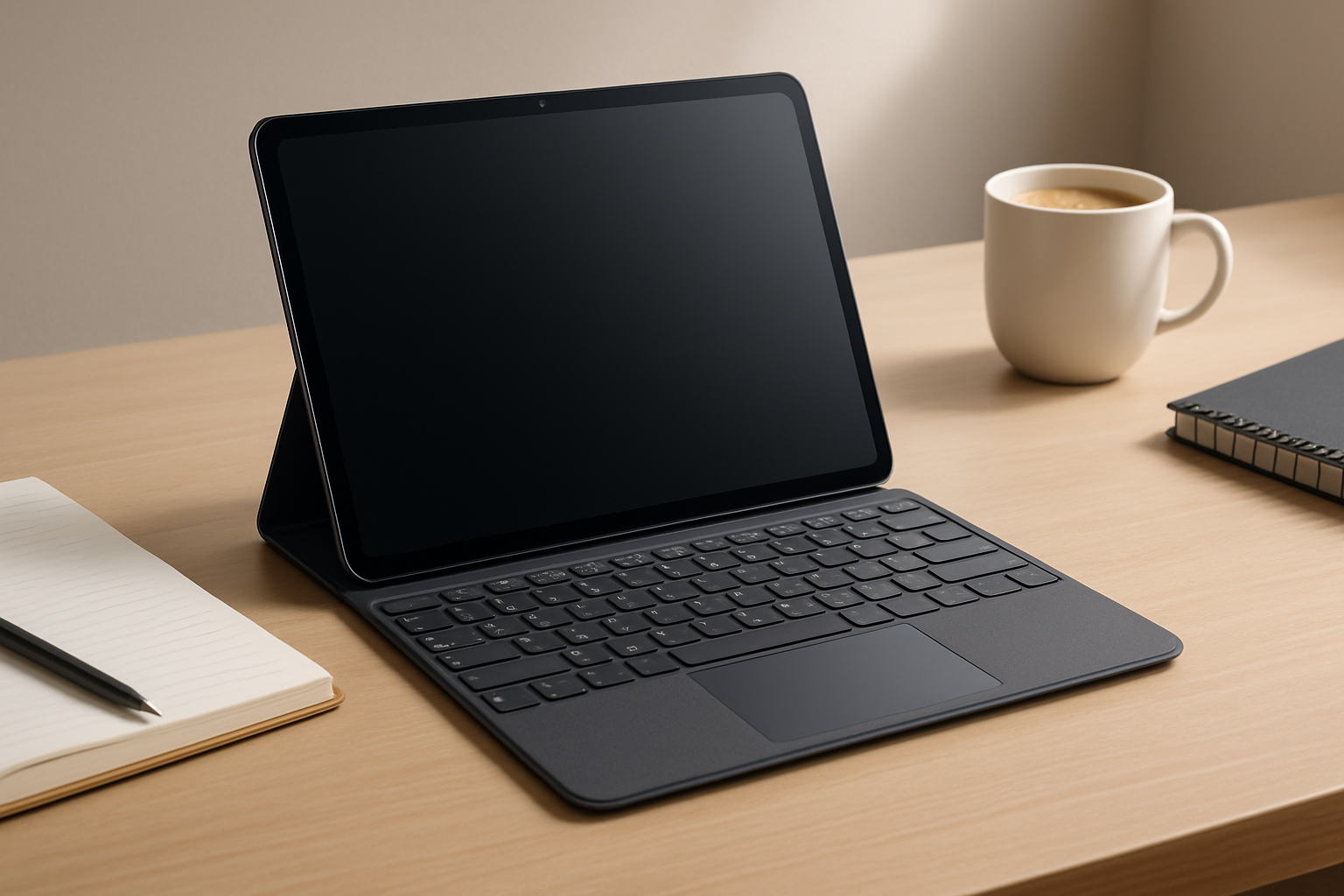
Best Tablets with Keyboard Support for Work and Study in 2026
If you’re shopping for a tablet with keyboard support for work or study, you’re likely trying to answer a very practical question: can this actually replace your laptop? In many cases, the answer is yes — but only if you choose the right combination of hardware, software, and accessories.
Modern tablets have matured far beyond media consumption devices. They now handle document editing, coding (to an extent), research, note-taking, and even light creative work. But the experience varies dramatically depending on the ecosystem you choose. A powerful tablet with a poor keyboard or the wrong operating system can quickly become frustrating.
This guide focuses on real-world usability: typing comfort, multitasking, software compatibility, and long-term value. Because the best tablet isn’t the one with the highest specs — it’s the one that fits how you actually work.
Quick Comparison: Best Tablet + Keyboard Combos
| Tablet | Best For | OS | Main Strength |
|---|---|---|---|
| iPad Air (M1) | Students & creatives | iPadOS | Apps + battery |
| Surface Pro 9 | Developers & professionals | Windows | Full desktop apps |
| Galaxy Tab S8+ | Multitasking | Android | DeX mode |
| Lenovo Tab P12 Pro | Budget productivity | Android | Value + OLED |
This table gives you a quick direction, but choosing the right device depends heavily on how you plan to use it. Writing essays, running desktop software, attending classes, or managing multiple apps simultaneously all require different strengths.
What Actually Matters in a Tablet with Keyboard
Before diving into specific models, it’s important to understand what separates a good tablet setup from a frustrating one. These factors matter far more than raw performance numbers:
- Keyboard quality: This is the biggest deal-breaker. Look for solid key travel, stable hinges, and good spacing. A flimsy keyboard will slow you down more than a slower processor ever will.
- Operating system: Your workflow should dictate your OS. iPadOS is polished but limited for desktop workflows, Windows is flexible but heavier, and Android sits somewhere in between.
- Multitasking capability: Split-screen, window management, and app switching can make or break productivity.
- Display size and aspect ratio: Around 11–13 inches is ideal. Too small, and you’ll feel cramped. Too large, and portability suffers.
- Connectivity and ports: USB-C is essential. Bonus points for external display support and accessory compatibility.
- Battery life: Tablets typically outperform laptops here, but keyboard usage and multitasking can drain faster than expected.
A common mistake is overvaluing specs like RAM or processor speed while ignoring typing comfort and OS limitations. In real-world use, those factors matter much more.
Best Tablets with Keyboard Support (Detailed Picks)
iPad Air + Magic Keyboard
The iPad Air with the Magic Keyboard is one of the most balanced setups for students and general productivity. It excels in battery life, app quality, and overall polish. If your workflow revolves around note-taking, document editing, browsing, and creative apps, it feels effortless.
Where it shines:
- Exceptionally smooth performance for everyday tasks
- Best-in-class tablet apps (especially for students and creatives)
- Long battery life that easily lasts a full day
Trade-offs to consider:
- Limited file system compared to a traditional laptop
- Multitasking is improving but still not desktop-level
- Accessories like the Magic Keyboard add significant cost
This is ideal for students, writers, and anyone who values simplicity over flexibility. If you rely on specialized desktop software, however, it may feel restrictive.
Microsoft Surface Pro 9
If you want a true laptop replacement, the Surface Pro 9 is the closest thing in this category. It runs full Windows, which means you can install traditional desktop applications without compromise.
Where it stands out:
- Full compatibility with desktop software (development tools, enterprise apps, etc.)
- Excellent keyboard experience with the Type Cover
- Flexible 2-in-1 design with kickstand
Trade-offs:
- Battery life is generally shorter than iPad or Android tablets
- Heavier and less “tablet-like” in daily use
- Can feel overkill for simple tasks like note-taking
This is the right choice for developers, business users, or anyone who cannot compromise on software compatibility. If your work depends on Windows applications, this is the safest option.
Samsung Galaxy Tab S8+
The Galaxy Tab S8+ hits a sweet spot between flexibility and portability, especially with Samsung’s DeX mode, which transforms the interface into a desktop-like environment.
Key strengths:
- DeX mode for windowed multitasking
- Large, high-quality display ideal for split-screen work
- Good balance between entertainment and productivity
Limitations:
- Android apps are not always optimized for larger screens
- Keyboard experience is good but not class-leading
- Desktop-style workflows still feel like a workaround in some cases
This is a strong choice for multitaskers who want flexibility without committing to a full desktop OS. It’s particularly useful for students juggling multiple apps or remote workers managing communication tools.
Lenovo Tab P12 Pro
If budget is a concern but you still want a capable productivity device, the Lenovo Tab P12 Pro offers impressive value. It delivers a premium display and solid performance without the premium price tag of competitors.
Where it delivers:
- Excellent display quality for the price
- Capable performance for everyday productivity
- More affordable entry into tablet + keyboard setups
Where it compromises:
- Software support and updates are less consistent
- Keyboard accessory quality varies by bundle
- Not ideal for demanding multitasking
This is best suited for light work, studying, and media consumption with occasional productivity tasks.
Which Tablet Should You Actually Choose?
Choosing the right device comes down to your workflow. Here’s a practical breakdown:
- Choose iPad Air: If your work is app-based (notes, documents, creative tools) and you want reliability, long battery life, and minimal friction.
- Choose Surface Pro: If you need full desktop software, file management, or development tools. This is the closest to a laptop replacement.
- Choose Samsung Galaxy Tab: If you want flexibility, multitasking, and a hybrid between tablet simplicity and desktop-style usage.
- Choose Lenovo Tab: If you want the most affordable option that still handles basic productivity well.
Think about what apps you use daily. That decision alone often narrows your choice immediately.
Practical Setup Tips for Real Productivity
Even the best tablet won’t feel productive without the right setup. Small adjustments can make a huge difference in daily use:
- Use a proper stand or adjustable keyboard angle: This improves posture and typing comfort during long sessions.
- Add a Bluetooth mouse or trackpad: Especially useful for multitasking and navigation on larger screens.
- Leverage cloud storage: Keep files synced across devices to avoid OS limitations.
- Customize keyboard shortcuts: This can significantly speed up your workflow.
- Manage battery usage: Turn off background apps and optimize brightness when working on the go.
Also, don’t overlook keyboard feel. If possible, try it in person. It’s one of the most overlooked but critical factors.
Learn more about keyboards: Keyboard Switch Guide
Pros and Cons of Tablets with Keyboards
Advantages:
- Highly portable and lightweight compared to laptops
- Excellent battery life for travel and long study sessions
- Flexible usage — tablet, laptop, and sometimes even desktop modes
Disadvantages:
- Keyboard accessories are often sold separately
- Limited software capabilities depending on OS
- Typing experience can vary widely between models
The biggest trade-off is flexibility vs. power. Tablets are more convenient, but laptops still win in raw capability.
Common Mistakes to Avoid
- Buying based on specs alone: Real productivity depends more on software and usability.
- Ignoring the keyboard: A bad keyboard ruins the entire experience.
- Underestimating OS limitations: Not all apps or workflows translate well to tablets.
- Skipping accessories: A mouse, stand, or stylus can significantly improve usability.
- Assuming it replaces a laptop 100%: For many users it does — but not for all workflows.
FAQ: Tablets with Keyboards
Can a tablet replace a laptop?
Yes, for light to medium workloads like writing, research, communication, and basic multitasking. For advanced software or heavy multitasking, a laptop still has advantages.
Which is better: iPad or Surface?
Choose iPad for simplicity and apps. Choose Surface if you need full desktop functionality.
Are tablet keyboards comfortable?
High-end options like Magic Keyboard and Type Cover are very good, but cheaper keyboards often compromise on typing feel.
Do I need a mouse?
Not essential, but highly recommended if you plan to multitask or use desktop-style workflows.
Final Recommendation
The best tablet with keyboard support depends entirely on how you work. If you want simplicity and long battery life, go with the iPad Air. If your workflow depends on desktop software, the Surface Pro is the clear choice. For flexibility and multitasking, Samsung’s DeX-enabled tablets are a strong middle ground, while Lenovo offers a compelling budget entry point.
Focus on your daily tasks, not just specifications. A comfortable keyboard, the right operating system, and a setup that fits your workflow will matter far more than raw performance. Choose carefully, and a tablet can become one of the most versatile productivity tools you own.