Why Fast Symbol Input Matters More Than You Think for Developers
For developers, typing isn’t just about letters — it’s about swift, precise entry of a variety of coding symbols: brackets, braces, semicolons, arrows, and more. Struggling to find or access these frequently used characters slows coding flow and increases errors. But many keyboards designed for coding sacrifice comfort to cram in extra keys or rely on awkward key combos. This leads to stiff fingers, wrist pain, and slowed typing over long sessions.
Choosing a keyboard optimized for fast symbol input without sacrificing comfort means fewer interruptions in your workflow, less fatigue, and ultimately, faster development cycles. It’s a critical but often overlooked decision, especially as hybrid work and remote coding become more common.
Key Features to Prioritize for Coding Symbol Efficiency
When evaluating keyboards for rapid coding symbol input, focus on these essential factors:
- Dedicated Symbol Keys and Logical Placement: Some keyboards include extra keys or layers for common coding symbols placed near your home row to reduce finger travel. Avoid keyboards that require multiple modifier keys just to reach brackets or semicolons.
- Support for Programmable Layers and Macros: The ability to customize keys or layers lets you assign your most-used coding symbols and snippets to single-key presses or combos, speeding input while preserving your keyboard’s physical layout.
- Physical Switch Type and Key Travel: Mechanical switches with medium actuation force and clear tactile feedback help improve typing speed and accuracy, crucial when hitting punctuation and symbols that frequently cause mistakes.
- Full-Size vs. Compact Layout Trade-Offs: While compact keyboards save desk space and promote better posture, they sometimes omit dedicated symbol keys or combine them with function layers. Full-size keyboards tend to have straightforward access to all symbols but take more desk room.
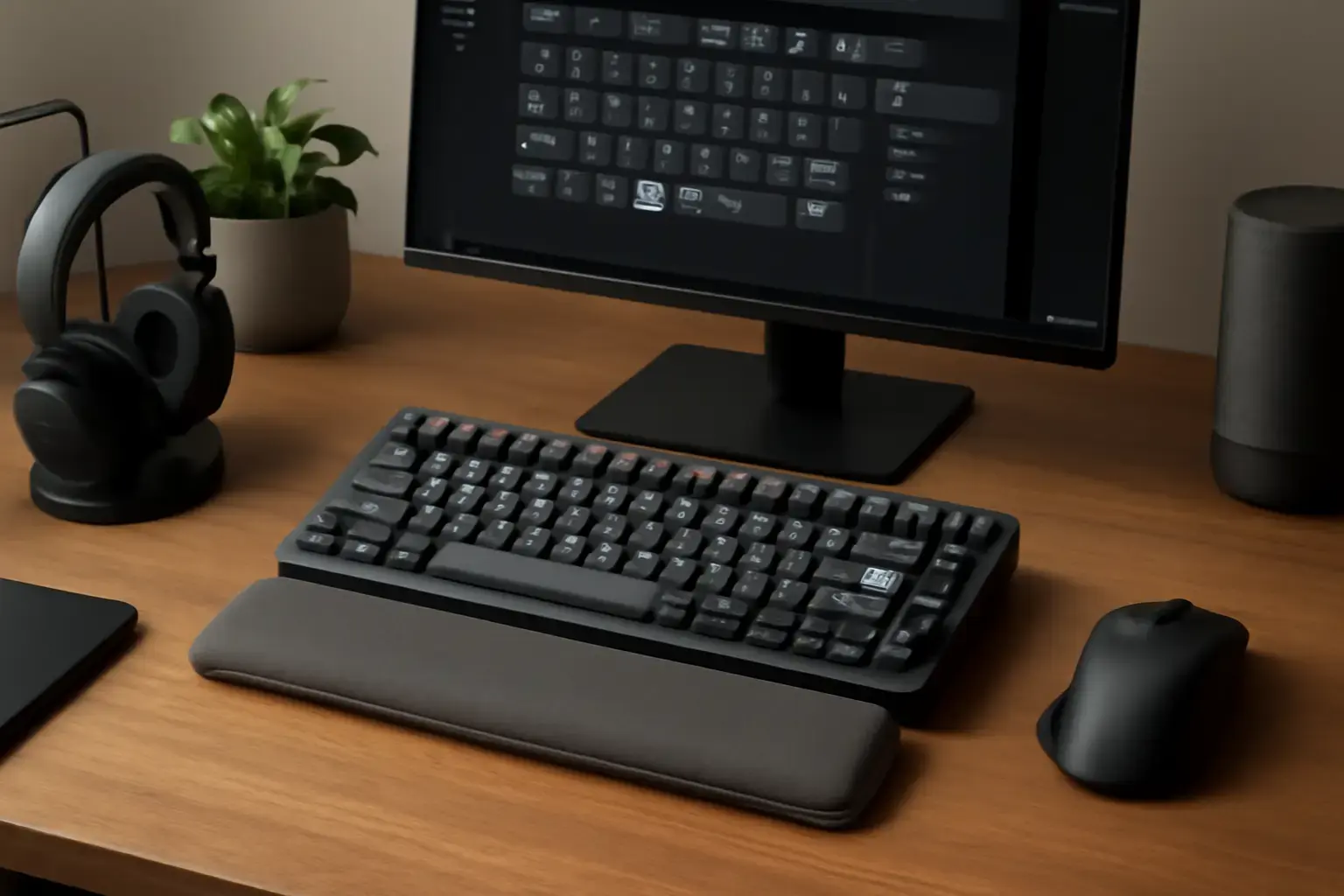
- Ergonomic Considerations: Split or tented layouts, wrist rests, and adjustable height can reduce strain during marathon coding sessions. Comfort should never be an afterthought when speed is your goal.
Choosing Between Mechanical and Membrane for Code Symbol Input Comfort
Mechanical keyboards dominate the coding landscape because their switch options offer a blend of feedback, durability, and typing comfort that membrane keyboards rarely match. But which mechanical switch and layout is best for symbol-heavy coding?
Related reading: Best Multilingual Mobile Keyboard Apps with Custom Shortcuts for Frequent Language Switchers in 2026
Clicky switches (e.g., Cherry MX Blue) provide audible and tactile feedback perfect for typists who want confirmation of keypresses during complex symbol combos. They do tend to be noisier and require more finger force, though.
Tactile but quieter switches (e.g., Cherry MX Brown, Gateron Browns) hit a sweet spot for many developers, balancing feedback and gentle actuation force to minimize finger fatigue and mistakes on symbols.
Linear switches (e.g., Cherry MX Red) offer smooth keypresses but less feedback, which may reduce error correction on tricky symbol sequences.
Membrane keyboards can be tempting due to lower cost and quieter typing but often lack the crisp feedback needed to swiftly and accurately hit symbol keys without extra strain.
How Programmable Keyboards and Layers Accelerate Symbol Input
Almost as important as the physical keys is whether your keyboard supports easy remapping or layered key functions. Popular customizable keyboards like the Keychron K2/K4 or Varmilo VA87M allow you to create symbol-rich layers activated by a single function key.
For example, you can assign your most-used coding symbols such as curly braces { }, square brackets [ ], arrows <-, and semicolons ; to one layer, minimizing finger movement and speeding symbol typing. This is far more efficient than locating symbols with multiple modifier keys on standard layouts.
Some software-based tools integrate with these keyboards to support text expansion or snippet insertion, making your coding workflow even faster without sacrificing accuracy.
Common Mistakes to Avoid When Picking a Coding Keyboard
- Overprioritizing Flashy Features: RGB lighting and extra macro keys look cool but don’t guarantee better symbol input or comfort. Focus on key function and feel.
- Ignoring Ergonomics: The cheapest or smallest keyboard may cause wrist strain, leading to slower coding and repetitive stress injuries.
- Choosing Unsupported Layouts: If you use less common keyboard layouts or switch languages, confirm the keyboard firmware supports easy switching and remapping.
- Neglecting Software Ecosystem: A keyboard without good software support for customizing layers and macros can limit how fast you can type coding symbols.
Practical List: Top Keyboard Features Checklist for Fast Coding Symbol Input
- Mechanical switches with tactile feedback (Cherry MX Brown or equivalent) for accuracy and comfort
- Programmable layers or macro keys to assign coding symbols for single-key access
- Logical key placement with dedicated symbol keys near home row position
- Ergonomic design with adjustable height, wrist rest, or split layout options
- Reliable software support for easy remapping and macros on Windows, Mac, and Linux
- Compact but not cramped layout balancing desk space savings and symbol accessibility
- Durable build for long coding sessions without key wear or wobble
Investing in a keyboard that delivers on these points translates into real-world speed gains when coding and a more comfortable typing experience that prevents fatigue and wrist pain.
You may also like: Best Android Keyboard Apps That Balance Fast Typing and Easy Access to Technical Symbols for Developers in 2026
Conclusion: The Smart Keyboard Choice for Developers Focused on Coding Symbols and Comfort
Fast access to coding symbols is a high-impact feature that can dramatically boost your programming speed but only if it comes with a comfortable, fatigue-free typing experience. Mechanical keyboards with tactile switches, programmable layers, and thoughtful ergonomic design strike the best balance. Avoid keyboards that force awkward key combos or skimp on comfort just to squeeze in extra keys.
Before buying, map out the coding symbols you use most and confirm that the keyboard layout or programmable layers offer straightforward access. Consider proven models popular among developers and check for solid software support. If desk space is tight, pick a compact keyboard that doesn’t force you to dig through function layers for symbols.
For more on selecting keyboards tailored to your coding and typing needs, check our guides on mechanical versus membrane keyboards and compact mechanical keyboards for writers. These resources can help refine your choice further based on your coding style and workspace constraints.
Choosing the right keyboard is an investment in both speed and health — get it right, and your coding sessions will be faster, more accurate, and far less taxing.