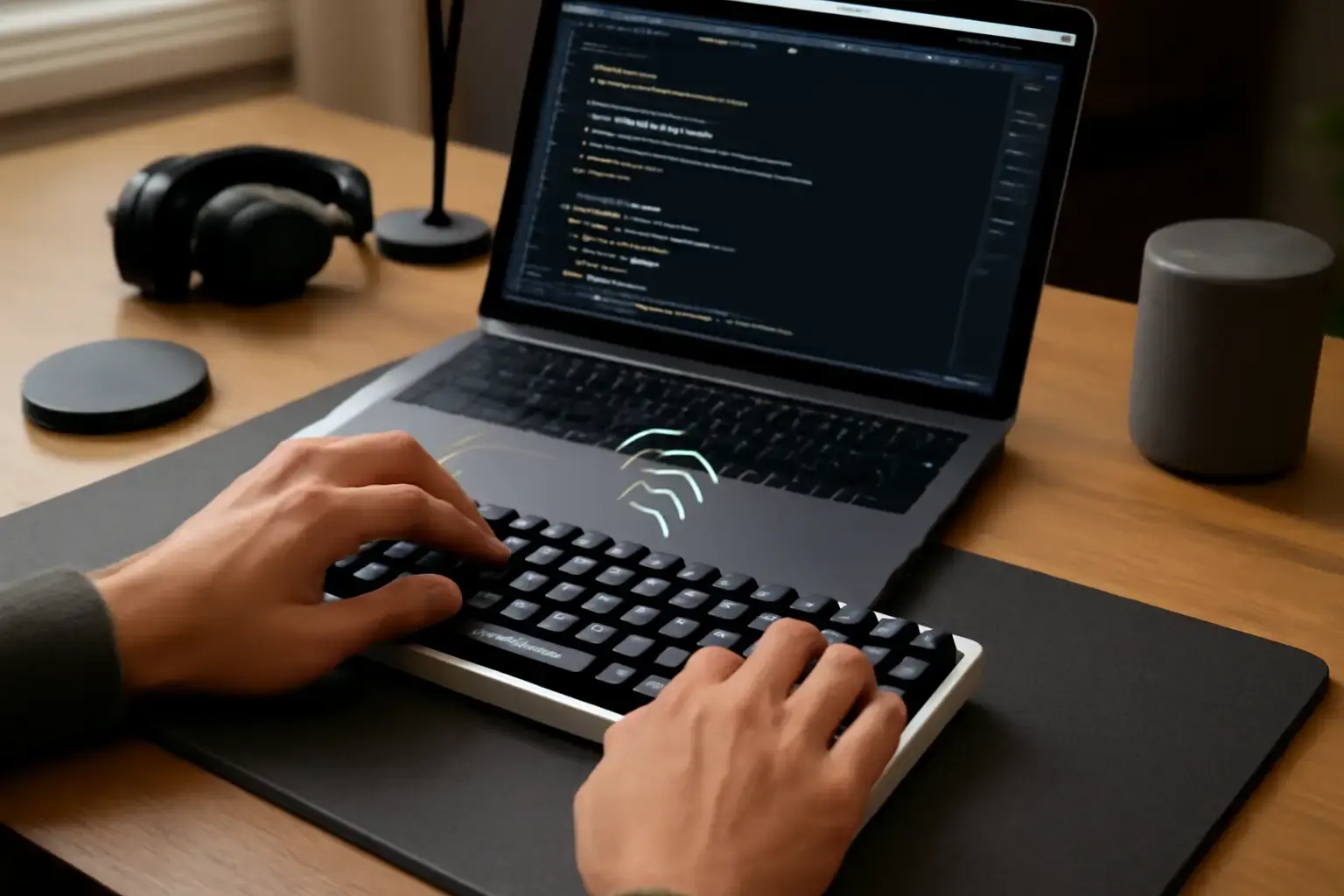
Why Keyboard Latency Matters for Developers Using Bluetooth Mechanical Keyboards
Latency—the delay between pressing a key and seeing the character appear—is more than a minor annoyance for developers. Slow or inconsistent input disrupts coding flow, causes typing errors, and makes troubleshooting code frustrating. Bluetooth mechanical keyboards offer tactile feedback and wireless convenience, but they can suffer from higher latency compared to wired or specialized low-latency wireless keyboards.
Understanding and troubleshooting these latency issues is critical for developers who depend on fast, precise typing. In this article, we focus on practical steps to diagnose and fix Bluetooth mechanical keyboard lag during development work.
Common Causes of Bluetooth Keyboard Latency Specific to Developers
Not all latency is created equal. Developers often rely on rapid symbol input, frequent modifier key combinations, and coding shortcuts that demand near-instant response. Latency for a casual user might be tolerable, but any delay can multiply errors and frustration for developers.
Related reading: How to Choose Between Mechanical and Membrane Keyboards for Students Who Type Code and Essays Daily
- Interference and Range Issues: Bluetooth operates in a crowded 2.4GHz band. Nearby Wi-Fi routers, microwaves, or other wireless devices can interfere and cause lag, especially if the keyboard is far from the receiver or laptop.
- Bluetooth Protocol or Version Limitations: Older Bluetooth versions or devices with outdated firmware may inherently have higher latency. Some keyboards use Bluetooth LE (Low Energy) optimized for battery life, but this can increase input delay.
- Operating System or Driver Conflicts: Developers often work across OSes (Windows, macOS, Linux) where Bluetooth stack implementations vary. Misconfigured or outdated drivers can cause lag spikes or dropped inputs.
- Background Software and Processes: Heavy CPU or memory usage from IDEs, compilers, or background apps can slow down the OS's ability to handle Bluetooth input promptly.
- Keyboard Firmware and Hardware Quality: Mechanical keyboards vary widely. Some budget Bluetooth models sacrifice response speed to save power, affecting latency. Firmware bugs or poorly optimized key scanning can add delay.
Step-by-Step Troubleshooting Guide for Bluetooth Mechanical Keyboard Latency
Follow this practical and developer-focused approach to isolate and reduce latency issues:
- Test Wired vs Bluetooth: If your keyboard supports wired mode (via USB-C or USB Micro), connect it wired and compare latency. If wired is smooth and Bluetooth lags, the problem is wireless-related.
- Reduce Distance and Remove Interference: Move your keyboard closer to your laptop or desktop, ideally within 1-2 meters. Avoid obstacles and other wireless devices nearby. Temporarily disable Wi-Fi or other Bluetooth devices to isolate interference.
- Update Bluetooth Drivers and Keyboard Firmware: Check your OS and keyboard manufacturer’s website for the latest Bluetooth stack drivers and keyboard firmware. Developers should note that OS updates sometimes fix Bluetooth handling bugs.
- Use Specialized Low-Latency Bluetooth Profiles or Bluetooth LE: Some keyboards and OSes support Bluetooth HID modes optimized for low latency. Check your keyboard manual or support forums for enabling these modes.
- Close Heavy Background Applications: Especially on laptops, close heavy development tools or background apps that might hog CPU cycles and cause input lag.
- Try Alternative Bluetooth Adapters: If you use an external Bluetooth dongle, test different dongles known for low latency and stable connections. Internal laptop Bluetooth radios vary in quality.
- Change Keyboard Scan Rate or Polling Rate if Possible: Some mechanical keyboards allow adjusting polling rates via onboard software. Higher polling rates reduce latency but consume more battery.
- Test on Another Device: Connect your keyboard to another computer or tablet to verify if latency persists. This helps isolate hardware problems.
- Consider External Keyboard Apps or Drivers: On Windows and Linux, third-party keyboard drivers or utilities sometimes enhance Bluetooth input stability and latency for developer workflows.
What Most Developers Get Wrong About Bluetooth Keyboard Latency
- Assuming All Bluetooth Keyboards Have Equal Latency: Many developers buy Bluetooth mechanical keyboards based mainly on switch type or design, neglecting wireless performance. Not all Bluetooth keyboards are created equal; some achieve near-wired latency levels, while others lag noticeably.
- Ignoring OS and Driver Differences: macOS, Windows, and Linux handle Bluetooth input differently. A keyboard that works fine on one OS may lag on another without driver updates or tweaks.
- Believing More Battery Life Means Lower Latency: Some keyboards prioritize battery conservation by using Bluetooth LE modes that lower response speed. Faster, wired-like latency often costs battery life.
- Not Testing Before Buying: Developers often skip latency tests or reviews focused on input delay. Real-world typing reviews and latency benchmarks are crucial before investing.
Practical Recommendations for Developers Choosing or Fixing Bluetooth Mechanical Keyboards
When choosing a Bluetooth mechanical keyboard or resolving latency issues, keep these guidelines in mind:
- Prioritize Keyboards with Proven Low Latency: Some current 2025-2026 models specifically advertise or demonstrate low-latency Bluetooth modes for gaming or fast typing. These are often better suited for developers.
- Consider Dual-Mode Keyboards: Keyboards that support both wired and Bluetooth modes offer flexibility. Wired mode can be your latency fallback during heavy development sessions.
- Optimize Your Workspace Wireless Environment: Minimize interference sources like 2.4GHz Wi-Fi, microwaves, and crowded Bluetooth zones.
- Keep Firmware and Drivers Up to Date: Keyboard makers frequently release updates that can drastically improve Bluetooth performance.
- Use Internal Bluetooth if Stable: External dongles can sometimes cause compatibility problems or lag spikes. Test which works better for your machine.
- Check Out Our Recommended Wireless Mechanical Keyboards for Developers: For trusted, low-latency options favored by remote developers, see our dedicated guide Best Wireless Mechanical Keyboards for Remote Developers in 2026.
When to Consider Wired or Alternative Solutions Instead
If latency remains unacceptable after all troubleshooting, developers whose work depends on ultra-fast input should consider:
See also: The Best Budget Keyboards for Students and Developers in 2026 ⌨️💻
- Wired Mechanical Keyboards: Still unbeatable for minimal latency and reliability. Ideal for coding marathons or debugging sessions.
- Wireless Keyboards with Proprietary Low-Latency Protocols: Some high-end models use 2.4GHz dongles with ultra-low latency instead of Bluetooth.
- High-Performance Bluetooth Keyboards with Enhanced Profiles: New models continue to improve this area; stay updated on releases.
Ultimately, your choice depends on balancing portability, typing feel, battery life, and input responsiveness.
Conclusion: Making Bluetooth Mechanical Keyboards Work Smoothly for Development
Bluetooth mechanical keyboards can be excellent tools for developers, combining premium typing feel with wireless convenience. However, latency issues can undermine this experience, especially during fast-paced coding. By systematically troubleshooting interference, firmware, drivers, and hardware quality—and by choosing proven low-latency models—you can minimize lag, improve typing accuracy, and maintain coding flow.
Developers who demand the absolute fastest response and minimal errors may still prefer wired or proprietary wireless options. But for most, understanding the nuances of Bluetooth latency and applying these practical fixes ensures that the freedom of wireless mechanical typing does not come at the expense of productivity.
For more on choosing the best mechanical keyboards to match your coding needs, explore How to Choose a Keyboard That Supports Fast Coding Symbol Input Without Sacrificing Typing Comfort and Troubleshooting Keyboard Latency Issues for Remote Workers Using Wireless Keyboards in 2026.