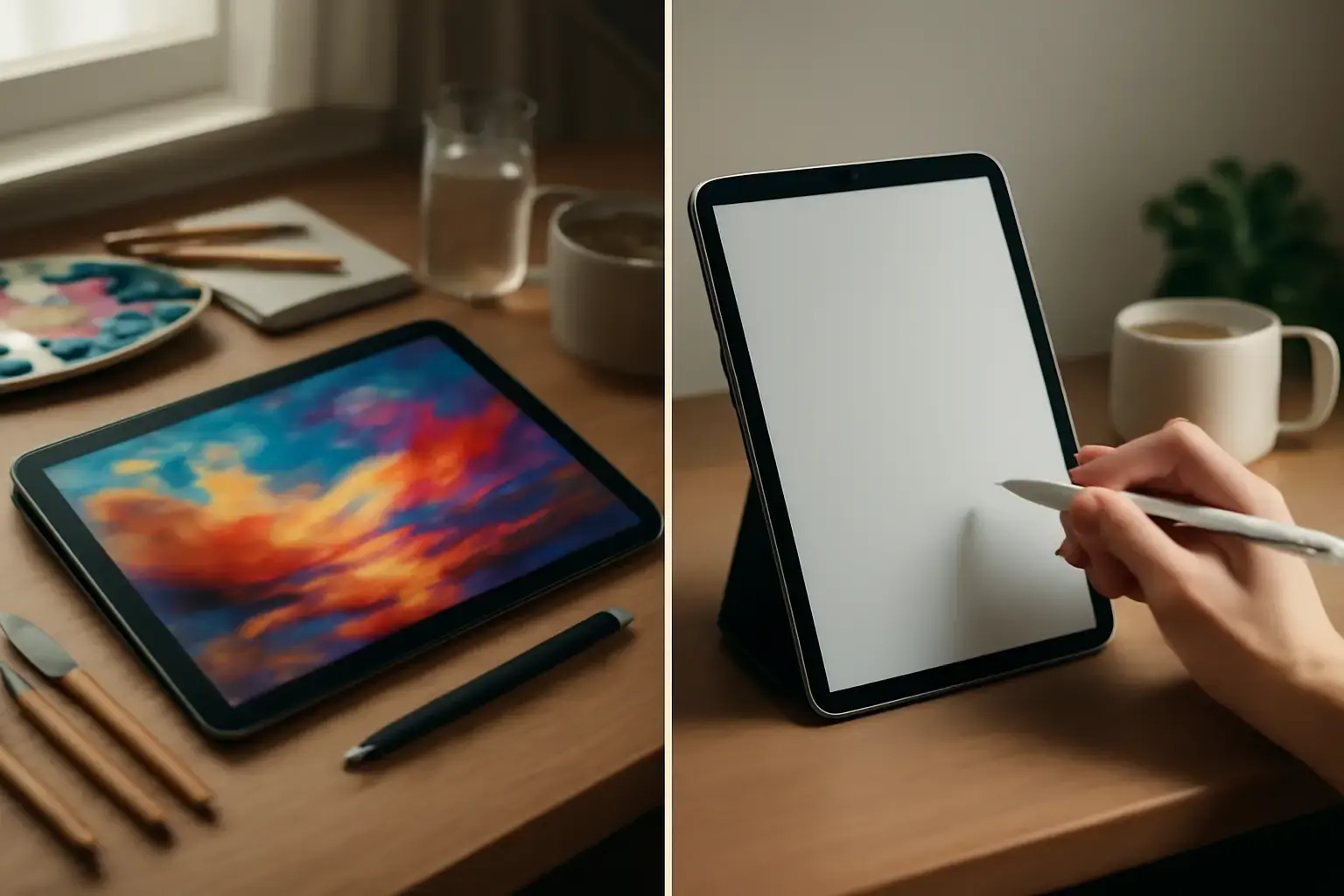
Why Pressure Sensitivity and App Support Really Matter in Art Tablets
When buying a tablet for art and design in 2026, the headline specs can be misleading. A faster processor, a sharper camera, or a thinner body may look impressive on a product page, but those details rarely determine whether a tablet feels good to draw on. For artists, illustrators, designers, animators, and students, the real decision comes down to two things: pressure sensitivity and app ecosystem support.
Pressure sensitivity affects how naturally your stylus responds to your hand. When it works well, a light stroke feels delicate, a heavier stroke becomes darker or thicker, and shading feels controlled instead of mechanical. When it works poorly, your lines feel stiff, unpredictable, or disconnected from what your hand is doing. That difference matters every single time you sketch, ink, paint, shade, or write.
App support is just as important. A tablet with excellent pen hardware can still become frustrating if your favorite creative apps are missing, limited, poorly optimized, or locked behind a workflow that does not match how you work. In 2026, the best drawing tablet is not simply the one with the most pressure levels. It is the one where the pen, display, software, file handling, and creative apps work together smoothly.
This is why artists should avoid buying based only on pressure-level numbers. A device with 8,192 pressure levels is not automatically better than one with fewer levels if the pen has poor latency, weak tilt support, bad palm rejection, or inconsistent app integration. The real question is: does the tablet help you create comfortably, accurately, and repeatedly without fighting the tool?
Quick Comparison of the Best Art Tablets in 2026
| Tablet | Pressure Sensitivity | Best For | Main Trade-off |
|---|---|---|---|
| iPad Pro M4 | Apple Pencil Pro support | Illustrators, painters, Procreate users | Premium pricing and iPadOS limits |
| Microsoft Surface Pro 11 | Surface Slim Pen support | Artists needing full Windows apps | Battery and pen feel depend on setup |
| Samsung Galaxy Tab S10 Ultra | S Pen support | Android artists and large-screen sketching | Creative app ecosystem is less complete |
| Wacom Cintiq Pro 17 | 8,192 levels | Studio professionals and desktop workflows | Not standalone or travel-friendly |
| XP-Pen Artist Pro 27 | High-level professional pen input | Budget-conscious studio creators | Less premium than Wacom overall |
Pressure Sensitivity Explained: Why the Number Is Only Part of the Story
Pressure sensitivity measures how many levels of force a stylus can detect. In simple terms, it controls how your line changes when you press lightly or firmly. This affects line weight, brush opacity, texture, shading, and the overall expressiveness of your strokes.
For digital painting, pressure sensitivity is essential. A good pressure curve allows you to build shadows gradually, create soft transitions, and control brush thickness without constantly adjusting settings. For inking, it helps produce clean tapered lines. For handwriting and annotation, it makes writing feel closer to pen on paper. For graphic design, it can improve sketching, rough concepts, and hand-drawn elements, even if final work happens in vector tools.
However, more pressure levels do not automatically mean a better drawing experience. A tablet can advertise thousands of pressure levels and still feel worse than another device with lower numbers if the stylus has poor tracking or the software does not interpret the input smoothly.
When evaluating pressure sensitivity, look at the full pen experience:
- Initial activation force: The pen should detect very light strokes without needing too much pressure.
- Pressure curve control: Good apps let you adjust how quickly strokes become thicker or darker.
- Tilt support: Important for shading, pencil brushes, charcoal effects, and painterly workflows.
- Latency: The line should appear immediately under the pen tip with minimal delay.
- Palm rejection: Your hand should rest naturally on the screen without creating accidental marks.
- Parallax: The gap between the pen tip and the displayed line should feel minimal.
For most artists, the best tablet is not the one with the largest number on the box. It is the one that feels predictable. You should be able to make the same stroke twice and get the same result twice. That consistency is what separates a serious creative tool from a device that only looks good in marketing.
App Support Matters More Than Many Buyers Think
App ecosystem support can make or break an art tablet. A powerful tablet is not useful if the apps you depend on are unavailable, limited, or poorly optimized. In creative work, software is not an afterthought. It defines your brushes, layers, export formats, shortcuts, color tools, file compatibility, and collaboration options.
For many illustrators, Procreate is a major reason to choose iPad. It is fast, intuitive, and deeply optimized for Apple Pencil workflows. For comic artists and manga creators, Clip Studio Paint remains one of the strongest options because of its brush engine, panel tools, and line control. For professional designers and photographers, Adobe Photoshop, Illustrator, and related apps may be essential, especially when files need to move between clients, studios, and desktop systems.
This is where platform choice becomes critical. iPadOS has the strongest tablet-first creative ecosystem, especially for illustrators and digital painters. Windows gives access to full desktop creative software, which is extremely valuable for professionals who need complete Photoshop, Illustrator, Corel Painter, Blender, ZBrush, or other advanced tools. Android has improved, but its creative app selection is still less consistent than iPadOS and Windows for some professional workflows.
Before buying a tablet, answer these questions honestly:
- Which apps do you already use every week?
- Are those apps fully available on the tablet platform?
- Do they support pressure, tilt, palm rejection, and shortcuts properly?
- Can you export files in the formats your clients, school, or team require?
- Can you move files easily between your tablet, laptop, cloud storage, and external drives?
The wrong app ecosystem can slow you down more than a slightly weaker processor ever will.
Top Drawing Tablets for Artists and Designers in 2026
iPad Pro M4
The iPad Pro M4 is one of the strongest choices for digital artists who want a premium, portable, app-rich creative tablet. It is especially compelling for illustrators, concept artists, digital painters, and creators who rely on Procreate, Adobe Fresco, Affinity apps, or iPad-optimized versions of major creative tools.
The biggest strength of the iPad Pro is how polished the entire experience feels. The display, Apple Pencil Pro, app ecosystem, and touch interface work together in a way that feels immediate and natural. For many artists, that matters more than desktop-level file control. You can open the tablet, start drawing instantly, and continue working almost anywhere.
- Excellent Apple Pencil Pro integration
- Outstanding creative app ecosystem
- Very portable for a professional art device
- Great for sketching, painting, note-taking, and client presentations
- Strong display quality for color-sensitive work
Trade-offs: The iPad Pro is expensive, and iPadOS can feel restrictive if your workflow depends on desktop file systems, plug-ins, or full professional desktop apps. Some Adobe apps on iPad are not identical to their desktop versions, so professionals should check feature requirements before switching fully.
Best for: Artists who want the best portable drawing experience, especially those who use Procreate or prefer a clean tablet-first workflow.
Microsoft Surface Pro 11
The Microsoft Surface Pro 11 is the better fit for artists and designers who need a real Windows environment. Unlike an iPad or Android tablet, it can run full desktop creative software, which makes it valuable for professionals who rely on Windows versions of Photoshop, Illustrator, Clip Studio Paint, Corel Painter, Blender, and other desktop apps.
Its biggest advantage is flexibility. You can sketch, paint, manage files, connect peripherals, use desktop browser tools, run full productivity apps, and switch between creative and office workflows on the same device. For designers who need one machine for client work, communication, file management, and drawing, that is a serious benefit.
- Runs full Windows creative software
- Works as both tablet and laptop replacement
- Good for designers who need full file control
- Useful for Adobe, 3D, and mixed productivity workflows
- Strong option for students and professionals who need one device
Trade-offs: The drawing experience can depend heavily on pen choice, app settings, drivers, and Windows behavior. Battery life under creative workloads may also be less predictable than on dedicated tablets. The pen may be sold separately depending on the bundle, which increases total cost.
Best for: Artists who need full desktop software and do not want a separate laptop and drawing tablet.
Samsung Galaxy Tab S10 Ultra
The Samsung Galaxy Tab S10 Ultra is the strongest Android-style option for artists who want a large screen, included S Pen support, and a flexible mobile workflow. It is especially appealing for Android users who already rely on Google Drive, Samsung Notes, DeX, and Android file management.
The large display is excellent for sketching, reference images, comics, storyboards, and split-screen workflows. The S Pen is responsive and does not require the same type of charging anxiety as some active pens. For artists who prefer Clip Studio Paint, Infinite Painter, or Android-compatible drawing apps, the experience can be very good.
- Large display for drawing and references
- S Pen support is convenient and responsive
- Good for Android users and Samsung ecosystem workflows
- Useful multitasking with split-screen and DeX-style setups
- Strong media and presentation tablet when not drawing
Trade-offs: Android still does not match iPadOS for overall creative app depth. Some professional apps are missing, less polished, or less optimized. The large size also makes it less comfortable for handheld sketching compared with smaller tablets.
Best for: Android users, large-screen sketchers, students, and artists who want a mobile device that also works well for media and productivity.
Wacom Cintiq Pro 17
The Wacom Cintiq Pro 17 is not a general tablet. It is a professional pen display built for serious studio work. It connects to a computer and lets you draw directly on a high-quality screen while using full desktop software. For many professional illustrators, animators, retouchers, and concept artists, this type of setup still provides the most dependable drawing experience.
Wacom’s biggest strength is pen feel. The Pro Pen experience is known for precision, tilt control, pressure response, and customization. If your work depends on subtle brush control, repeatable line quality, accurate color work, and long drawing sessions at a desk, the Cintiq Pro line remains one of the safest professional choices.
- Excellent pen precision and pressure control
- Designed for professional desktop workflows
- Strong color and display quality
- Customizable pen and shortcut options
- Works with full desktop creative software
Trade-offs: It is expensive, requires a computer, and is not portable in the same way as an iPad, Surface, or Galaxy Tab. It is a studio device, not a couch sketching tablet or travel companion.
Best for: Professional artists who work at a desk and want a dedicated drawing display with high-end pen performance.
XP-Pen Artist Pro 27
The XP-Pen Artist Pro 27 is a strong alternative for creators who want a large professional pen display without paying Wacom-level pricing. It is designed for desktop-connected workflows and can be a practical choice for illustrators, designers, students, and freelancers building a serious setup on a more controlled budget.
The value proposition is clear: you get a large drawing surface, strong pen input, and broad desktop software compatibility at a more approachable cost than some premium competitors. For artists who work from a fixed desk and do not need a standalone tablet, this can be a smarter investment than buying an expensive mobile device with limited screen space.
- Large drawing area for professional work
- Good value compared with premium pen displays
- Works with Windows and macOS creative software
- Useful for illustration, design, animation, and photo editing
- Better fit for desk setups than mobile tablets
Trade-offs: Build quality, calibration consistency, support experience, and long-term reliability may not feel as premium as Wacom for demanding professionals. It also requires a computer, so it is not a standalone solution.
Best for: Budget-conscious studio artists, students, and freelancers who want a large pen display for desktop creative work.
How to Choose the Right Art Tablet for Your Workflow
The best art tablet depends less on the brand and more on where, how, and why you create. A professional illustrator working eight hours a day at a desk has different needs from a student sketching between classes or a designer who mainly edits layouts and creates quick concepts.
Choose iPad Pro M4 if you want the most polished portable drawing experience, especially for Procreate, digital painting, sketching, and illustration. It is the easiest recommendation for artists who value mobility and simplicity.
Choose Surface Pro 11 if you need full Windows apps and want one device that can act as a laptop, tablet, and drawing tool. It is better for mixed professional workflows where desktop software matters.
Choose Galaxy Tab S10 Ultra if you prefer Android, want a large screen, and like the convenience of S Pen support. It is strong for sketching, media, notes, and Android-based creative workflows.
Choose Wacom Cintiq Pro 17 if you are a studio professional who prioritizes pen accuracy, color quality, and full desktop software over portability.
Choose XP-Pen Artist Pro 27 if you want a large pen display for serious work but need a more budget-conscious alternative to Wacom.
Also consider ergonomics. A standalone tablet is comfortable for sketching on a sofa, train, or café table. A pen display is better for long desk sessions with a proper chair, keyboard, shortcuts, and a calibrated monitor setup. Many artists eventually use both: a portable tablet for sketching and a desktop pen display for final work.
Common Buying Mistakes: What Most People Get Wrong
- Confusing pressure levels with drawing quality: More levels do not guarantee better feel. Latency, tilt support, app optimization, and pressure curves matter just as much.
- Ignoring app compatibility: Do not buy a tablet until you confirm your main apps work properly on it. Procreate users need iPad. Full desktop software users may need Windows or a computer-connected pen display.
- Buying too large too soon: A huge display is great at a desk but annoying for travel, classes, or casual sketching.
- Forgetting the total cost: Pens, keyboards, stands, cases, screen protectors, adapters, and software subscriptions can significantly increase the real price.
- Overlooking file workflow: If you work with clients, teams, or print files, make sure exporting, sharing, and organizing files is painless.
- Assuming mobile apps equal desktop apps: Some tablet versions of creative apps are excellent, but not all have the same features as their desktop versions.
- Skipping comfort: A great tablet can still cause wrist, neck, or shoulder strain if the stand angle and desk setup are poor.
Final Recommendation
For most digital artists in 2026, the iPad Pro M4 is the best overall choice because it combines excellent pen support, a premium display, strong portability, and the most mature tablet-first creative app ecosystem. It is especially strong for illustrators, digital painters, and Procreate users who want a tool that feels natural from the first sketch.
If your work depends on full desktop software, the Microsoft Surface Pro 11 is the more practical choice because it gives you Windows flexibility in a portable format. If you prefer Android and want a large screen with convenient stylus support, the Samsung Galaxy Tab S10 Ultra is the strongest option. For studio professionals, the Wacom Cintiq Pro 17 remains the premium pen-display choice, while the XP-Pen Artist Pro 27 offers a more affordable route into large-screen desktop drawing.
The smartest decision is not to chase the highest pressure number. Choose the tablet that matches your apps, your workflow, your workspace, and your budget. The right art tablet should feel like a natural extension of your hand — not another technical compromise you have to work around.
For more on tablets that support keyboards for hybrid workflows, check out our Top Tablets with Keyboard Support for Study and Work in 2026. And if your creative work includes document markup or PDF workflows, see our guide to Best PDF Annotation Apps for Tablets and Laptops.
Related: Best Personal Finance Apps for Smartphones in 2026: Features Compared and Buyer Guidance
Related: Mastering Focus and Time Tracking: The Best Phone and Tablet Apps for 2026
Related: Best Tablets with Keyboard Support for Students and Remote Workers in 2026 💻⌨️